For years, the dream of a truly minimalist desk setup was hampered by the physical realities of hardware connectivity. To achieve a fully functional workstation, a laptop user typically had to contend with a chaotic "octopus" of wires: a proprietary power brick for charging, an HDMI or DisplayPort cable for the screen, a USB-A hub for peripherals, and perhaps a dedicated dongle for an Ethernet connection. This clutter was more than an aesthetic nuisance; it represented a friction-filled workflow where "plugging in" for the day was a multi-step chore.
The emergence of the USB-C monitor has fundamentally shifted this dynamic. By integrating the capabilities of a docking station directly into the display’s chassis, manufacturers have created a streamlined solution that handles video, power, and data through a single, slender cable. While dedicated docking stations still hold a significant place in high-end professional environments, for the average user, the integrated USB-C monitor is rapidly becoming the gold standard for workspace efficiency.
How the USB-C Port on a Monitor Works
To understand why the USB-C monitor is so transformative, one must look at the versatility of the USB Type-C standard itself. Unlike previous generations of USB, which were primarily designed for data transfer and low-voltage power, USB-C was engineered to be a "do-everything" interface. A modern monitor equipped with a full-featured USB-C port performs three critical roles simultaneously, effectively acting as the central nervous system of the desk.
One Cable Carrying Video, Power, and Data
The first and most visible function is video transmission. Most USB-C monitors utilize a technology known as DisplayPort Alternate Mode (or DP Alt Mode). This standard allows the USB-C cable to carry a native DisplayPort signal alongside other data. From the perspective of the laptop’s graphics processor, there is no difference between connecting to a standard DisplayPort jack and using the USB-C port; the signal is uncompressed and maintains high fidelity. This eliminates the need for the bulky adapters that were once required to bridge the gap between mobile ports and desktop displays.
The second pillar of this integration is Power Delivery (USB-PD). This protocol allows for bi-directional power flow, meaning the monitor—which is plugged into a wall outlet—can send electricity back to the laptop through the same cable used for video. Power ratings on these monitors typically range from 65W to 90W, with some high-end professional displays pushing toward 140W. For the vast majority of ultrabooks and productivity laptops, a 65W or 90W feed is more than enough to charge the battery while the computer is under a full workload. This effectively turns the monitor into the laptop’s primary charger, allowing the user to keep their original power brick in their travel bag rather than threading it through their desk furniture.
Beyond charging the laptop, this power delivery is also a boon for mobile devices. A smartphone or tablet connected to the monitor’s USB-C port can fast-charge while also potentially triggering desktop modes, such as Samsung DeX or Motorola Ready For, further blurring the lines between mobile and desktop computing.
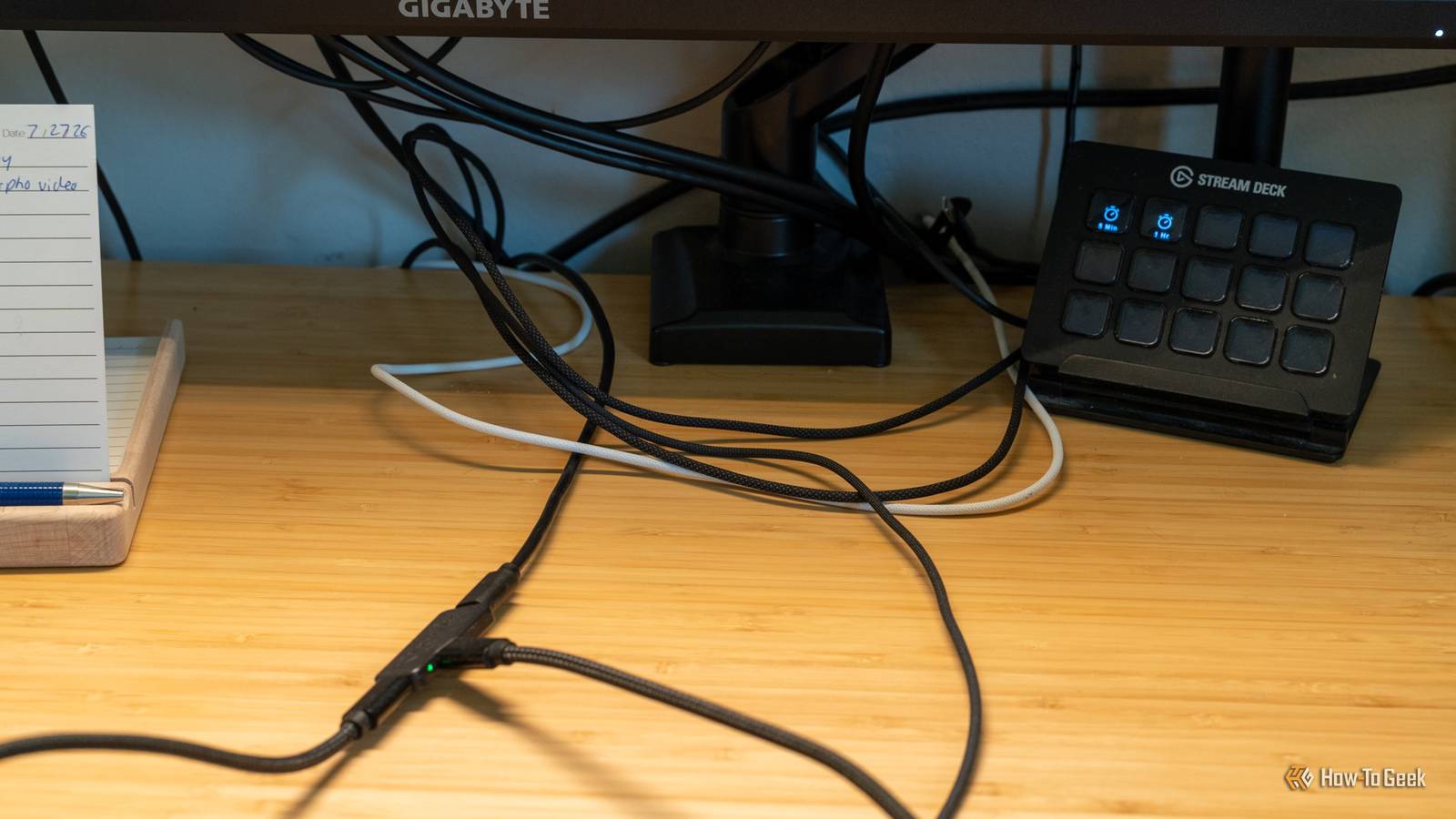
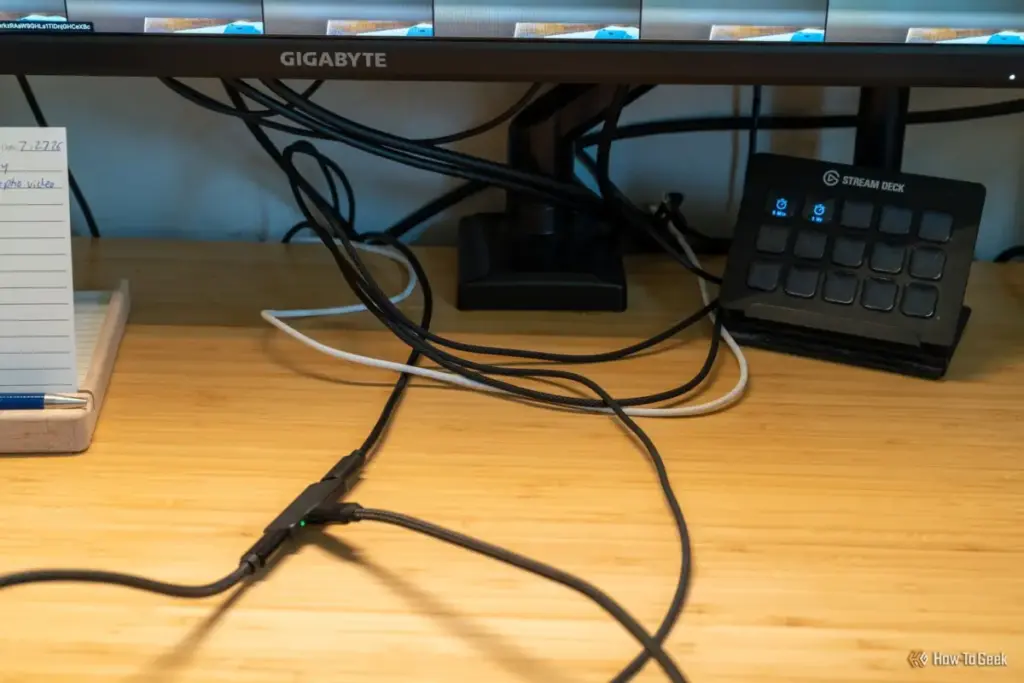
The third function is the data link. Every USB-C monitor with these features includes a built-in USB hub. When the single cable is connected to the laptop, the monitor acts as an "upstream" host. Any device plugged into the monitor’s various USB-A or USB-C ports—be it a mechanical keyboard, a wireless mouse dongle, a high-definition webcam, or an external microphone—is instantly recognized by the laptop. Some specialized monitors even include a built-in Ethernet port, providing the stability of a wired internet connection to laptops that are otherwise restricted to Wi-Fi.
However, this convenience comes with a technical caveat regarding bandwidth. A USB-C cable has a fixed number of high-speed data "lanes." When a user drives a high-resolution display, such as a 4K panel at a 60Hz or 144Hz refresh rate, the video signal requires a significant portion of that bandwidth. In many cases, the monitor must sacrifice data speeds to maintain the video signal, dropping the integrated USB hub from USB 3.0 speeds down to USB 2.0. While this is irrelevant for a mouse or keyboard, it can drastically slow down file transfers from an external hard drive. Some monitors address this by offering a "USB Priority" setting in their on-screen display (OSD), allowing the user to choose between higher refresh rates or faster data transfer speeds.
How it Compares Against a Regular Dock
The debate between an integrated monitor hub and a dedicated docking station often comes down to a choice between simplicity and raw power. While they solve the same problem—connecting multiple devices to a laptop via one cable—the execution differs significantly.
Docks Win on Ports, Monitors Win on Simplicity
A dedicated docking station is a standalone device that acts as a middleman. Because it is a specialized piece of hardware, a dock typically offers a much wider array of connectivity options than a monitor. High-end Thunderbolt 4 or USB4 docks often feature dual HDMI or DisplayPort outputs, multiple USB-C ports with high-speed data ratings, SD and microSD card readers, and dedicated audio jacks. For a creative professional who needs to ingest footage from memory cards while outputting to two different screens and a set of studio monitors, a standalone dock remains an indispensable tool.
Bandwidth is another area where dedicated docks hold a clear advantage. While many USB-C monitors rely on DisplayPort Alt Mode, professional-grade docks utilize Thunderbolt or USB4 protocols, which provide up to 40Gbps (and even 80Gbps with the advent of Thunderbolt 5). This massive pipe allows for the simultaneous use of multiple 4K displays and high-speed NVMe external storage without the "bandwidth throttling" often seen in monitor-based hubs.
However, the monitor-centric approach wins on the grounds of elegance and cost-effectiveness. A dedicated Thunderbolt dock can easily cost between $200 and $400. If a user is already in the market for a new monitor, choosing a model with an integrated USB-C hub often adds only a small premium to the price, effectively giving them a "free" dock.
Furthermore, the physical footprint of a monitor-based setup is significantly smaller. A dedicated dock requires its own power brick—which is often as large as the dock itself—and adds another box to the desk surface. By moving these components inside the monitor, the user eliminates several points of failure and a significant amount of cable clutter. There are no firmware updates to manage for a separate docking box, and there is one less device that can overheat or require a reboot. For the minimalist, the "one-cable" monitor is the ultimate expression of a clean workspace.

Which One is the Better Option?
Determining the right choice depends heavily on the complexity of the user’s workflow and the specific hardware they use. The decision is rarely about which technology is "better" in a vacuum, but rather which one fits the user’s specific desk ecology.
It Depends on How Many Screens You Run
For a standard setup involving one laptop and one external display, the USB-C monitor is almost always the superior choice. It provides enough power to keep the laptop charged and enough ports to handle the basic peripherals that most users require. For students, office workers, and remote professionals, the simplicity of walking up to a desk and plugging in a single cable to "dock" the entire workstation is a massive quality-of-life improvement.
The calculation shifts when a second or third external screen is introduced. While some USB-C monitors support "daisy-chaining" via DisplayPort Multi-Stream Transport (MST)—where one monitor connects to another—this technology has limitations. Most notably, macOS does not support MST for extended displays over standard USB-C. This means that a Mac user attempting to daisy-chain two monitors will end up with two screens showing the exact same mirrored image. For these users, a Thunderbolt dock with multiple dedicated video outputs is the only way to achieve a multi-monitor setup over a single cable.
The "middle path" is also a popular strategy. Many users find that a USB-C monitor handles 90% of their needs, but they still require an occasional SD card reader or an extra USB-A port. In these cases, a small, bus-powered USB-C hub can be plugged into the monitor itself or the laptop’s second port. This hybrid approach maintains the cleanliness of the desk while providing the flexibility of a dock at a fraction of the cost.
Ultimately, the rise of the USB-C monitor represents the maturation of the "desktop-as-a-service" philosophy. As laptops become more powerful and ports become more scarce, the monitor is no longer just a passive output device; it has become an active participant in the computing experience.
One Cable is Enough for Most Desks
The transition to a USB-C monitor is a definitive step toward the "invisible" desk setup. By carrying video, power, and data over a single connection, these displays have successfully cannibalized the role of the entry-level docking station. While power users, multi-monitor aficionados, and data-heavy professionals will still find value in the expanded bandwidth and port variety of a dedicated Thunderbolt dock, the average user no longer needs that extra hardware. For most people, the simplest solution—the one-cable monitor—is also the best one. It reduces the "tangle of adapters" to a single, elegant point of contact, proving that in the world of technology, less is often significantly more.
 Tech Tutorials & How-To Guides
The DIY iPod: How a Forgotten Smart Home Remote Resurrected Apple’s Iconic Cover Flow
In the annals of personal technology, few interfaces have evoked as much...
 Tech Tutorials & How-To Guides
Pixel 11’s Rambler AI Voice Typing Proven to Run Seamlessly on Older Hardware
The launch of a new flagship smartphone is almost always accompanied by...
 Tech Tutorials & How-To Guides
The DIY Smart Home Revolution: How Enthusiasts Are Building Premium Hardware for a Fraction of the Retail Cost
The promise of the modern smart home has always been one of...