For years, the dream of a truly minimalist desk setup was hampered by the physical realities of hardware connectivity. To achieve a fully functional workstation, a laptop user typically had to contend with a chaotic "octopus" of wires: a proprietary power brick for charging, an HDMI or DisplayPort cable for the screen, a USB-A hub for peripherals, and perhaps a dedicated dongle for an Ethernet connection. This clutter was more than an aesthetic nuisance; it represented a friction-filled workflow where "plugging in" for the day was a multi-step chore.
The emergence of the USB-C monitor has fundamentally shifted this dynamic. By integrating the capabilities of a docking station directly into the display’s chassis, manufacturers have created a streamlined solution that handles video, power, and data through a single, slender cable. While dedicated docking stations still hold a significant place in high-end professional environments, for the average user, the integrated USB-C monitor is rapidly becoming the gold standard for workspace efficiency.
How the USB-C Port on a Monitor Works
To understand why the USB-C monitor is so transformative, one must look at the versatility of the USB Type-C standard itself. Unlike previous generations of USB, which were primarily designed for data transfer and low-voltage power, USB-C was engineered to be a "do-everything" interface. A modern monitor equipped with a full-featured USB-C port performs three critical roles simultaneously, effectively acting as the central nervous system of the desk.
One Cable Carrying Video, Power, and Data
The first and most visible function is video transmission. Most USB-C monitors utilize a technology known as DisplayPort Alternate Mode (or DP Alt Mode). This standard allows the USB-C cable to carry a native DisplayPort signal alongside other data. From the perspective of the laptop’s graphics processor, there is no difference between connecting to a standard DisplayPort jack and using the USB-C port; the signal is uncompressed and maintains high fidelity. This eliminates the need for the bulky adapters that were once required to bridge the gap between mobile ports and desktop displays.
The second pillar of this integration is Power Delivery (USB-PD). This protocol allows for bi-directional power flow, meaning the monitor—which is plugged into a wall outlet—can send electricity back to the laptop through the same cable used for video. Power ratings on these monitors typically range from 65W to 90W, with some high-end professional displays pushing toward 140W. For the vast majority of ultrabooks and productivity laptops, a 65W or 90W feed is more than enough to charge the battery while the computer is under a full workload. This effectively turns the monitor into the laptop’s primary charger, allowing the user to keep their original power brick in their travel bag rather than threading it through their desk furniture.
Beyond charging the laptop, this power delivery is also a boon for mobile devices. A smartphone or tablet connected to the monitor’s USB-C port can fast-charge while also potentially triggering desktop modes, such as Samsung DeX or Motorola Ready For, further blurring the lines between mobile and desktop computing.
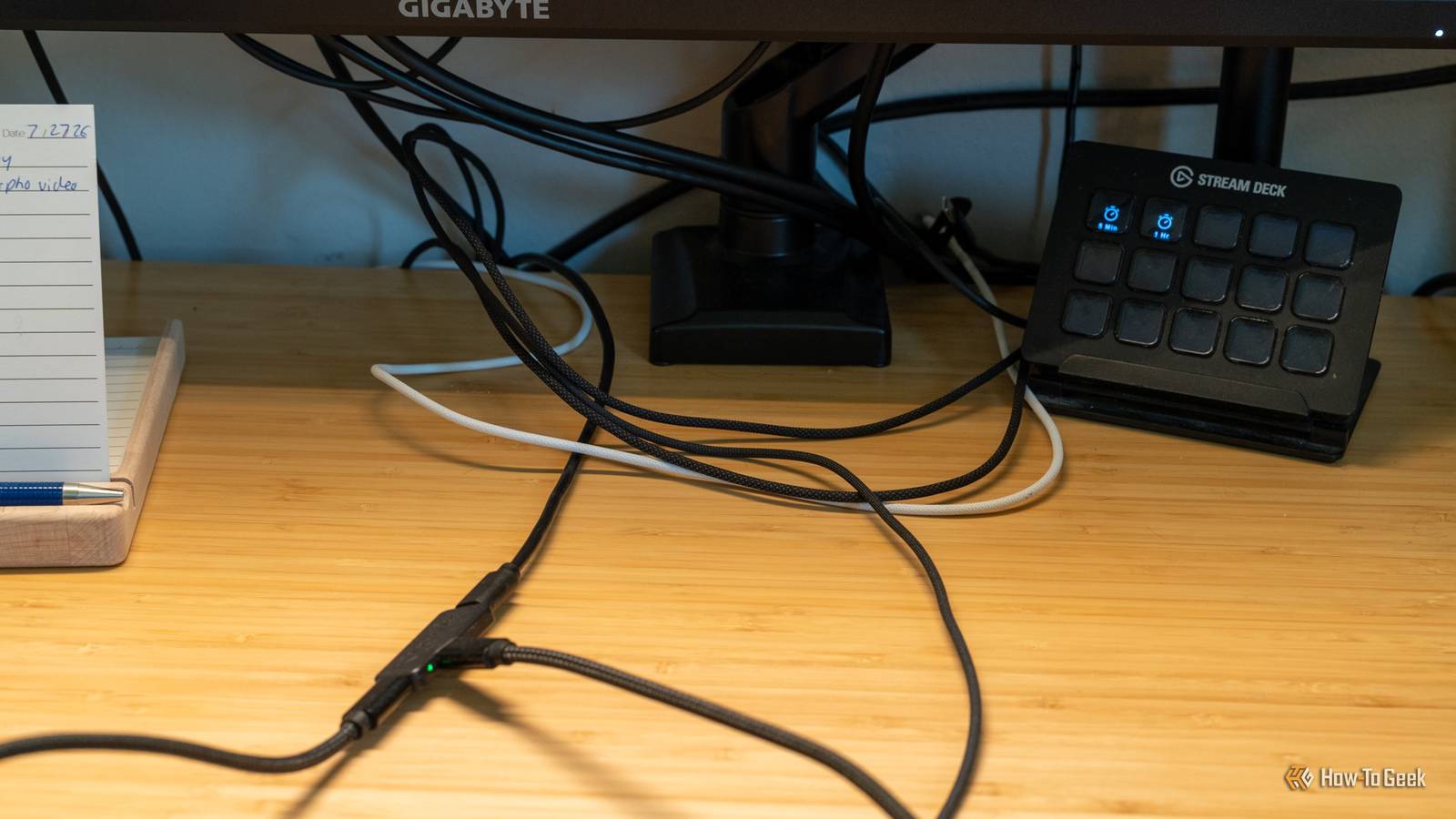
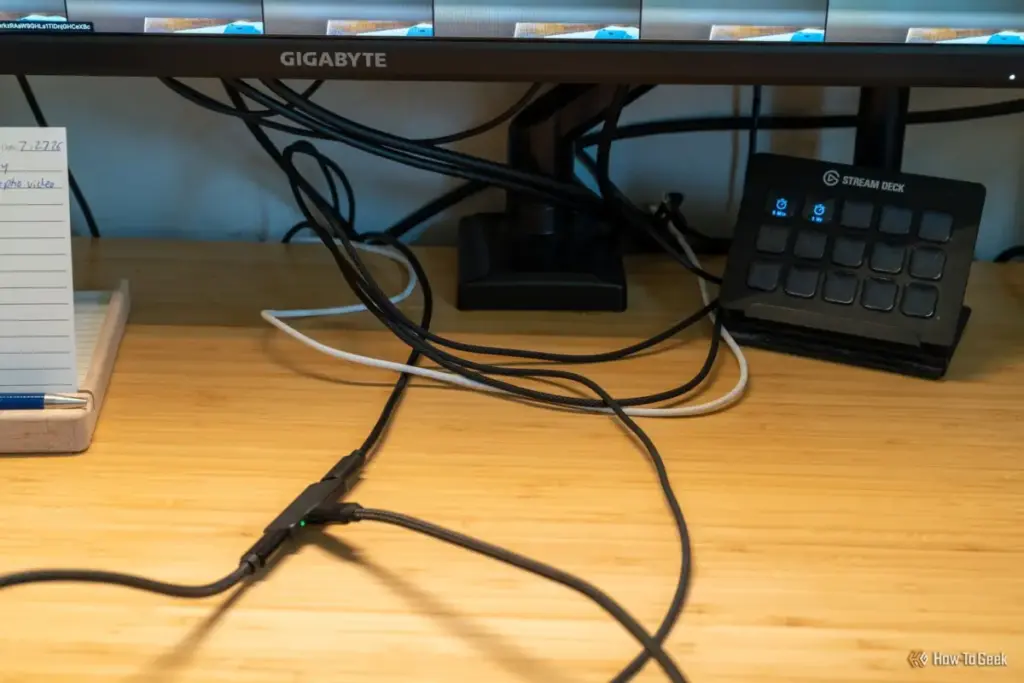
The third function is the data link. Every USB-C monitor with these features includes a built-in USB hub. When the single cable is connected to the laptop, the monitor acts as an "upstream" host. Any device plugged into the monitor’s various USB-A or USB-C ports—be it a mechanical keyboard, a wireless mouse dongle, a high-definition webcam, or an external microphone—is instantly recognized by the laptop. Some specialized monitors even include a built-in Ethernet port, providing the stability of a wired internet connection to laptops that are otherwise restricted to Wi-Fi.
 Tech Tutorials & How-To Guides
Ryobi Expands Winter Tool Lineup with Battery-Powered Heating and Emergency Solutions
As the autumn leaves begin to settle and the first frost takes...
 Tech Tutorials & How-To Guides
Bridging the Security Gap: Replicating the YubiKey Experience with a $6 ESP32 Microcontroller
In an era where digital identity is under constant siege from sophisticated...
 Tech Tutorials & How-To Guides
Bridging the Digital Divide: How Legacy Kindle Hardware Reclaims Modern Social Features Through Open-Source Innovation
In the rapidly evolving landscape of consumer electronics, the lifespan of a...