The Amazon Fire TV ecosystem has evolved from a simple portal for Prime Video into a sophisticated, high-performance computing environment. For millions of households, these devices serve as the primary gateway to 4K HDR content, immersive spatial audio, and even cloud gaming. However, as the complexity of streaming hardware and software increases, so too does the potential for performance bottlenecks, network instability, and audio-visual configuration errors. While most users interact only with the polished surface of the Fire OS interface, Amazon has integrated a comprehensive suite of professional-grade diagnostic tools hidden beneath the consumer-facing layer.
These developer-oriented features, often overlooked by the general public, provide a level of transparency usually reserved for hardware engineers and software testers. By accessing these hidden menus, users can gain real-time insights into exactly why a stream might be buffering, why a surround sound system isn’t engaging its height channels, or why the edges of the screen appear slightly cropped. Understanding these tools is becoming increasingly essential for enthusiasts who want to ensure they are getting the maximum value out of their home theater investments.
System X-Ray: A Real-Time Window into Hardware Performance
At the heart of the Fire TV’s diagnostic suite is System X-Ray, a sophisticated overlay that provides a continuous telemetry feed of the device’s internal state. In an era where streaming sticks are frequently tucked behind televisions—often leading to thermal constraints—knowing how hard the internal processor is working can be the difference between a frustrating evening of lag and a seamless viewing experience.
Accessing this menu requires a specific sequence of inputs: holding the Select and Down buttons simultaneously for several seconds before pressing the Menu button. This action reveals the Developer Tools Menu, where System X-Ray can be toggled on. Once active, a translucent banner appears at the top of the screen, remaining visible even as the user navigates through third-party applications or launches a high-bitrate 4K stream.
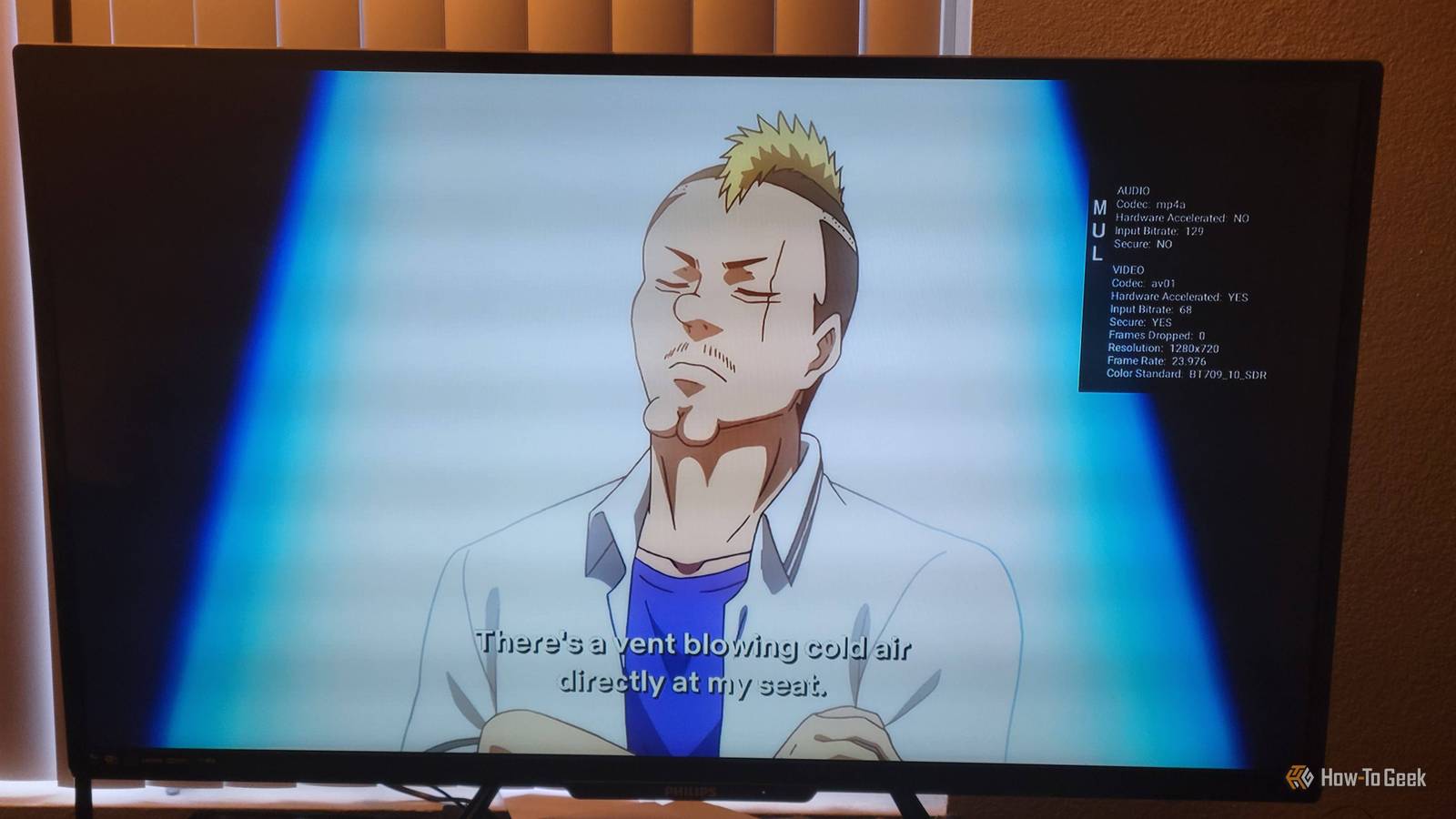
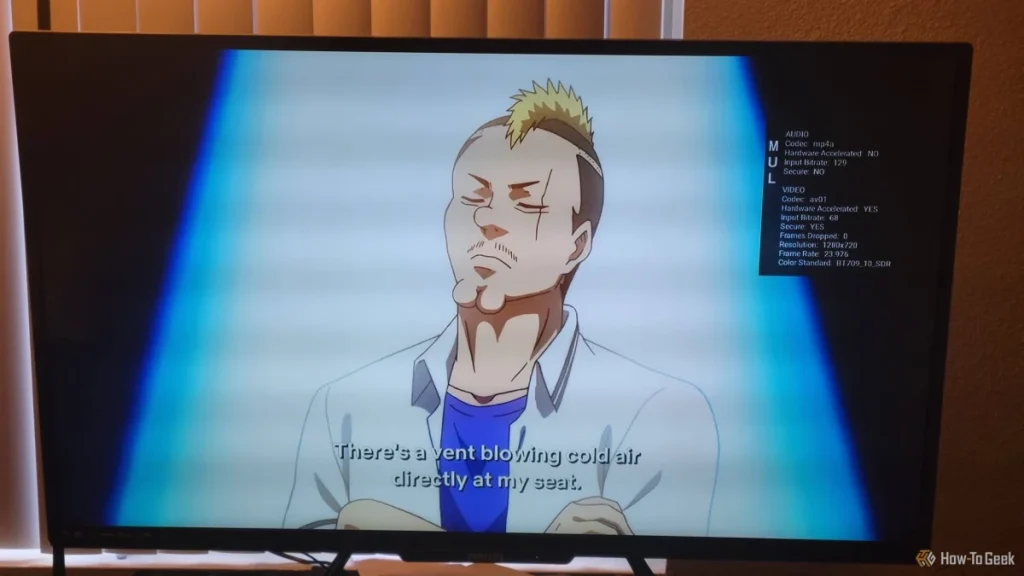
System X-Ray breaks down performance into four critical pillars: Display, CPU, Memory, and Network. The Display section provides an immediate audit of the HDMI handshake, showing the output resolution and the frame rate. Perhaps more importantly for those troubleshooting "black screen" issues, it identifies the HDCP (High-bandwidth Digital Content Protection) version currently in use. If a device is failing to negotiate a secure DRM path, this readout will pinpoint the failure, often revealing that a legacy HDMI cable or an older receiver is the culprit.
The CPU monitor is equally revealing. Modern Fire TV sticks utilize multi-core processors, and System X-Ray displays a vertical bar for each physical core. This allows users to observe "thread-heavy" applications that might be taxing a single core to its limit, causing the UI to feel sluggish. The data is color-coded for quick interpretation: green indicates a light load (0–33%), orange suggests moderate usage (34–66%), and red serves as a warning that the hardware is operating at near-maximum capacity (67–100%).
Memory management is handled through a horizontal bar measured by Proportional Set Size (PSS). In the context of Fire OS—which is built upon an Android foundation—PSS is a more accurate measure of RAM usage than simple "total memory," as it accounts for shared libraries used by multiple processes. The overlay distinguishes between the foreground application (blue), background processes (gray), and available free memory (white). If the white section of the bar disappears, users can expect the system to begin aggressively "killing" background apps to stay afloat.
Finally, the Network portion of the X-Ray provides a live look at Wi-Fi signal quality and bandwidth consumption. Unlike a static speed test, this tool shows the actual data throughput of the current application. If a Netflix stream is supposed to be pulling 25 Mbps for Ultra HD but the overlay shows only 5 Mbps, the user has immediate proof of a network bottleneck.
 Tech Tutorials & How-To Guides
Smart Solutions for Rising Utility Bills: How Specialized Tech Identifies and Reduces Residential Energy Waste
As global energy markets remain volatile and utility costs continue a steady...
 Tech Tutorials & How-To Guides
Beyond the Brand: Why Even Premium Power Drills Fail Due to Common Operational Habits
In the modern landscape of home improvement and professional construction, the cordless...
 Tech Tutorials & How-To Guides
Beyond the Slicer: Why MeshLab Remains the Essential Tool for Repairing Corrupt 3D Models
The world of 3D printing has evolved from a niche hobby for...