By using the Safezone grid in conjunction with the "Calibrate Display" tool found in the standard Fire TV settings menu, users can manually adjust the scaling of the Fire OS output. The goal is to nudge the edges until the red Safezone grid sits precisely at the physical frame of the television. This ensures a "pixel-perfect" mapping where no part of the director’s vision is lost to legacy cropping.
Network Advisor and Audio Focus: Targeted Troubleshooting
Beyond the raw metrics of System X-Ray, the Developer Tools Menu includes two specialized utilities for resolving intermittent glitches: the Network Advisor and the Audio Focus monitor.
Streaming problems are rarely as simple as "the internet is down." They are often caused by signal interference, channel congestion, or high signal-to-noise ratios. The Network Advisor goes significantly deeper than the standard connection test found in the main settings menu. It analyzes the specific Wi-Fi environment, checking for noise levels and channel utilization. If the device detects that the 2.4GHz band is too crowded or that the signal strength is insufficient for 4K streaming, it provides actionable, plain-English recommendations to improve the setup.
The Audio Focus tool, meanwhile, is a window into the "political" struggle for control over the device’s sound output. In an Android-based system like Fire OS, only one application is supposed to have "focus" at a time. Occasionally, a background app—perhaps a music player or a notification system—will "hang" and refuse to relinquish control of the audio hardware, resulting in a video that plays silently or with distorted sound. The Audio Focus overlay shows in real-time which application holds the "ducking" or "gain" rights. If a user sees a background app hogging the focus, they can navigate to the application management settings and "Force Stop" the offender, instantly restoring sound without needing a full system reboot.
The Importance of Diagnostic Discipline
While these tools offer an unprecedented look into the inner workings of the Fire TV, they are designed as diagnostic instruments rather than permanent features. Leaving multiple overlays active during a movie can be distracting and may even slightly impact performance on lower-end hardware due to the overhead of constant telemetry reporting.
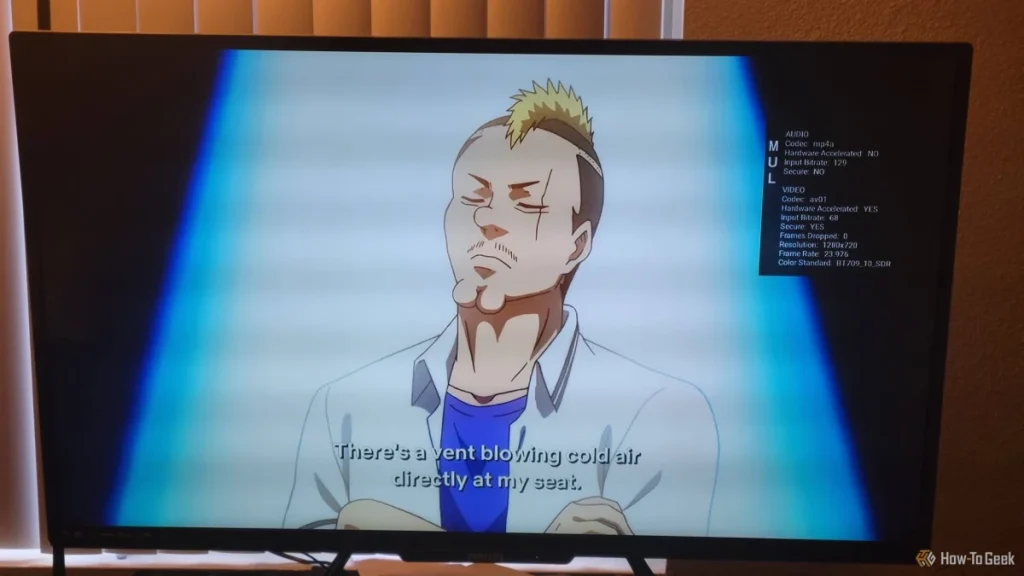
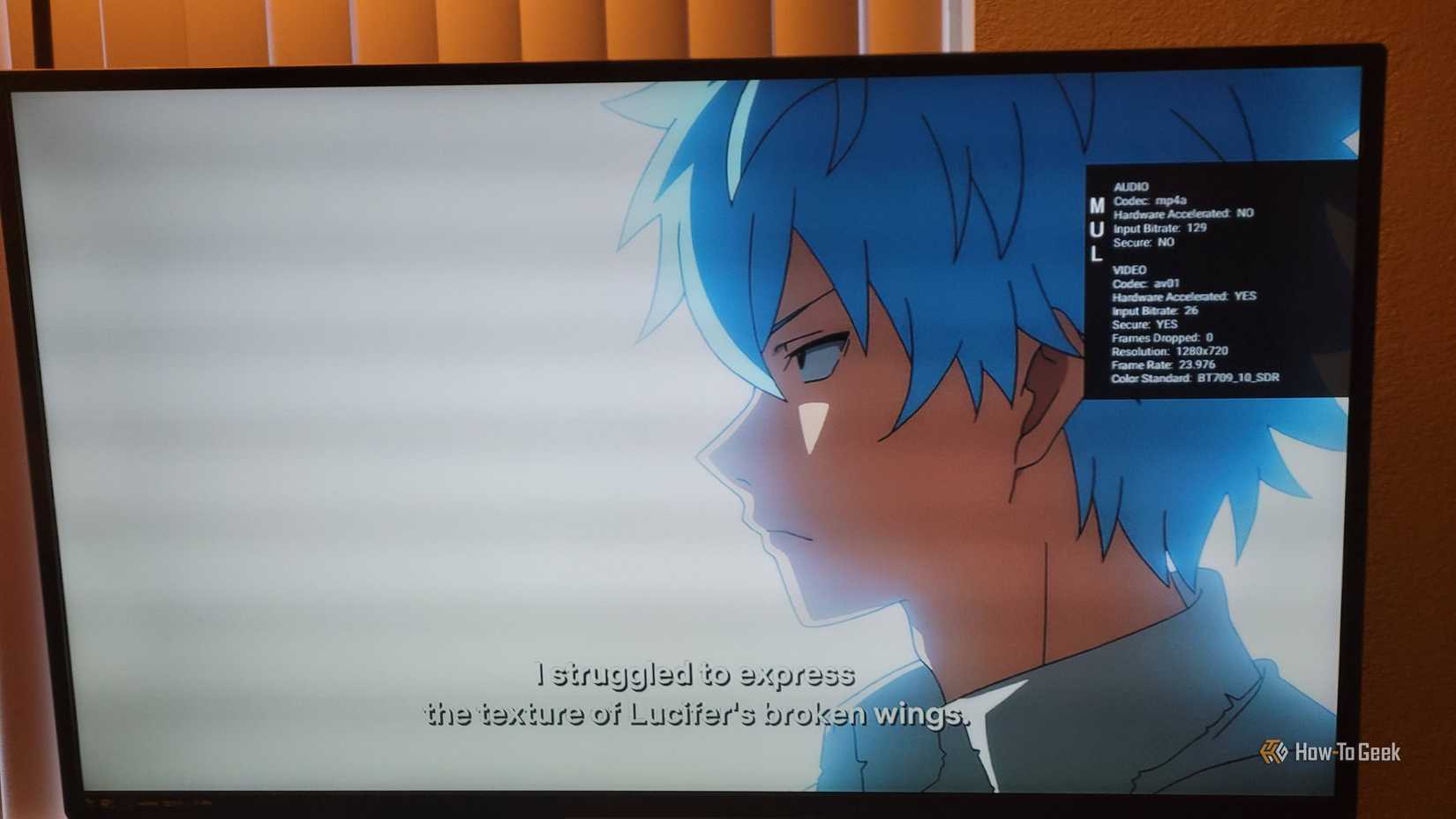
The professional approach to these tools involves a "verify and exit" strategy. When a new piece of hardware is added to the chain—such as a new soundbar or a different HDMI cable—running these diagnostics for ten minutes can confirm that the system is performing at its peak. Once the hardware handshake is verified, the audio codec is confirmed as Atmos, and the screen is calibrated for overscan, the tools can be toggled off.
By bridging the gap between the average consumer and the developer, Amazon has provided a pathway for users to take full control of their digital experience. In a world of increasingly complex streaming standards, having the ability to see exactly what is happening behind the screen is no longer just for developers—it is a vital skill for anyone seeking the best possible home entertainment experience.
 Tech Tutorials & How-To Guides
The Hidden Hazards of Pausing 3D Prints: Why Glitter and Sand Can Devastate Your Hardware
The ability to pause a 3D print mid-operation has long been celebrated...
 Tech Tutorials & How-To Guides
Amazon Unveils Comprehensive 2026 Kindle Overhaul Featuring First Color Scribe and Thinner Designs
Amazon has officially announced a sweeping transformation of its entire Kindle ecosystem,...
 Tech Tutorials & How-To Guides
The Unseen Ecosystem: Why Samsung’s Most Powerful One UI Features Remain Hidden to Most Users
In the hyper-competitive landscape of global smartphone manufacturing, Samsung Electronics has long...