The Amazon Fire TV ecosystem has evolved from a simple portal for Prime Video into a sophisticated, high-performance computing environment. For millions of households, these devices serve as the primary gateway to 4K HDR content, immersive spatial audio, and even cloud gaming. However, as the complexity of streaming hardware and software increases, so too does the potential for performance bottlenecks, network instability, and audio-visual configuration errors. While most users interact only with the polished surface of the Fire OS interface, Amazon has integrated a comprehensive suite of professional-grade diagnostic tools hidden beneath the consumer-facing layer.
These developer-oriented features, often overlooked by the general public, provide a level of transparency usually reserved for hardware engineers and software testers. By accessing these hidden menus, users can gain real-time insights into exactly why a stream might be buffering, why a surround sound system isn’t engaging its height channels, or why the edges of the screen appear slightly cropped. Understanding these tools is becoming increasingly essential for enthusiasts who want to ensure they are getting the maximum value out of their home theater investments.
System X-Ray: A Real-Time Window into Hardware Performance
At the heart of the Fire TV’s diagnostic suite is System X-Ray, a sophisticated overlay that provides a continuous telemetry feed of the device’s internal state. In an era where streaming sticks are frequently tucked behind televisions—often leading to thermal constraints—knowing how hard the internal processor is working can be the difference between a frustrating evening of lag and a seamless viewing experience.
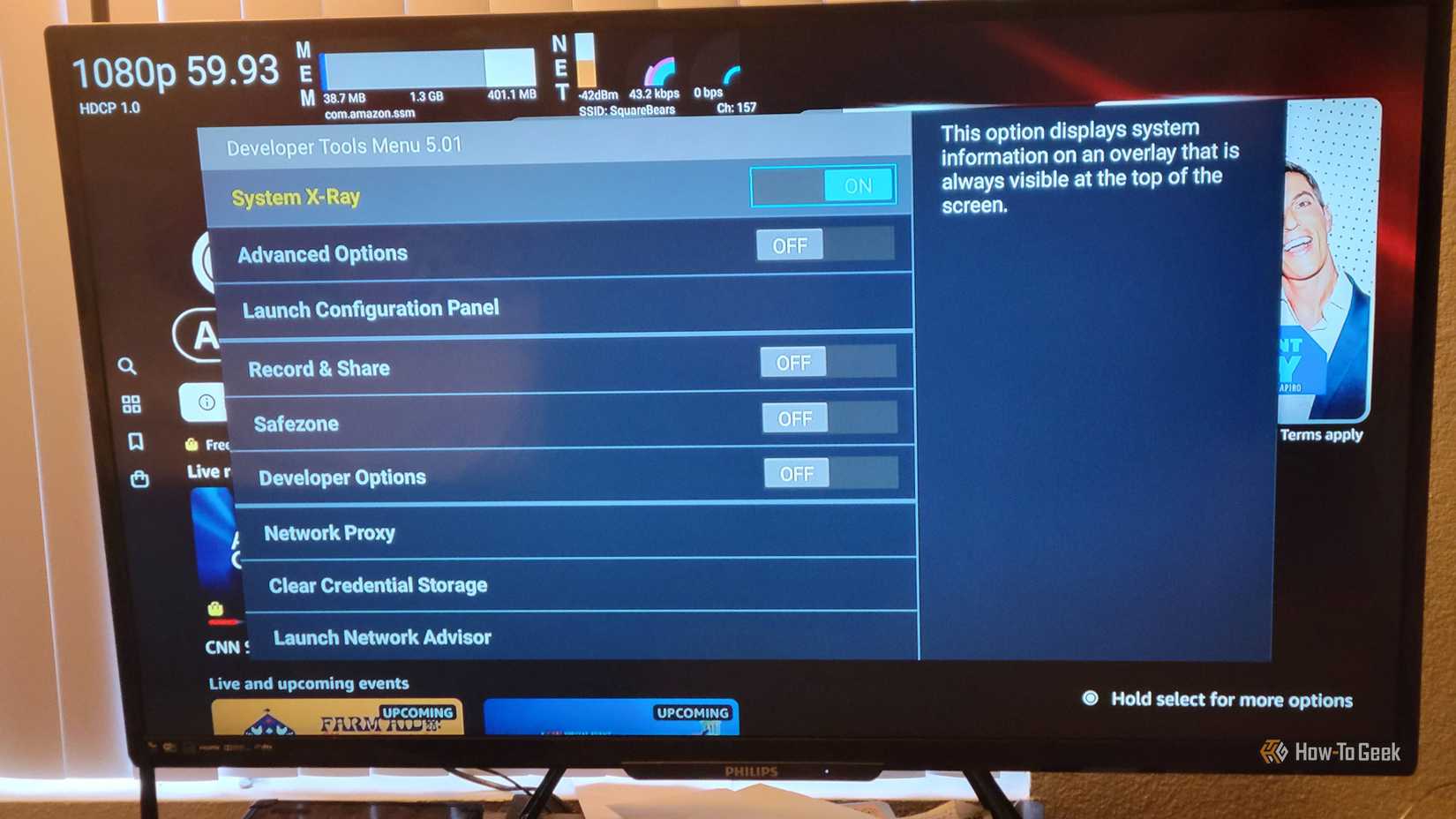
Accessing this menu requires a specific sequence of inputs: holding the Select and Down buttons simultaneously for several seconds before pressing the Menu button. This action reveals the Developer Tools Menu, where System X-Ray can be toggled on. Once active, a translucent banner appears at the top of the screen, remaining visible even as the user navigates through third-party applications or launches a high-bitrate 4K stream.
System X-Ray breaks down performance into four critical pillars: Display, CPU, Memory, and Network. The Display section provides an immediate audit of the HDMI handshake, showing the output resolution and the frame rate. Perhaps more importantly for those troubleshooting "black screen" issues, it identifies the HDCP (High-bandwidth Digital Content Protection) version currently in use. If a device is failing to negotiate a secure DRM path, this readout will pinpoint the failure, often revealing that a legacy HDMI cable or an older receiver is the culprit.
The CPU monitor is equally revealing. Modern Fire TV sticks utilize multi-core processors, and System X-Ray displays a vertical bar for each physical core. This allows users to observe "thread-heavy" applications that might be taxing a single core to its limit, causing the UI to feel sluggish. The data is color-coded for quick interpretation: green indicates a light load (0–33%), orange suggests moderate usage (34–66%), and red serves as a warning that the hardware is operating at near-maximum capacity (67–100%).
Memory management is handled through a horizontal bar measured by Proportional Set Size (PSS). In the context of Fire OS—which is built upon an Android foundation—PSS is a more accurate measure of RAM usage than simple "total memory," as it accounts for shared libraries used by multiple processes. The overlay distinguishes between the foreground application (blue), background processes (gray), and available free memory (white). If the white section of the bar disappears, users can expect the system to begin aggressively "killing" background apps to stay afloat.
Finally, the Network portion of the X-Ray provides a live look at Wi-Fi signal quality and bandwidth consumption. Unlike a static speed test, this tool shows the actual data throughput of the current application. If a Netflix stream is supposed to be pulling 25 Mbps for Ultra HD but the overlay shows only 5 Mbps, the user has immediate proof of a network bottleneck.
Verifying Audio Fidelity and the Downmixing Dilemma
One of the most persistent frustrations in modern home cinema is the "silent" degradation of audio quality. A streaming service may advertise a title in Dolby Atmos, but due to settings conflicts, hardware limitations, or software bugs, the actual audio delivered to the speakers may be downmixed to standard 5.1 or even 2.0 stereo. Without diagnostic tools, the user is often left guessing why their expensive soundbar or AV receiver feels underwhelming.

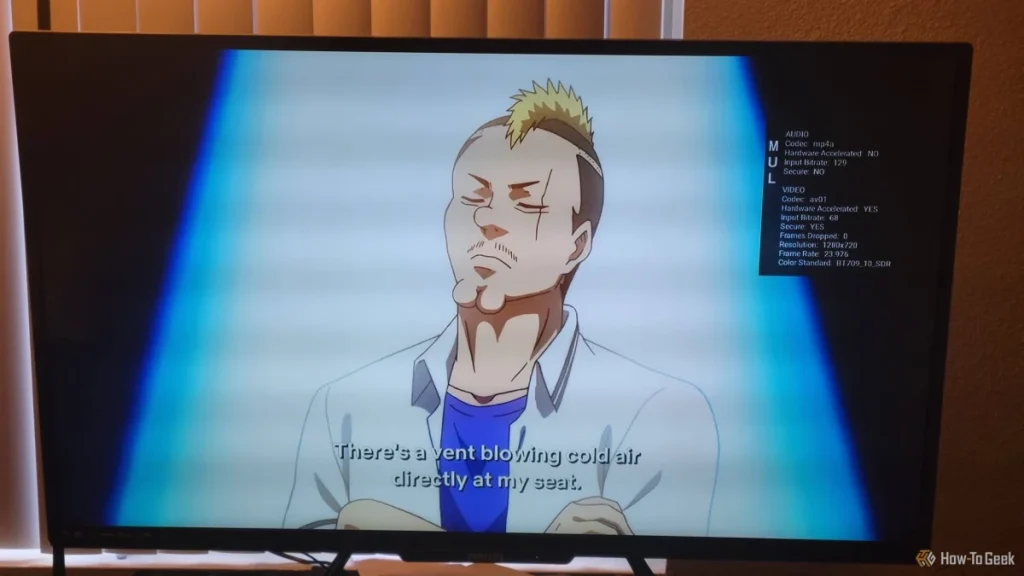
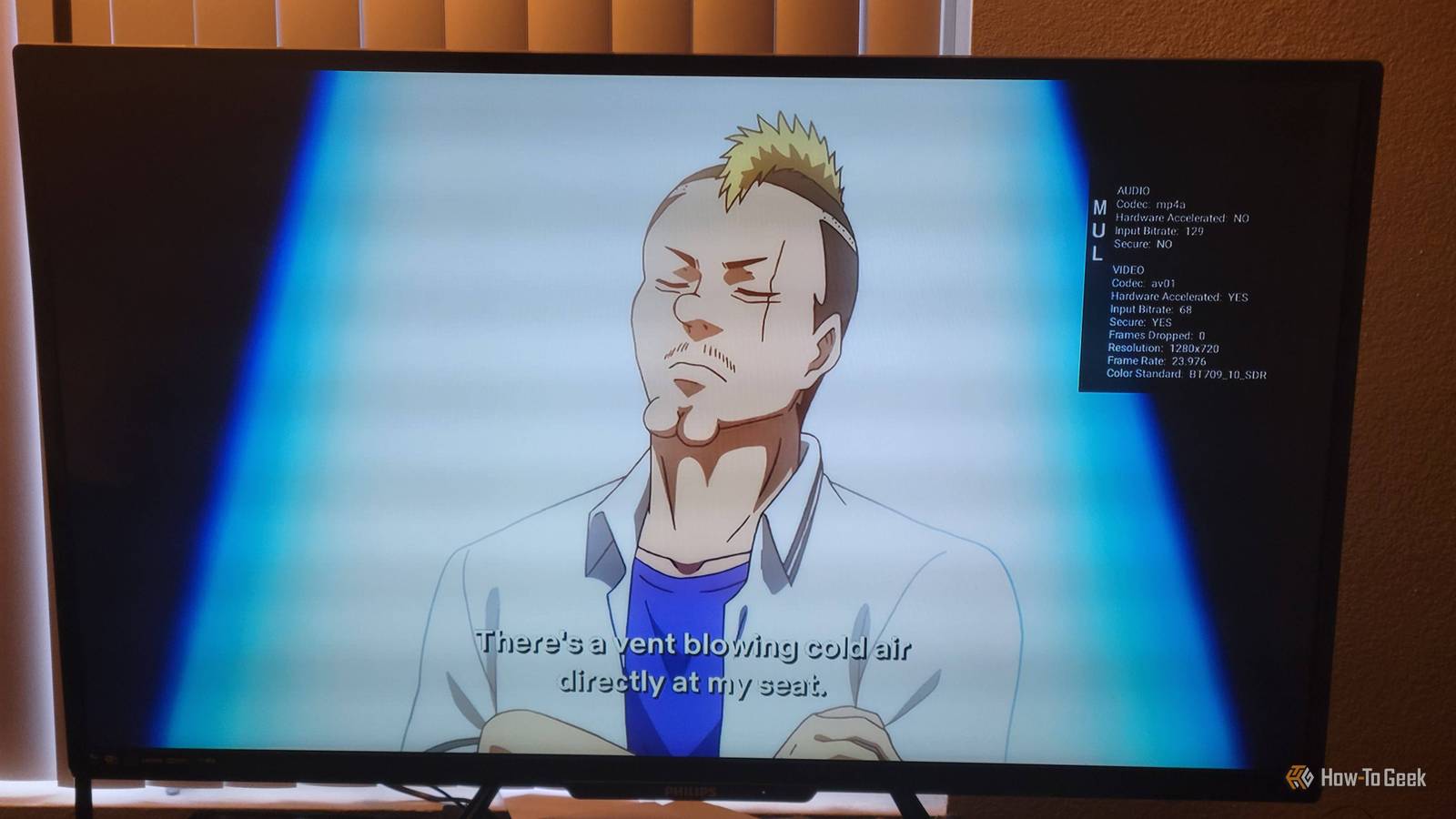
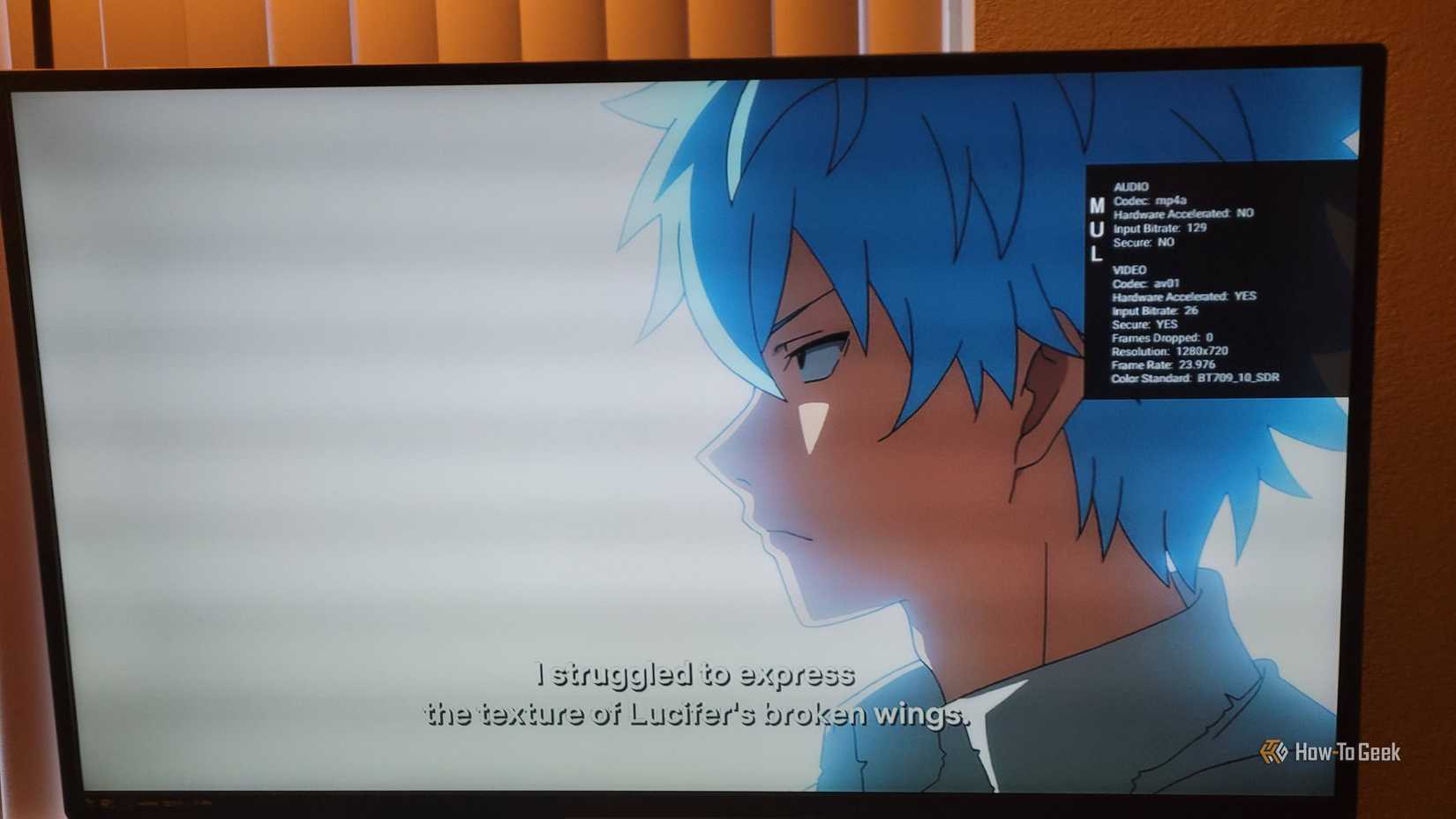
The "Advanced Options" toggle within the Developer Tools Menu addresses this by enabling a Multimedia diagnostic overlay. This tool is specifically designed to monitor hardware-accelerated decoding in real-time. When a video begins playing, the overlay appears on the right side of the screen, providing a technical breakdown of the audio stream’s DNA.
The most critical data point here is the audio codec identifier. For example, a true Dolby Atmos stream delivered via streaming services will typically show up as "eac3-joc." This stands for Enhanced AC-3 with Joint Object Coding, the technical backbone of "lossy" Atmos. If the overlay instead displays "ac3" or "pcm," it is an immediate signal that the system is downmixing the audio.
Furthermore, the overlay monitors whether hardware-accelerated Digital Signal Processing (DSP) is active. This is vital because software-based decoding can lead to audio-sync issues or increased CPU load, which in turn causes the video to stutter. By verifying that the stream is running inside a DRM-protected secure environment and checking the input bitrate in kilobits per second, users can ensure that they are receiving the highest possible fidelity their subscription allows.
Solving the Legacy Problem of Screen Overscan
While resolution and audio are often the focus of troubleshooting, the physical framing of the image is a frequently ignored aspect of the viewing experience. Many users unknowingly watch content with the outer 2% to 5% of the image chopped off—a phenomenon known as overscan. This is a relic of the Cathode Ray Tube (CRT) era, where television manufacturers intentionally zoomed in on the picture to hide technical noise and "garbage" data at the edges of analog broadcasts.
While modern digital displays should technically have moved past this, many television sets still enable overscan by default on HDMI inputs to maintain compatibility with older hardware. The "Safezone" overlay in the Fire TV Developer Tools Menu provides a semi-transparent red border and grid that highlights the boundaries of the intended UI.
This tool is particularly valuable for users who sideload Android applications. Because many standard Android apps are designed for touchscreens where every pixel is usable, they often place critical navigation buttons or search bars at the very edge of the frame. If a TV is overscanning, these buttons become invisible and inaccessible.
By using the Safezone grid in conjunction with the "Calibrate Display" tool found in the standard Fire TV settings menu, users can manually adjust the scaling of the Fire OS output. The goal is to nudge the edges until the red Safezone grid sits precisely at the physical frame of the television. This ensures a "pixel-perfect" mapping where no part of the director’s vision is lost to legacy cropping.
Network Advisor and Audio Focus: Targeted Troubleshooting
Beyond the raw metrics of System X-Ray, the Developer Tools Menu includes two specialized utilities for resolving intermittent glitches: the Network Advisor and the Audio Focus monitor.
Streaming problems are rarely as simple as "the internet is down." They are often caused by signal interference, channel congestion, or high signal-to-noise ratios. The Network Advisor goes significantly deeper than the standard connection test found in the main settings menu. It analyzes the specific Wi-Fi environment, checking for noise levels and channel utilization. If the device detects that the 2.4GHz band is too crowded or that the signal strength is insufficient for 4K streaming, it provides actionable, plain-English recommendations to improve the setup.
The Audio Focus tool, meanwhile, is a window into the "political" struggle for control over the device’s sound output. In an Android-based system like Fire OS, only one application is supposed to have "focus" at a time. Occasionally, a background app—perhaps a music player or a notification system—will "hang" and refuse to relinquish control of the audio hardware, resulting in a video that plays silently or with distorted sound. The Audio Focus overlay shows in real-time which application holds the "ducking" or "gain" rights. If a user sees a background app hogging the focus, they can navigate to the application management settings and "Force Stop" the offender, instantly restoring sound without needing a full system reboot.
The Importance of Diagnostic Discipline
While these tools offer an unprecedented look into the inner workings of the Fire TV, they are designed as diagnostic instruments rather than permanent features. Leaving multiple overlays active during a movie can be distracting and may even slightly impact performance on lower-end hardware due to the overhead of constant telemetry reporting.
The professional approach to these tools involves a "verify and exit" strategy. When a new piece of hardware is added to the chain—such as a new soundbar or a different HDMI cable—running these diagnostics for ten minutes can confirm that the system is performing at its peak. Once the hardware handshake is verified, the audio codec is confirmed as Atmos, and the screen is calibrated for overscan, the tools can be toggled off.
By bridging the gap between the average consumer and the developer, Amazon has provided a pathway for users to take full control of their digital experience. In a world of increasingly complex streaming standards, having the ability to see exactly what is happening behind the screen is no longer just for developers—it is a vital skill for anyone seeking the best possible home entertainment experience.
 Tech Tutorials & How-To Guides
From E-Waste to New Passions: How Repurposed Technology is Fueling a New Era of Accessible Geek Hobbies
For many technology enthusiasts, the "junk drawer" is a common household fixture—a...
 Tech Tutorials & How-To Guides
The Great Big-Box Battle: Evaluating the Power Tool Ecosystems of Ryobi, Craftsman, and Hyper Tough
For the modern homeowner or the burgeoning DIY enthusiast, the walk down...
 Tech Tutorials & How-To Guides
Unfiltered Cinema: Why R-Rated Hits Are Finding a Second Life on Major Streaming Platforms
In the modern landscape of digital entertainment, the motion picture rating system...