
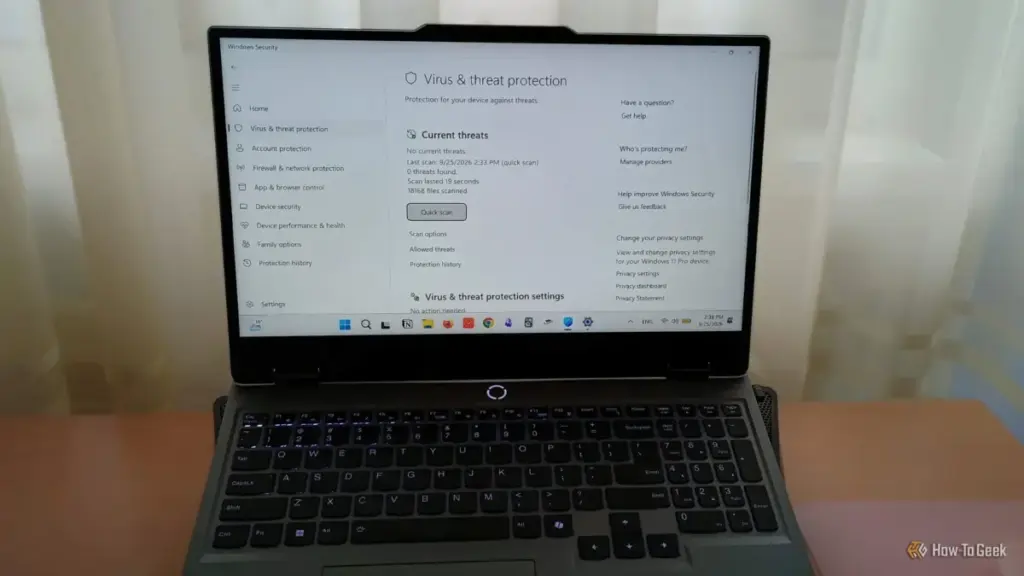
The landscape of digital security is undergoing a fundamental shift as cybercriminals pivot from direct attacks to more insidious methods of subverting operating system defenses. Recent findings from Microsoft’s security researchers have shed light on a sophisticated wave of malware campaigns designed specifically to undermine the built-in protections of Windows 11. These threats, often delivered via counterfeit installers that mimic popular, legitimate applications, do not always announce their presence with immediate file encryption or data theft. Instead, they focus on a "silent deactivation" strategy, systematically disabling security features to leave the system vulnerable to long-term compromise.
For the average user, the default configuration of Windows Security has long been considered a sufficient "set it and forget it" solution. However, the increasing complexity of these deceptive software download campaigns is prompting a reevaluation of how users interact with their security settings. Microsoft’s analysis suggests that while the operating system provides a robust suite of defensive tools, many of the most effective barriers against modern malware remain underutilized or entirely overlooked by the general public.
Tamper Protection: Defending the Defenders
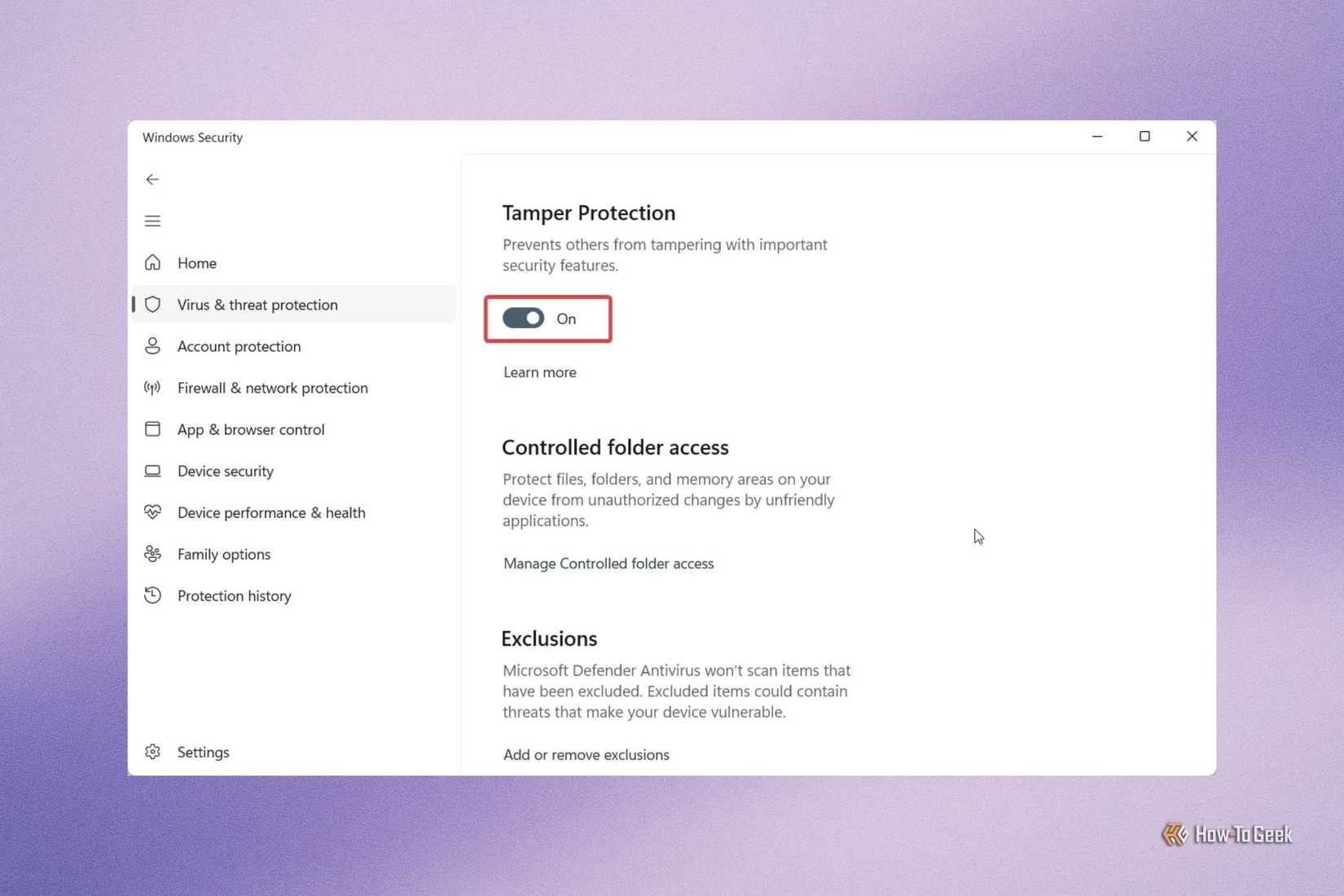
At the heart of Microsoft’s recent security warnings is the concept of "tamper protection." In traditional cyberattacks, malware would attempt to bypass a firewall or hide from an antivirus scan. Modern iterations, however, are designed to act with administrative-level intent. Once a user inadvertently executes a malicious installer—often disguised as a productivity tool or a graphic design suite—the malware attempts to reach into the Windows Security infrastructure and toggle off real-time protection, cloud-delivered protection, and even the antivirus engine itself.

The Tamper Protection feature was developed specifically to address this escalation. When enabled, it creates a locked environment for security settings, ensuring that no application or process—even those running with elevated administrator privileges—can modify critical security configurations through the Windows Registry or other system-level interfaces. This creates a "read-only" state for the machine’s primary defenses, accessible only through the manual, authenticated Windows Security interface.
The necessity of this feature has become more apparent as malware developers find ways to hide within legitimate processes. By blocking unauthorized Registry changes, Tamper Protection ensures that even if a malicious script gains a foothold on the system, it cannot "blind" the operating system to its presence. For users who rely on Windows for both personal and professional tasks, this setting represents a critical first line of defense in maintaining the integrity of the security stack.
Controlled Folder Access and the Rising Ransomware Threat
Beyond the technical subversion of security settings, the physical loss of data remains one of the most significant risks facing Windows users. A 2025 survey conducted by the Pew Research Center underscored the severity of this issue, revealing that approximately 10% of respondents in the United States reported being locked out of their personal files or computers by attackers demanding a ransom payment. The financial and emotional toll of such attacks is significant, often involving the loss of irreplaceable photos, medical records, and sensitive financial documents.
In response to this persistent threat, Microsoft has integrated "Controlled Folder Access" into the Windows Security suite. This feature acts as a proactive gatekeeper for data integrity. Unlike traditional antivirus software, which scans for known malicious code, Controlled Folder Access monitors the behavior of applications. It maintains a strict "allow-list" of trusted software; if an unrecognized or untrusted application attempts to modify, move, or encrypt files within a protected directory, the operating system immediately blocks the action and alerts the user.

The implementation of this feature allows users to designate specific folders—such as "Documents," "Pictures," or custom-created project folders—as high-security zones. This approach is particularly effective against "zero-day" ransomware, where the specific strain of malware may not yet be recognized by signature-based scanners. By focusing on the action of the software rather than its identity, Controlled Folder Access provides a vital layer of protection for users who store sensitive information locally on their devices.
Smart App Control: A Cloud-Powered Approach to Software Trust
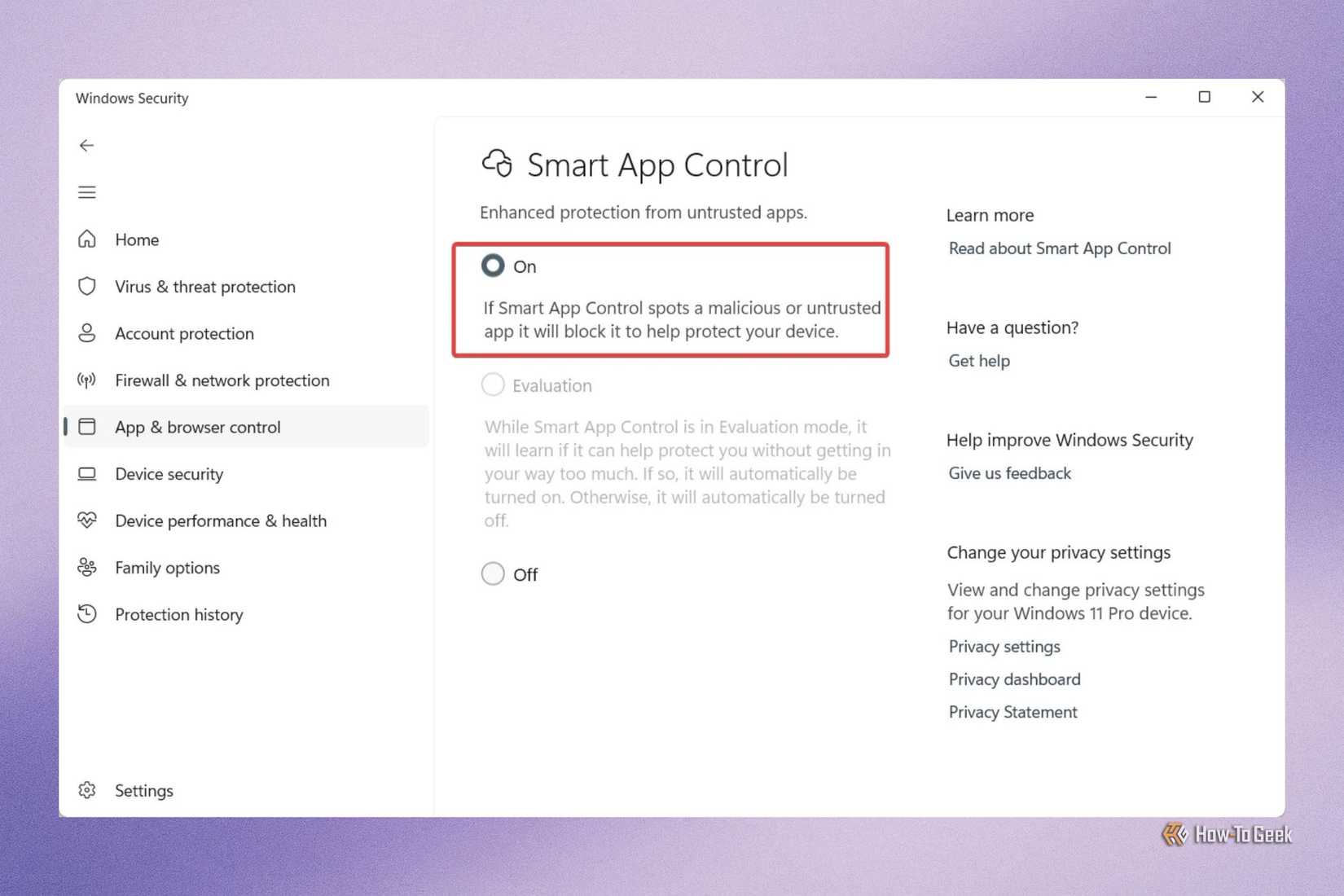
One of the more rigorous additions to the Windows 11 security ecosystem is Smart App Control. While the standard User Account Control (UAC) prompts users for permission when an app attempts to make changes, Smart App Control operates on a more fundamental level of trust. It utilizes Microsoft’s extensive cloud-based application intelligence to evaluate the safety of every application the user attempts to run.
This system relies on a combination of digital signature verification and behavioral analysis. If an application is signed by a known, trusted developer and has no history of malicious behavior, it is permitted to run. If, however, the software is unsigned or lacks a verifiable reputation in the cloud database, Smart App Control prevents it from executing entirely.
This feature represents a move toward a "Zero Trust" model for consumer computing. However, it is not without its trade-offs. For power users, software developers, or those who frequently experiment with niche, open-source tools, the lack of an "exception" list within Smart App Control can be restrictive. Microsoft’s current stance is that if a developer’s app is blocked, the recommended path is to obtain a valid digital certificate. For the end-user, this means the feature provides a high-security environment at the cost of some flexibility. It is designed for those who want the highest level of protection against "sketchy" software and are willing to sacrifice the ability to run unverified applications to achieve it.
Dynamic Lock: Addressing the Human Element of Security
While much of the focus in cybersecurity is on remote threats and malicious code, the physical security of a device remains a vulnerable point, particularly in the age of hybrid work and mobile computing. The "human element"—the simple act of walking away from a laptop at a coffee shop or in a shared office space—can lead to devastating data breaches if the device is left unlocked.
The Dynamic Lock feature in Windows 11 addresses this specific scenario by leveraging Bluetooth proximity. By pairing a smartphone with a Windows PC, the operating system can monitor the strength of the Bluetooth signal between the two devices. When the user leaves the vicinity of their computer with their phone in their pocket, the signal drops. After a short period, Windows automatically locks the workstation, preventing unauthorized physical access.
This feature is a recognition that security is not just about code, but about context. In public or semi-public environments, the habit of manually locking a PC (via the Windows key + L shortcut) is easy to forget. Dynamic Lock serves as an automated safety net, ensuring that even if a user is distracted, their data remains protected from opportunistic intruders. It is a simple yet effective integration of personal hardware into the broader security strategy of the operating system.
Windows Security goes beyond malware protection
The cumulative effect of these features—Tamper Protection, Controlled Folder Access, Smart App Control, and Dynamic Lock—is a shift in the role of Windows Security. It has evolved from a basic malware scanner into a comprehensive security management platform that addresses a wide spectrum of modern threats.
The effectiveness of these native tools is increasingly being recognized by the broader tech community. Historically, many Windows users felt compelled to install third-party antivirus suites to ensure their safety. However, the depth of integration and the sophistication of the features now built directly into Windows 11 have led many to conclude that third-party alternatives are no longer a necessity. By offering deep-level system protection that third-party apps often struggle to replicate without significant performance overhead, Microsoft has positioned Windows Security as a premier defensive suite.
As cyber threats continue to evolve, the importance of moving beyond "default" settings becomes clear. The recent Microsoft reports on deceptive software campaigns serve as a reminder that the best defense is a multi-layered one. By engaging with these advanced settings, users can transform their devices from passive targets into hardened environments capable of withstanding both digital and physical security challenges. The tools are already present; the responsibility now lies with the user to activate the full potential of the protections at their disposal.
 Tech Tutorials & How-To Guides
The Precision Gap: Why the Electric Screwdriver Has Become the Essential Companion to the Cordless Drill
In the world of home improvement and DIY maintenance, the cordless drill...
 Tech Tutorials & How-To Guides
Google Transitions Beyond Chromebooks: A Deep Look at the New Googlebook OS and Its Enhanced Local File Management
The landscape of portable computing has undergone a seismic shift with the...
 Tech Tutorials & How-To Guides
Best Buy Slashes Price of LG 77-Inch B5 Series OLED TV by Fifty Percent in Early Holiday Sales Push
As the calendar turns and the final quarter of the year approaches,...