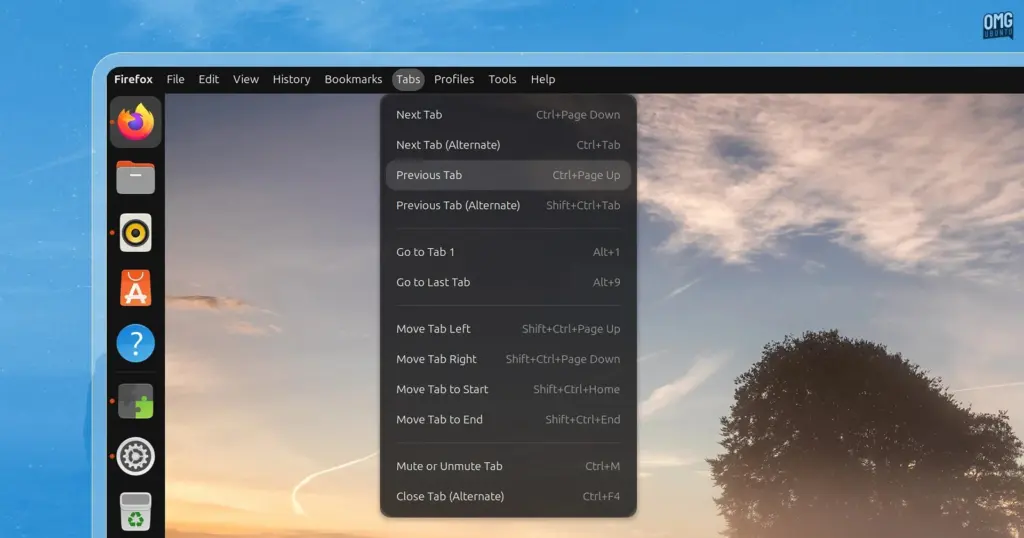
For more than a decade, the global menu bar has remained one of the most polarizing and sought-after interface paradigms in the Linux desktop ecosystem. First brought to widespread prominence on Linux during the early days of Ubuntu’s Unity desktop environment, the design relocates traditional application menu bars—such as File, Edit, View, and Help—away from individual application windows and consolidates them into the persistent panel running across the top of the display. While cherished by many users for saving vertical screen real estate on widescreen laptops and providing a clean, distraction-free window frame, the concept has spent the past several years largely in technical exile on modern Linux distributions.
A newly released GNOME Shell extension known as Orbit Global Menu is attempting to change that trajectory. Created by developer Unmade760, the extension aims to resolve the technical and architectural roadblocks that have caused virtually all previous global menu projects to falter on modern GNOME Shell installations. By introducing a pragmatic hybrid mechanism that blends traditional system communication protocols with a novel keyboard-shortcut mapping framework, the extension manages to restore functional, responsive application menus across hundreds of contemporary desktop programs running on recent versions of GNOME.
The release arrives at an opportune moment for desktop customization enthusiasts. Previous global menu implementations for GNOME Shell frequently suffered from instability, breakage across minor desktop environment updates, and an inability to interface with modern software. By confronting the realities of current application development standards directly, Orbit Global Menu offers a surprisingly resilient and polished user experience that functions reliably where its predecessors struggled.
The Lingering Challenges of Modern Linux Menus
To appreciate why a modern global menu extension is a notable technical feat, one must understand why earlier efforts broke down. Throughout the early 2010s, desktop environments like Unity relied heavily on a standardized architecture known as DBusMenu. Under this system, native graphical toolkits such as GTK and Qt would package an application’s internal menu hierarchy and export it over the system’s D-Bus message bus. The desktop shell’s top panel would then intercept these data packets, interpret the menu tree, and reconstruct the dropdown menus at the top of the screen while instructing the application window to hide its own in-window menubar.
Over the ensuing decade, this architecture progressively fractured under the weight of three fundamental shifts across the desktop landscape:
First, the Linux ecosystem transitioned rapidly toward the modern Wayland display server protocol. Unlike the legacy X11 windowing system, Wayland enforces strict security and isolation boundaries between running client applications and the compositor. Under Wayland, client applications are deliberately restricted from inspecting or manipulating other windows, and arbitrary global event synthesis is tightly constrained. These safeguards, while beneficial for system security and tearing-free rendering, frequently complicated the delicate synchronization required to strip menus from windows and hoist them into a system panel.
Second, graphical interface design trends shifted fundamentally away from traditional hierarchical menus. In GNOME, developers championed Client-Side Decorations (CSD) and integrated HeaderBars, replacing sprawling menu bars with consolidated "hamburger" menus and contextual header buttons. Across the broader software industry, the massive influx of cross-platform frameworks—most notably Electron—meant that thousands of desktop applications were effectively packaged web applications running inside an isolated Chromium wrapper. Many of these modern applications never bother to export their menus over standard Linux D-Bus interfaces at all.
As a consequence of these developments, users who installed legacy global menu extensions in recent years were routinely met with frustration. Even if an extension successfully loaded in GNOME Shell, the top panel remained completely barren whenever a user focused a modern application, an Electron utility, or a modernized GTK program. The global menu had become an empty shell, useful only for the shrinking minority of classic desktop utilities that still maintained intact DBusMenu export routines.
A Pragmatic Approach: Shortcuts as Application Menus
The core breakthrough in Orbit Global Menu lies in how it sidesteps these modern architectural hurdles. Rather than stubbornly waiting for upstream application developers to conform to aging Linux menu-exporting standards, the extension adopts a clever, pragmatic workaround: it synthesizes native-looking menus based on the documented keyboard shortcuts of popular desktop software.
The extension ships with out-of-the-box menu configurations for 292 well-known applications. When a supported program takes window focus, Orbit Global Menu inspects its internal database, maps the application’s documented shortcut structure into standard top-level categories such as File, Edit, View, and Window, and populates the GNOME Shell top panel accordingly.
When a user clicks on an item within these synthesized menus, the extension does not need to send an abstract toolkit-level invocation to the target window. Instead, it directly triggers the corresponding keyboard shortcut associated with that action.
This approach completely neutralizes the toolkit barrier. Because virtually every modern desktop program—from terminal emulators like Ghostty to heavyweight Electron-based suites like text editors, chat clients, and developer tools—maintains an extensive suite of keyboard shortcuts for common operations, Orbit Global Menu can expose those operations cleanly in the top bar. The application does not need to understand what a global menu is, nor does it need to support legacy desktop APIs. So long as a function can be triggered via a key combination, it can be seamlessly embedded into a desktop menu and activated with a standard mouse click.
For applications not included in the pre-configured database of 292 programs, users are not locked out of the feature. Orbit Global Menu provides access to its menu definitions directly through its settings interface. Users can inspect, modify, or extend the existing configurations, or define entirely new shortcut maps for bespoke and unlisted utilities.
Native Menu Handling via the Companion Daemon
While the shortcut-mapping method solves the problem for modern and cross-platform software, it represents only half of Orbit Global Menu’s dual-engine architecture. For complex, traditional productivity software—such as the image editor GIMP, the digital photo manager Shotwell, or office suites—shortcut emulation alone cannot capture the full depth of the program’s interface.
Such specialized tools frequently contain nested submenus hundreds of items deep, alongside dynamic actions that must be enabled or disabled in real time. For instance, an image editor needs to dynamically gray out the "Deselect" or "Invert Selection" actions whenever no active pixel selection exists on the canvas.
To cater to these complex legacy environments, Orbit Global Menu offers an optional companion daemon. This companion service acts as a native system bridge, running in the background to monitor traditional D-Bus menu streams.
When the companion daemon is active, the extension shifts into a full-fidelity native menu mode for applications that properly export their menus. Instead of rendering a synthetic shortcut menu, it renders the genuine, live application menu directly inside the GNOME Shell panel. Crucially, the companion daemon handles the real-time state synchronization required for advanced productivity work: menu entries dynamically turn insensitive (grayed out and non-clickable) in direct alignment with whatever the user is doing inside the application viewport. Wherever the underlying toolkit supports it, the daemon also commands the application window to conceal its internal menubar, freeing up the vertical workspace inside the window frame.
The functional difference between running the extension with or without the companion daemon is particularly stark in software like GIMP. Without the daemon, the user receives a streamlined menu populated by mapped shortcut triggers. With the daemon installed and running, the user receives the full, granular GIMP menu tree, complete with dynamic state changes and identical behavior to a native toolkit menubar.
Certain specialized environments do require minor adjustments to export their menus properly. Web browsers like Mozilla Firefox, for example, maintain native menu-export capabilities but require small internal configuration tweaks before they broadcast their menus across the desktop bus. The project maintains dedicated setup documentation outlining these specific application configurations for users seeking an exhaustive, unified desktop setup.
To ensure that the desktop never feels inconsistent or broken, the extension also incorporates a resilient fallback mechanism. If a user switches focus to a window that is neither supported by the 292 built-in shortcut profiles nor configured to export its menus over D-Bus, the top panel does not simply go blank. Instead, Orbit Global Menu populates the panel with a clean set of standard window, workspace, and session controls. As a result, the top panel maintains an active, balanced visual presence across the entire desktop session, avoiding the awkward visual gaps that historically undermined earlier global menu designs.
Desktop Customization and Interface Refinements
Beyond its core menu engines, Orbit Global Menu introduces an array of aesthetic and functional configuration options designed to help the extension blend naturally into modern GNOME aesthetics.
By default, the dropdown menus utilize solid, opaque backgrounds that align with GNOME Shell’s standard palette. For users who prefer a more translucent, modern aesthetic, the extension includes a background blur option, which integrates smoothly on systems where utility extensions like Blur My Shell are active.
The extension also addresses panel density and element collision. On standard GNOME installations, the top panel hosts the workspace indicator "pips" near the left edge. Because global menus require horizontal breathing room to display application categories without truncating text, the extension automatically hides these workspace pips while an application menu is active. However, users who value persistent workspace status can override this behavior in the extension preferences and force the indicators to remain visible.
Visual hierarchy can also be adjusted to individual taste. The title of the currently focused application sits adjacent to its menu entries, styled in a bold typeface by default to clearly delineate the active context. Through the settings panel, users can toggle this label to a standard font weight or suppress the application title entirely, yielding a minimalist presentation focused purely on menu navigation.
Install Global Menu on Ubuntu
Orbit Global Menu officially targets GNOME versions 48 through 51, making it compatible with modern Linux distributions, including Ubuntu 26.04 LTS and subsequent releases such as Ubuntu 26.10.
The primary extension can be fetched and enabled through the official GNOME Extensions directory or managed via the standard Extension Manager utility. However, to unlock the full potential of live menus for traditional software like GIMP and Shotwell, users must build and install the optional companion daemon package from source.
On an Ubuntu system, assembling the companion package involves cloning the project repository, building the package tooling, and installing the resulting Debian package. The process can be executed through a standard terminal session by issuing the following commands:
sudo apt install git make python3-setuptools
git clone https://github.com/Unmade760/orbit-global-menu.git
cd orbit-global-menu
make build
sudo apt install ./global-menu_*.deb
Once the Debian package installation concludes, users must log out of their desktop session and log back in to ensure that the background daemon initializes properly and hooks into the desktop message bus. Following the session restart, the companion daemon will automatically interface with the GNOME Shell extension whenever a compatible application is launched.
Rekindling the Unity Legacy
For longtime Linux desktop users, the arrival of a competent, stable global menu inescapably evokes memories of the Unity desktop environment, which Canonical first deployed to mainstream Ubuntu desktops with the release of Ubuntu 11.04 in 2011. Unity’s aggressive focus on vertical space conservation—combining the window title, application menus, system indicators, and window controls into a unified top bar—was pioneering for its era, even if it initially provoked debate among desktop purists.
While Unity eventually ceased to be Ubuntu’s default interface when Canonical transitioned back to an upstream GNOME Shell foundation, specific elements of that design philosophy have maintained a loyal following. The global menu was often paired with Unity’s celebrated Heads-Up Display (HUD), an innovative feature introduced in 2012 that allowed users to press a key and instantly search through every nested command in an application’s menu bar using fuzzy text matching.
While Orbit Global Menu does not attempt to reconstruct the HUD, its success in re-establishing a reliable, multi-application menu bar in the GNOME top panel represents the most significant step forward for this desktop workflow in years. By accepting that modern software architecture has changed, and by meeting both legacy toolkits and modern sandboxed frameworks on their own terms, the project bridges a persistent divide in desktop Linux customization. For users seeking to streamline their application real estate or recapture the fluid navigation of classic Linux desktop environments, Orbit Global Menu proves that the global menu concept still has a viable place on the modern desktop.
 Linux & Open Source Solutions
The Document Foundation Unveils New Visual Identity to Establish Distinct Institutional Profile Apart from LibreOffice
The Document Foundation, the charitable non-profit entity responsible for overseeing the development...
 Linux & Open Source Solutions
Ubuntu 26.10 Flavour Lineup Arrives with Updated Desktops, Architectural Changes, and the Return of Ubuntu MATE
Following the official launch of the Ubuntu 26.10 operating system, Canonical’s family...
 Linux & Open Source Solutions
Ubuntu 26.10 Flavours Arrive: Community Editions Update Desktops, Graphics, and Core Tooling
Alongside the rollout of the flagship operating system, the official Ubuntu 26.10...