
In the competitive landscape of office hardware, Xerox has long maintained a reputation for producing robust, high-capacity imaging devices designed for the rigors of corporate environments. The American manufacturer’s latest push into the entry-level market includes the Xerox C255a, a color laser multifunction peripheral (MFP) aimed at small businesses and home offices. While it arrives with a specification sheet that promises a versatile "all-in-one" experience—encompassing printing, scanning, copying, and faxing—the reality of its performance suggests a device defined as much by its compromises as by its capabilities.
The Xerox C255a enters a crowded segment where users demand professional-grade features at a consumer-friendly price point. On paper, it seems to deliver: it boasts both wired and wireless networking, a color touchscreen interface, a front-facing USB host slot for direct printing and scanning, and automatic double-sided (duplex) printing. However, with a rated engine speed of 25 pages per minute (ppm), it occupies the slower end of the laser spectrum, raising questions about its efficiency in a fast-paced work environment.
Design and Ergonomics
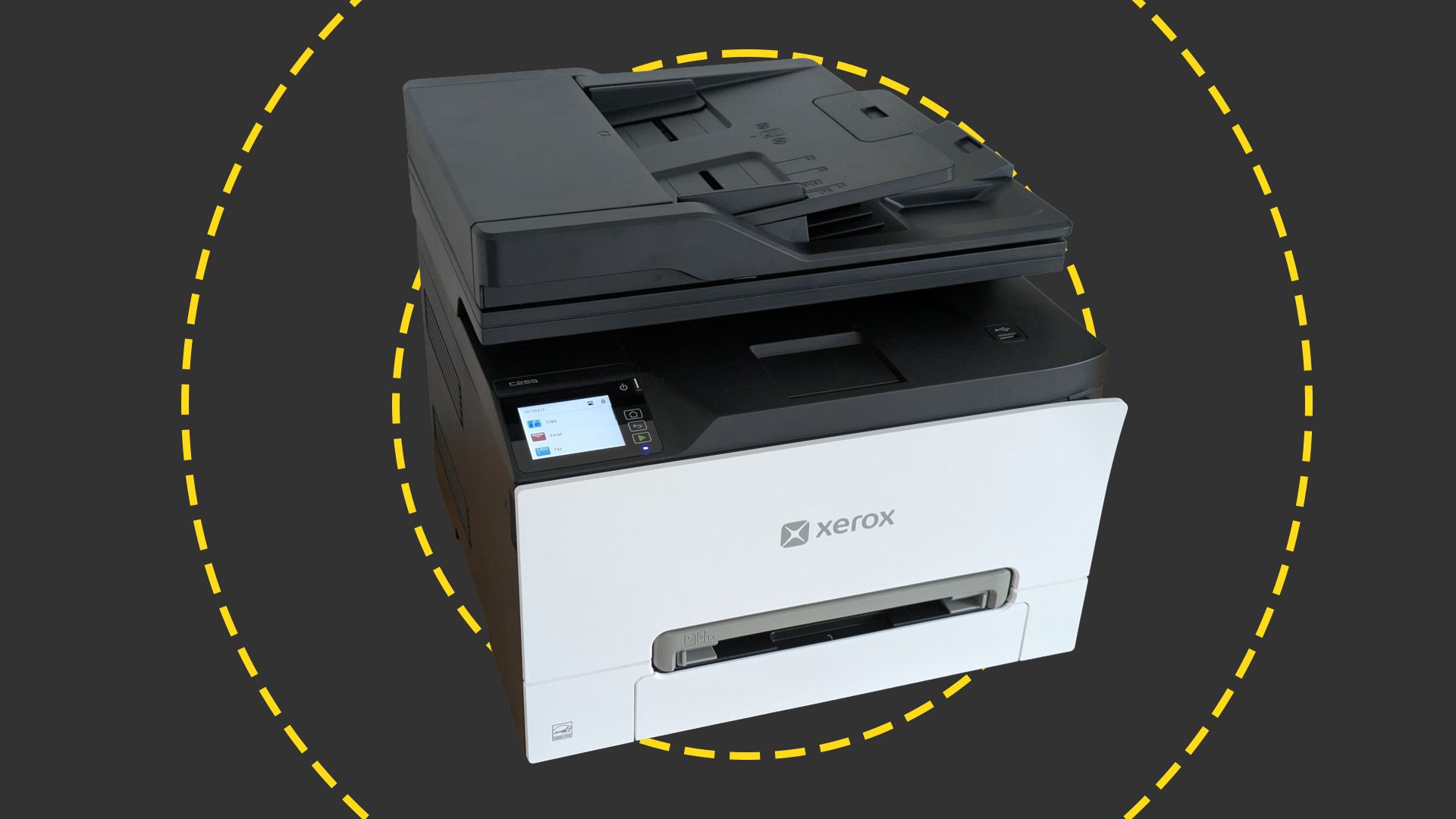
The aesthetic appeal of the C255a is a matter of perspective. Xerox has opted for a high-contrast "panda" color scheme, featuring modern white exterior panels wrapped around a matte black core. When viewed from the front, the design is sleek and professional, fitting seamlessly into a contemporary office aesthetic. However, the visual balance shifts when the device is viewed from the side or rear; from these angles, the black plastic dominates the profile, giving the machine a somewhat disjointed and awkward appearance.
Functionally, the design is more successful. For a laser MFP, the C255a is remarkably compact. Measuring 345mm in height and 411mm in width, it occupies a footprint small enough to sit comfortably on a standard desk without overwhelming the workspace. This compactness is a significant selling point for remote workers or small businesses operating out of cramped quarters where every square inch of desk real estate is at a premium.
Despite its small stature, the physical build reveals some of the limitations inherent in its entry-level positioning. The primary paper input tray has a maximum capacity of 250 sheets. While this is standard for many desktop printers, it remains a point of friction for users who print in volume; a standard ream of paper contains 500 sheets, meaning users will frequently find themselves with half-empty packs of paper cluttering their storage. Furthermore, the C255a lacks a multi-sheet multipurpose tray, offering instead a single-sheet bypass feed. This makes the handling of specialized media, such as letterhead or envelopes, a manual and repetitive task. On the top of the unit sits a 50-sheet automatic document feeder (ADF) for scanning and copying multi-page documents, but this component is restricted to single-sided operation. For offices that frequently deal with double-sided originals, this lack of duplex scanning adds a layer of manual labor to the digital workflow.
Xerox C255a review: Setting up
While many laser MFPs are notorious for their bulk and weight, requiring a two-person lift, the Xerox C255a is a notable exception. At 19.5kg, it is manageable for a single individual to unbox and position. However, potential users should plan their desk layout carefully; an air vent on the left side and paper guides on the ADF that project slightly to the right mean the unit cannot be pushed flush into a corner.
The physical setup is relatively straightforward, though not without its minor hurdles. Like most modern printers, it arrives with various orange plastic locking clips and tapes to protect the internal components during transit. During our testing, we found it easy to overlook a critical step involving the internal toner tray. Each of the four toner cartridges (cyan, magenta, yellow, and black) is secured by a plastic clip that must be removed by pulling the tray out. Fortunately, Xerox has integrated a helpful on-device setup routine; the printer’s firmware detected the remaining clips upon the first power-up and provided clear instructions on how to rectify the oversight.
 Helpdesk & IT Service Management (ITSM)
Irish Financial Sector Braces for Impact After Major Supply Chain Cyber Attack Hits Credit Unions
A significant cybersecurity incident originating at a Belfast-based IT service provider has...
 Helpdesk & IT Service Management (ITSM)
EU Tech Agency Launches Legal Action Against Tech Giants Over Troubled Border System Rollout
The European Union’s ambitious plan to modernize its border infrastructure has culminated...
 Helpdesk & IT Service Management (ITSM)
UK Urged to Secure £75 Billion AI Economic Boost Through New National "Prosperity Compact"
The United Kingdom stands at a critical economic crossroads, with the potential...