For many modern enterprises, the CRM is no longer just a digital rolodex; it is the central nervous system of the organization. Automation, specifically through workflow rules, allows businesses to scale by handling repetitive tasks such as sending follow-up emails, updating lead statuses, and notifying sales representatives of new opportunities. However, when these automated "handshakes" fail to occur, the consequences can range from minor administrative delays to significant revenue loss.
Skyfall Labs, an official Zoho Partner, recently released a comprehensive analysis regarding the common causes and fixes for Zoho CRM workflows that fail to trigger. While Zoho CRM is lauded for its robust automation engine, the complexity of its logic can lead to "silent failures" where a record is created or updated, but the expected automation remains dormant. The findings, based on both official Zoho documentation and practical field experience, highlight that the majority of these issues stem from default system behaviors, logical oversights in criteria setting, and the hierarchical nature of Zoho’s various automation tools.
Records That Skip Workflows by Default: The "Opt-In" Barrier
One of the most frequent points of confusion for Zoho users is why records entering the system via bulk actions or external integrations often bypass established workflow rules. According to Skyfall Labs, Zoho CRM is designed with several safety valves to prevent accidental mass-automation, which could lead to system throttling or unintended communications with thousands of clients.
The most common culprit is the record import process. By default, when a user imports a CSV or Excel file into Zoho CRM, the system assumes a "data-only" migration. To trigger workflows during an import, the user must manually enable the "Trigger Automation" checkbox during the final stages of the import wizard. If this is overlooked, the records will populate the database, but no automated emails or field updates will execute.
Similarly, records created through the Zoho API or custom Deluge functions require explicit instructions to trigger workflows. In technical terms, the API request or the "upsert" code must include a specific trigger array (e.g., trigger: ['workflow']). Without this specific line of code, the system treats the API entry as a background data sync rather than a user-driven event that warrants automation. This same principle applies to Zoho Forms; the integration settings within the form builder must have the "Trigger CRM Workflows" action explicitly selected. If a business relies on web-to-lead forms and finds their automation is failing, the integration bridge is often the first place to look.
Criteria That Do Not Match the Way You Think They Do
Even when a record enters the system correctly, the workflow may still fail if the criteria defined within the rule are not met with absolute precision. Skyfall Labs points out that the logic used in "Criteria" is often where human error most frequently disrupts automation.
A common misunderstanding involves the "Execute On" phase of a workflow. Users often set a rule to trigger on "Record Action," specifically "Edit." However, if a rule is set to run only when a certain condition is met—for example, "Lead Status is Cold"—and the record already held that status before the edit, the workflow may not trigger. The system looks for a change that brings the record into alignment with the criteria. If the record was already compliant, and the specific field being monitored wasn’t the one changed, the "silent skip" occurs.
Furthermore, logical operators like "is" versus "contains" can lead to unexpected results. If a workflow is looking for a field that "is" a specific value, any slight variation—such as an extra space or a difference in capitalization in certain configurations—can cause the criteria to fail. Date-based triggers also present a unique challenge. Workflows set to trigger "on a date" or "number of days after" a date field require the system to scan the database at specific intervals. If the date field is empty at the time of the scan, or if the record was created after the trigger time for that day had already passed, the workflow will not execute until the next cycle, or perhaps not at all if the window is missed.
Rule Runs but the Result is Missing: The "Ghost" Execution
In some instances, the workflow actually triggers successfully, but the intended outcome—such as a field update or a task creation—never appears. This creates the illusion that the workflow failed to fire, when in reality, the action was blocked.
Skyfall Labs notes that this is often a result of field-level permissions or data validation rules. If a workflow is designed to update a "Discount" field, but the user whose action triggered the workflow does not have permission to edit that specific field, the update will fail silently. The system logs might show the workflow ran, but the record itself remains unchanged.
Additionally, mandatory fields can act as a roadblock. If a workflow rule attempts to create a Task or a Meeting but fails to provide a value for a field that is marked as "Required" in the CRM, the entire action will be aborted. Businesses often find that as they add more complexity to their CRM—such as mandatory fields for data integrity—they inadvertently break older automation sequences that were not designed to populate those new required fields.
Rules That Block or Loop Each Other
Zoho CRM employs a sophisticated hierarchy to prevent system instability, but this hierarchy can sometimes lead to one automation rule suppressing another. A primary example of this is the relationship between Blueprints and Workflows.
Blueprints are designed to guide users through a specific process, often locking certain fields or stages until a transition occurs. Per Zoho’s documentation, a record currently being processed by a Blueprint may skip standard workflow rules to prevent conflicting data entries. Skyfall Labs suggests that if a business requires automation to occur during a Blueprint transition, those actions should be configured within the "After" section of the Blueprint transition itself, rather than relying on a separate workflow rule to "catch" the change.
Another safeguard is the "loop prevention" mechanism. To prevent infinite loops—where Workflow A triggers Workflow B, which in turn triggers Workflow A again—Zoho CRM limits the number of continuous automated executions. If the system detects a recursive loop, it will stop the chain after three executions. This is a vital protection for the system’s health, but it can be frustrating for administrators trying to build complex, multi-stage automation chains. If a workflow seems to work once or twice and then stops, a recursive loop is a likely candidate.
Permissions, Plan, and Visibility: The Administrative Hurdles
Beyond logic and criteria, the very foundation of the Zoho CRM account can impact workflow performance. One of the most overlooked causes for a total cessation of automation is a change in the subscription plan. If a Zoho account is downgraded from a higher tier to a lower one, or if a subscription temporarily expires due to a payment issue, Zoho may disable workflow rules that exceed the limits of the new plan. Crucially, these rules often remain "Disabled" even after the subscription is renewed or upgraded, requiring an administrator to manually toggle them back to "Active."
Visibility and sharing settings also play a role. If a workflow is set to trigger based on the actions of a specific role or group, and the organizational hierarchy is restructured, those rules may no longer find the triggers they are looking for. Similarly, if a "User" who was the "Owner" of a workflow rule is deactivated, the rule may lose its authorization to execute certain tasks, particularly those involving sending emails from that user’s address.
A Strategic Approach to Debugging
For businesses facing these challenges, Skyfall Labs offers a practical order of operations for debugging. Rather than haphazardly changing criteria, administrators should first consult the "Timeline" view of an individual record. This feature provides a chronological audit trail of every action taken on a record, including which workflow rules were triggered and which failed.
The next step is to verify the "Trigger" itself. By manually performing the action that is supposed to fire the rule, an admin can determine if the issue is with the trigger mechanism or the subsequent criteria. If the manual test works, the problem likely lies in how the data is being entered—via API, Import, or Form—and whether the "Trigger Automation" flags are correctly set.
The Impact of Reliable Automation
The goal of resolving these technical hurdles is to build an automation system that the entire organization can trust. When sales teams cannot rely on the CRM to send their follow-up emails or update their pipelines, they often revert to manual, off-platform methods, leading to data fragmentation and decreased productivity.
Skyfall Labs emphasizes that while Zoho provides the tools, the responsibility for maintaining the "integrity of the trigger" lies with the administrators. By understanding the default behaviors of the system—particularly the "opt-in" nature of automation for imports and APIs—and respecting the hierarchy of Blueprints and permissions, businesses can ensure their Zoho CRM remains a reliable engine for growth. As a Zoho Partner, Skyfall Labs continues to monitor these technical nuances, noting that as the platform evolves, the intersection of user-defined logic and system-level safeguards will remain the most critical area for CRM optimization.
 Software Development & Scripting for IT
Navigating the Choice Between Legged and Wheeled Robotics for Industrial Inspection
In the rapidly evolving landscape of industrial automation, the deployment of autonomous...
 Software Development & Scripting for IT
Chain of Recall: A New Architectural Blueprint for Long-Running AI Agent Memory
As artificial intelligence shifts from simple chat interfaces to "super-agents" capable of...
 Software Development & Scripting for IT
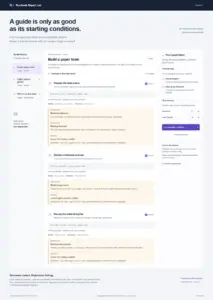
Bridging the Gap Between Logic and Instruction: An In-Depth Look at the Runbook Repair Lab
In the rapidly evolving landscape of software engineering, the "runbook"—a routine set...