
In-App Settings and the Conflict of Authority
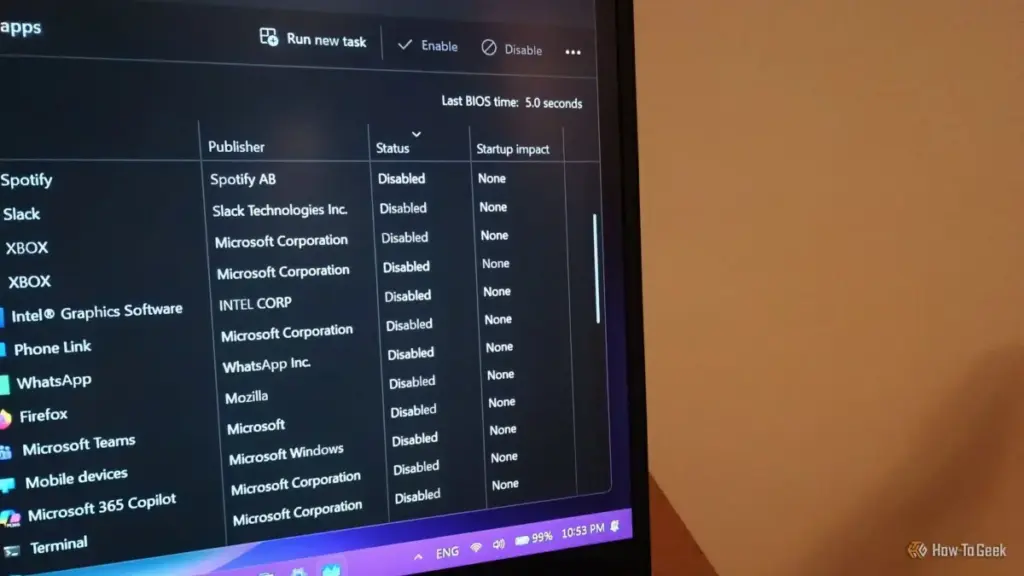
Beyond the operating system’s registry, many applications maintain their own internal logic regarding how they should behave. Software like Spotify includes dedicated "Startup and Window Behavior" settings within its own interface. These internal toggles are often designed to be the "source of truth" for the application.
A conflict arises when the internal settings of an app contradict the settings of the Windows Task Manager. In some cases, launching the app manually once can cause the software to "repair" its startup status, re-enabling itself in the registry because its internal configuration dictates that it should be a startup program. This creates a loop where the user disables the app in Windows, but the app re-enables itself the next time it is used.
Furthermore, software updates frequently act as a "reset" for these preferences. When a program installs a major update, it may overwrite user-defined startup configurations with its own default "recommended" settings, which almost always favor being active at boot. For developers, ensuring an app is always open is a matter of engagement and "stickiness"; for users, it is often an intrusive drain on system resources.
The Hidden Hand of the Task Scheduler
For applications that seem to evade both the Task Manager and their own internal settings, the culprit is often the Windows Task Scheduler. This is a much deeper, more powerful component of the operating system designed to run tasks based on specific triggers—such as a specific time of day, a system idle state, or, most commonly, a user logging into the machine.
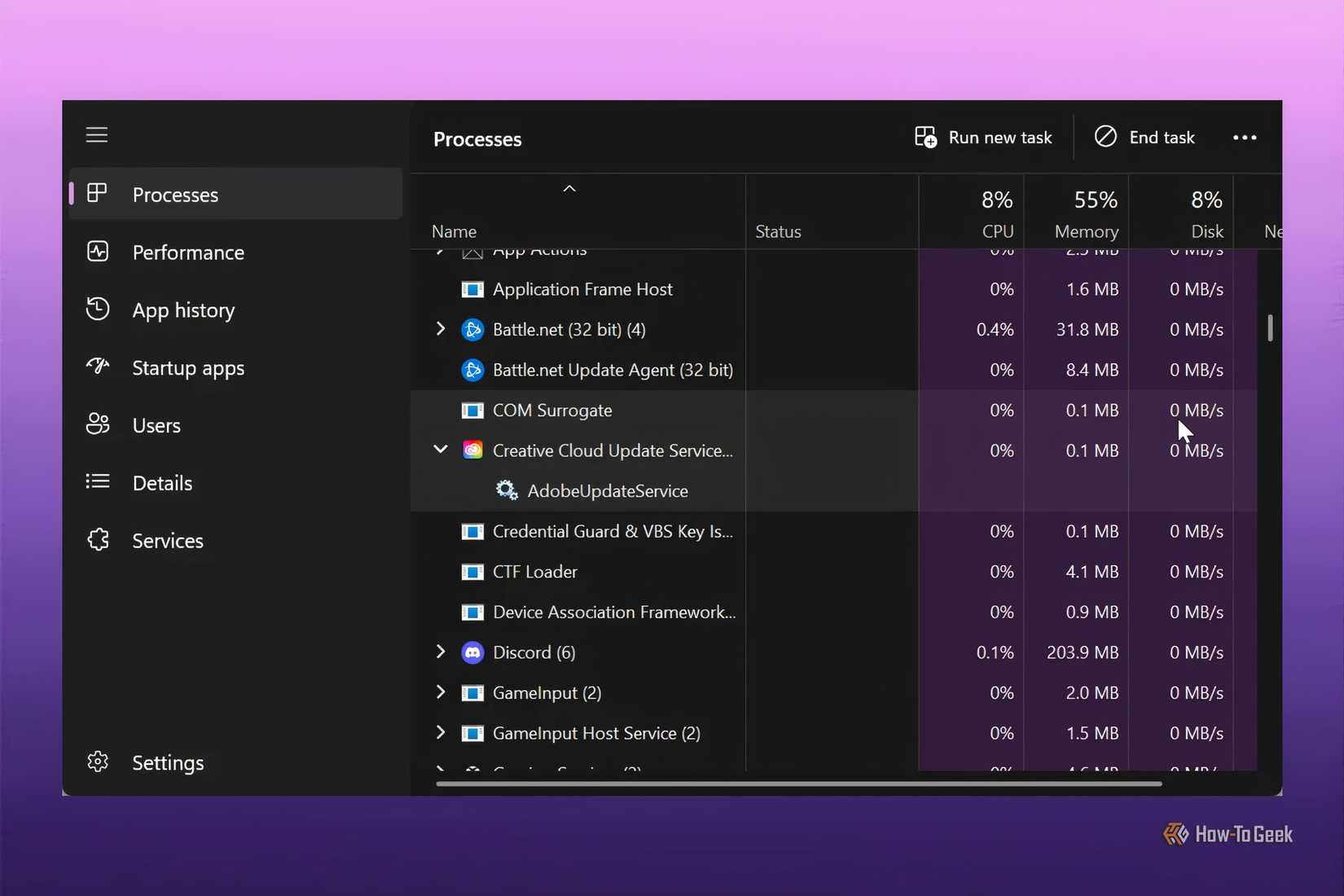
Unlike the "Startup apps" list, which is intended for user-facing software, the Task Scheduler Library is often populated by background services. Google Chrome, Adobe Creative Cloud, and various system utilities frequently use the Task Scheduler to run "maintenance" or "syncing" tasks. Because these tasks are scheduled at a system level, they can bypass the standard startup restrictions.
If a scheduled task is set to "Run at log on," it will execute regardless of what the Task Manager says. To the user, this looks like the app is ignoring their commands. In reality, the app is following a different set of instructions entirely. Navigating the Task Scheduler Library allows users to see these hidden triggers, but it requires caution. While disabling a social media updater is harmless, disabling a task related to system backups or antivirus definitions can have unintended security and stability consequences.
The Legacy of the Windows Startup Folder
While modern Windows versions have moved toward registry-based and scheduler-based startup management, the classic "Startup Folder" remains a functional part of the OS. This folder, accessible via the shell:startup command in the Run dialog, is a directory where any shortcut placed inside will be executed upon login.
 Tech Tutorials & How-To Guides
Crafting Beyond the Screen: How Simple Woodworking Projects Bridge the Gap Between Tech and Tradition
For more than a decade, Joe Fedewa has been a prominent voice...
 Tech Tutorials & How-To Guides
The Hidden Cost of DLSS: Why NVIDIA’s Software Lead No Longer Justifies the GeForce Price Premium
For over a decade, NVIDIA has cultivated a nearly impenetrable software ecosystem...
 Tech Tutorials & How-To Guides
Bridging the Automation Gap: How Google Gemini is Transforming Smart Home Management Through Personal Intelligence
In the rapidly evolving landscape of the modern smart home, the promise...