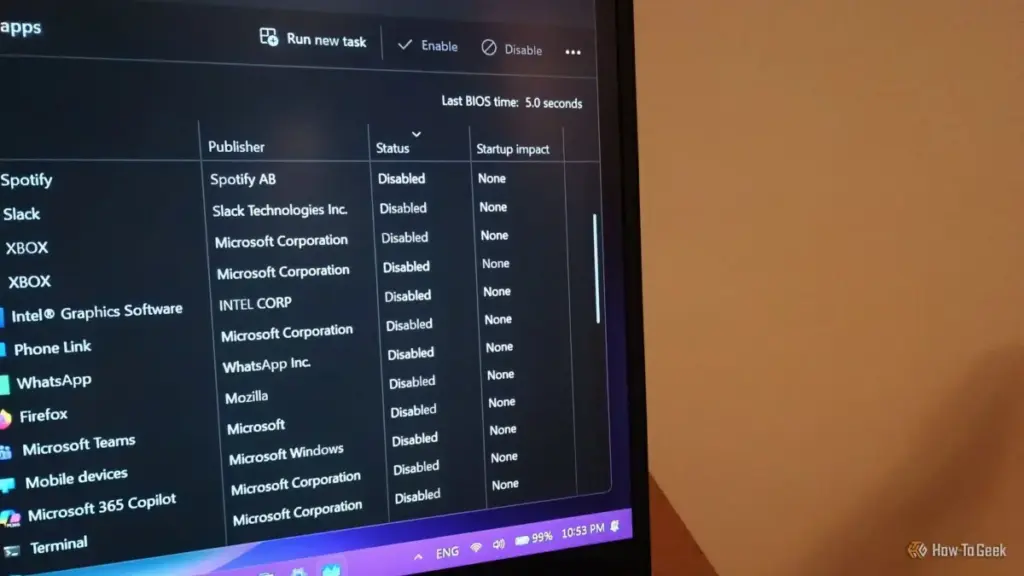
For many Windows users, the ritual of optimizing a computer begins with a visit to the Task Manager. The goal is usually simple: navigate to the "Startup apps" tab and disable any software that isn’t strictly necessary for the immediate operation of the device. This practice is widely regarded as one of the most effective "low-hanging fruits" for improving boot times, reclaiming system memory, and reducing the cognitive load of unwanted notifications immediately after logging in. However, a growing number of users are discovering that the Task Manager’s "Disable" button is no longer the definitive command it once was.
Despite explicit instructions to remain dormant, certain applications—ranging from communication tools like Discord to media platforms like Spotify—frequently find ways to bypass these operating system preferences. This phenomenon highlights a complex tug-of-war between user autonomy and the increasingly sophisticated ways modern software integrates itself into the Windows environment. Understanding why these apps persist requires looking beyond the surface-level settings of the Task Manager and into the multi-layered architecture of the Windows startup process.
The Illusion of Control in Task Manager
The Task Manager has long been the primary interface for managing how Windows handles third-party software during the boot sequence. When a user toggles an app to "Disabled," Windows essentially modifies a specific entry in the system registry, telling the OS not to execute that particular file upon user authentication. For many legacy applications, this is sufficient. However, modern software suites are rarely comprised of a single executable file.
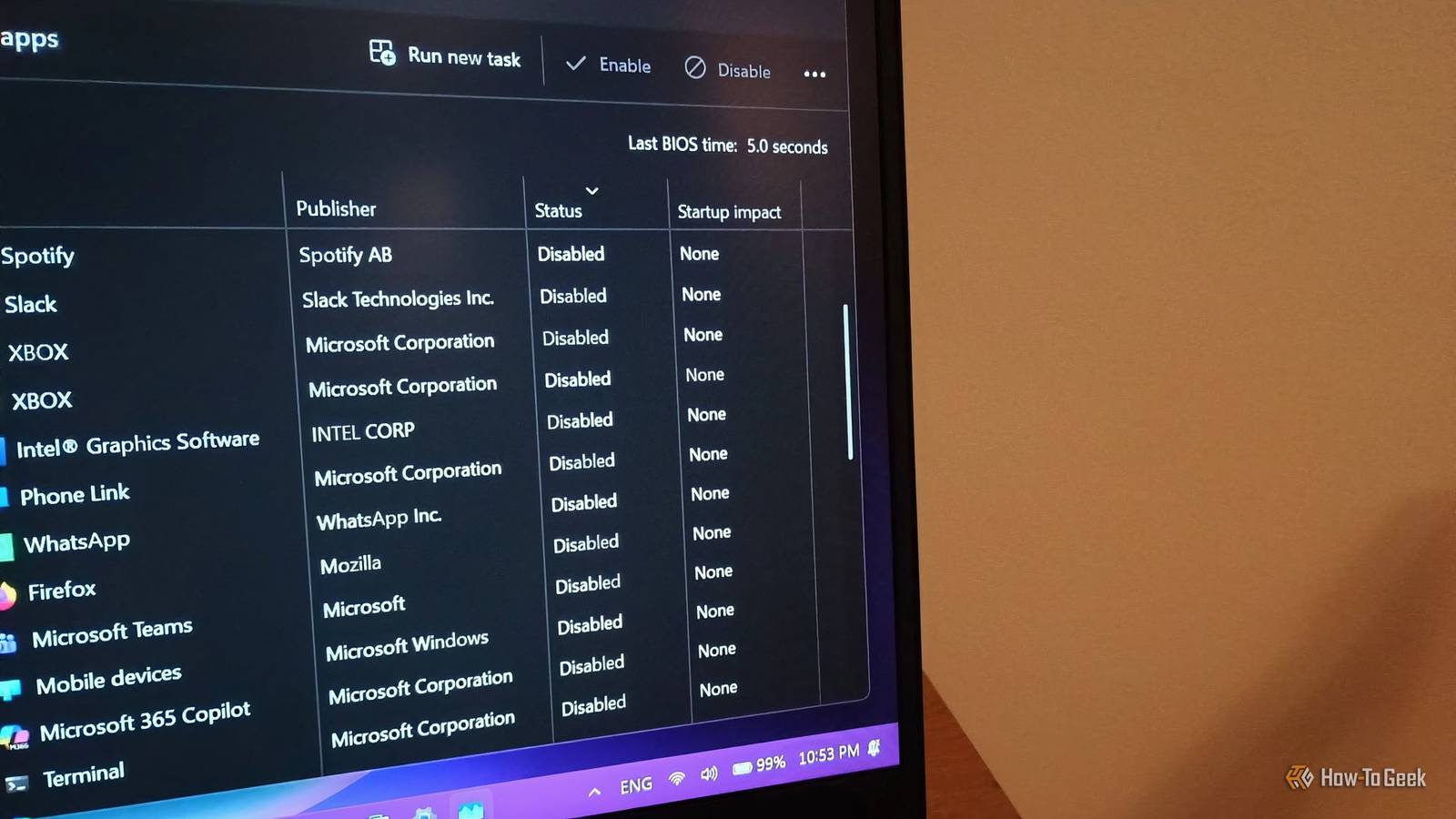
The limitation of the Task Manager lies in its scope. It typically monitors standard startup "hooks"—specific locations in the registry where programs register their intent to run at boot. Yet, developers have various other methods at their disposal to ensure their software remains active. If an application utilizes secondary processes, "helper" apps, or independent update services, the primary entry in the Task Manager may only represent a small fraction of the program’s footprint. When these secondary components are triggered, they often "wake up" the main application, effectively rendering the user’s "Disabled" preference moot.
The Role of Helper Processes and Update Launchers
One of the most common reasons an app stubbornly appears at startup is the presence of a background helper or an independent update executable. Discord serves as a primary example of this architectural choice. While a user might disable "Discord" in the Task Manager, the software often utilizes a separate process, frequently named Update.exe, which is designed to check for patches the moment the computer connects to the internet.
Because this updater is technically a different process than the main user interface, it may not be governed by the same startup rule. When the updater runs, its final command is often to launch the main application. This creates a scenario where the user sees the app window appear on their desktop, despite having "disabled" it moments or days prior. Similar behavior is observed in various game launchers and productivity suites, where "launcher" processes act as a gateway, triggering the full application even if the primary executable was told to stay closed.
In these instances, the solution often remains within the Task Manager, but it requires a more forensic approach. Users must look for secondary entries that share the same icon or a similar naming convention. Disabling these "updaters" or "launchers" is often the only way to break the chain of commands that leads to the app’s unwanted appearance.

In-App Settings and the Conflict of Authority
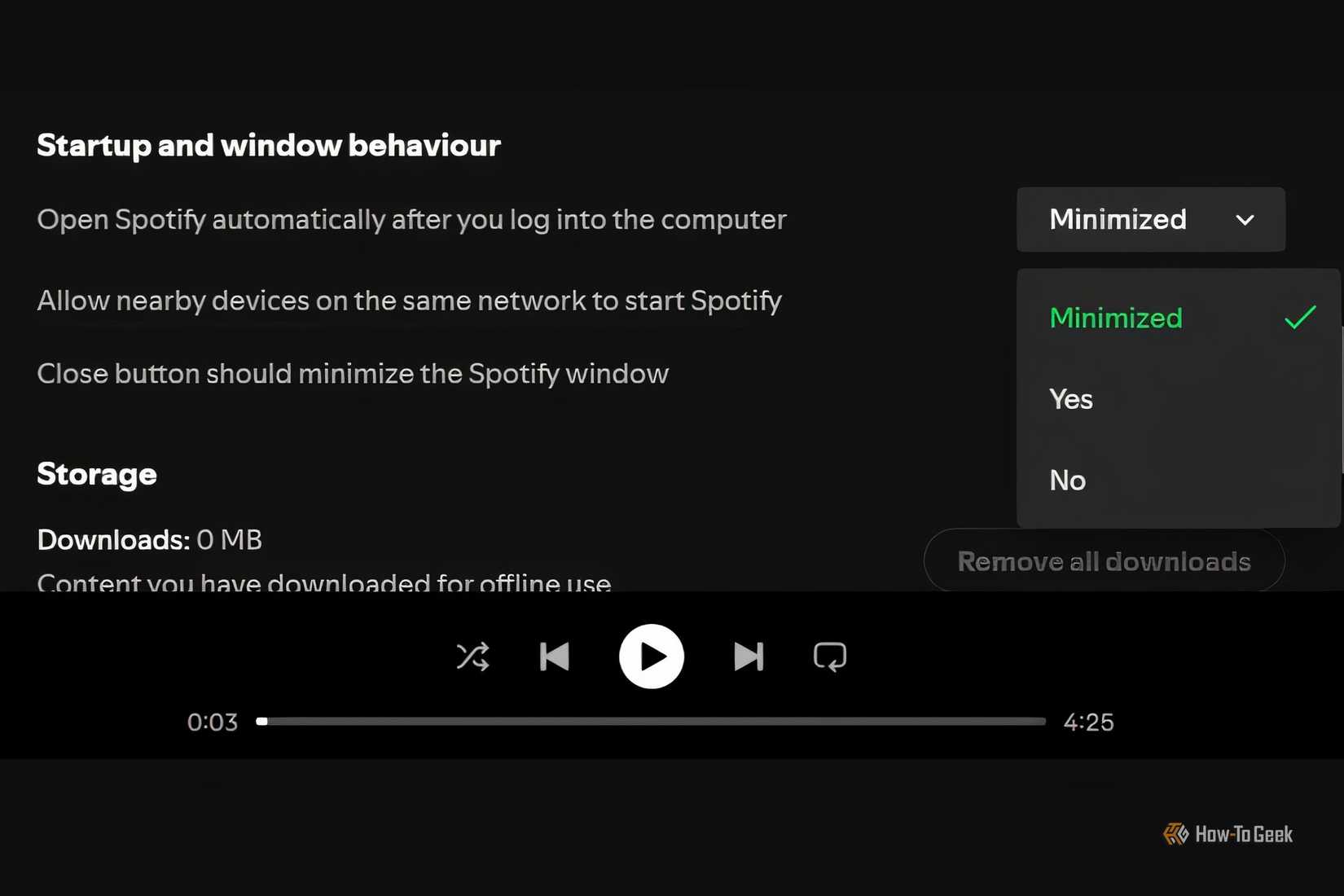
Beyond the operating system’s registry, many applications maintain their own internal logic regarding how they should behave. Software like Spotify includes dedicated "Startup and Window Behavior" settings within its own interface. These internal toggles are often designed to be the "source of truth" for the application.
A conflict arises when the internal settings of an app contradict the settings of the Windows Task Manager. In some cases, launching the app manually once can cause the software to "repair" its startup status, re-enabling itself in the registry because its internal configuration dictates that it should be a startup program. This creates a loop where the user disables the app in Windows, but the app re-enables itself the next time it is used.
Furthermore, software updates frequently act as a "reset" for these preferences. When a program installs a major update, it may overwrite user-defined startup configurations with its own default "recommended" settings, which almost always favor being active at boot. For developers, ensuring an app is always open is a matter of engagement and "stickiness"; for users, it is often an intrusive drain on system resources.
The Hidden Hand of the Task Scheduler
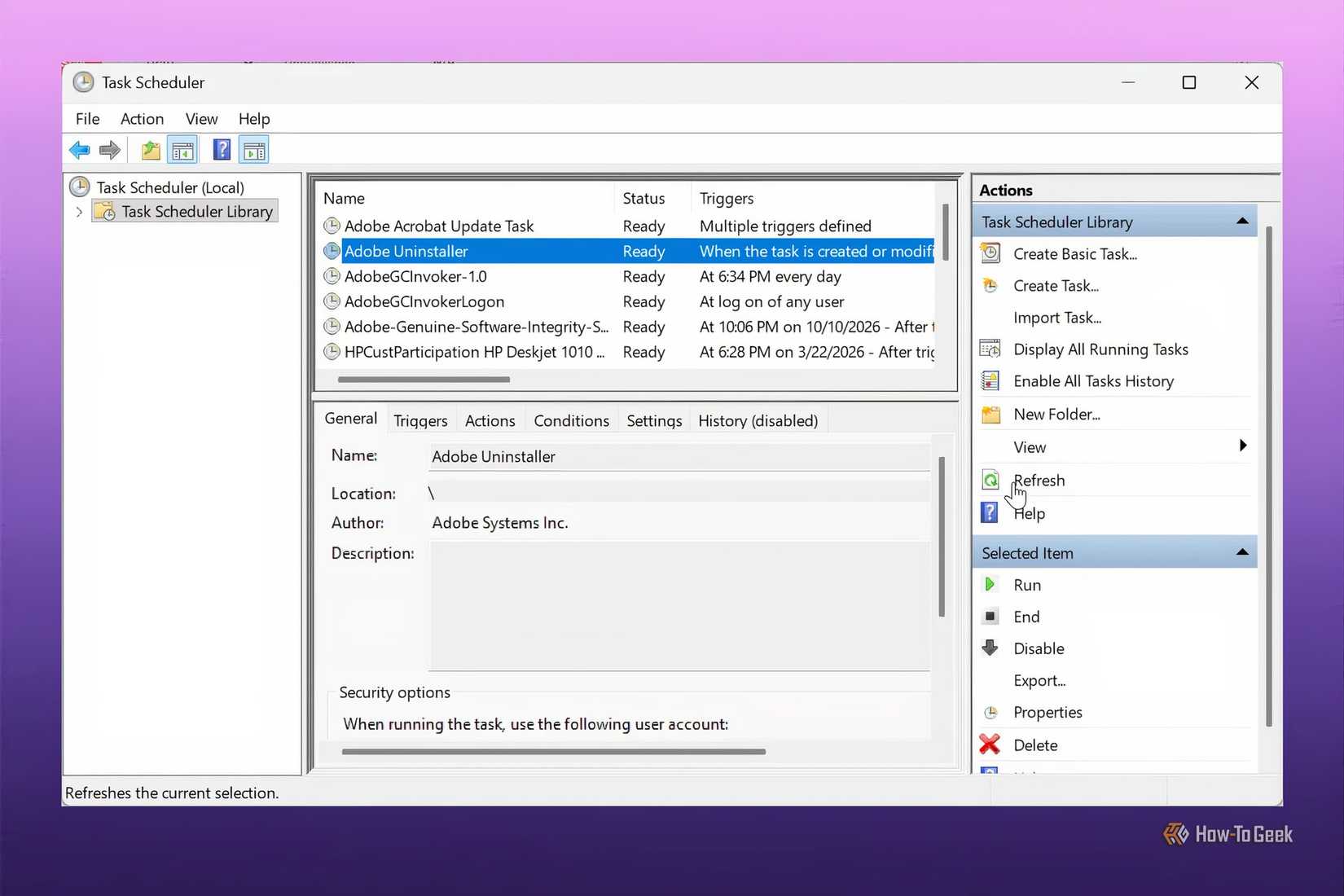
For applications that seem to evade both the Task Manager and their own internal settings, the culprit is often the Windows Task Scheduler. This is a much deeper, more powerful component of the operating system designed to run tasks based on specific triggers—such as a specific time of day, a system idle state, or, most commonly, a user logging into the machine.
Unlike the "Startup apps" list, which is intended for user-facing software, the Task Scheduler Library is often populated by background services. Google Chrome, Adobe Creative Cloud, and various system utilities frequently use the Task Scheduler to run "maintenance" or "syncing" tasks. Because these tasks are scheduled at a system level, they can bypass the standard startup restrictions.
If a scheduled task is set to "Run at log on," it will execute regardless of what the Task Manager says. To the user, this looks like the app is ignoring their commands. In reality, the app is following a different set of instructions entirely. Navigating the Task Scheduler Library allows users to see these hidden triggers, but it requires caution. While disabling a social media updater is harmless, disabling a task related to system backups or antivirus definitions can have unintended security and stability consequences.
The Legacy of the Windows Startup Folder
While modern Windows versions have moved toward registry-based and scheduler-based startup management, the classic "Startup Folder" remains a functional part of the OS. This folder, accessible via the shell:startup command in the Run dialog, is a directory where any shortcut placed inside will be executed upon login.
Some installers still use this legacy method to ensure their software runs. Because this is a file-system-based trigger rather than a registry-based one, it can occasionally lead to redundancies or "ghost" launches that are harder to track through the standard Task Manager interface. Checking this folder is a necessary step for any user attempting to achieve a truly "clean" boot sequence. It represents the most manual form of startup management, yet it is frequently overlooked in favor of more modern, automated tools.
Balancing System Performance and Essential Services
The drive to eliminate startup bloat is often fueled by a desire for a faster, more responsive machine. On older systems with traditional hard drives, every additional startup app can add seconds or even minutes to the time it takes for the computer to become usable. Even on modern systems equipped with high-speed NVMe SSDs, the cumulative effect of dozens of background processes can impact CPU overhead and available RAM, particularly for users who engage in resource-intensive tasks like gaming or video editing.
However, the challenge for the average user lies in distinguishing between "bloat" and "essential services." While it is easy to categorize a music player or a chat app as non-essential, other processes are more ambiguous. Driver-related software for audio interfaces, graphics cards, and peripheral management (such as mouse and keyboard macros) often needs to run at startup to ensure the hardware functions as intended.
The professional consensus for maintaining a healthy Windows environment is one of "informed minimalism." Users are encouraged to investigate processes they do not recognize before disabling them. A process that seems like an intruder might be a critical security component or a network-related service that prevents connectivity issues.
The Ongoing Battle for the Desktop
As software continues to evolve into service-based models, the pressure for applications to remain "always on" will likely increase. For developers, being present in the system tray or on the taskbar is the best way to ensure their service remains at the forefront of the user’s mind. For the user, the responsibility of maintaining system performance has shifted from a one-time setup to a recurring maintenance task.
The persistence of startup apps despite being "disabled" is a reminder that Windows is a complex ecosystem of competing priorities. The Task Manager remains a powerful tool, but it is no longer a "silver bullet." Achieving a truly streamlined startup requires a holistic approach that encompasses in-app configurations, the Task Scheduler, and a fundamental understanding of how modern software components interact with the operating system. In the end, the price of a fast-booting, distraction-free PC is constant vigilance against the "sneaky" tactics of modern application design.
 Tech Tutorials & How-To Guides
The Hidden Cost of Convenience: Why Windows’ Automated OneDrive Folder Backup Is Raising Alarms
For years, Microsoft Windows has been criticized for an increasing reliance on...
 Tech Tutorials & How-To Guides
The Precision Gap: Why the Electric Screwdriver Has Become the Essential Companion to the Cordless Drill
In the world of home improvement and DIY maintenance, the cordless drill...
 Tech Tutorials & How-To Guides
Amazon Launches Major Discounts on CMF by Nothing Audio Lineup Ahead of Black Friday
As the holiday shopping season approaches, the competition in the consumer electronics...