
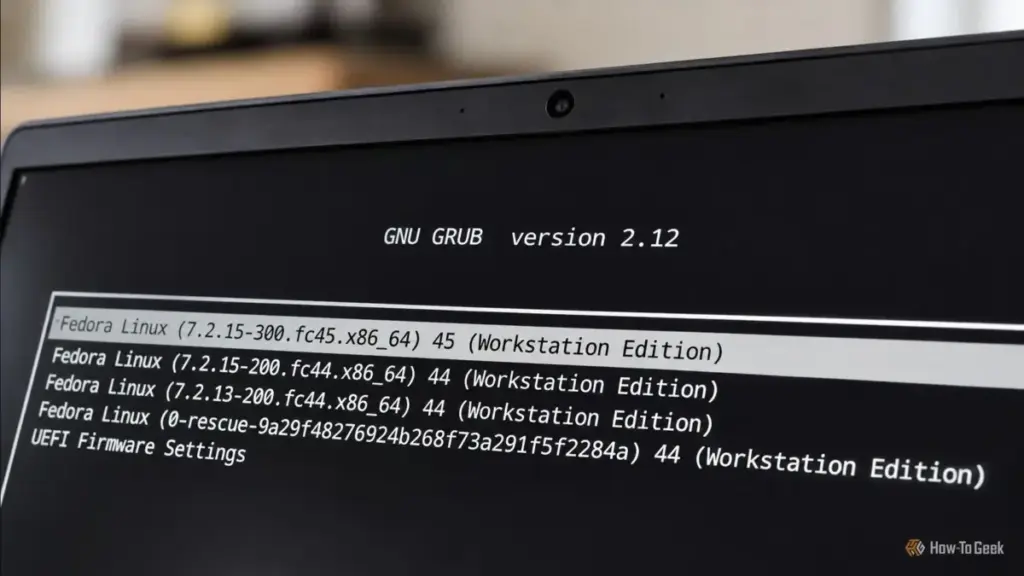
Rescue mode, or rescue.target, is a specialized state that stops the normal boot process before the graphical environment and most non-essential services are loaded. It mounts the local filesystems and drops the user into a command-line interface. This environment is ideal for tasks that require the system to be mostly "at rest," such as repairing configuration files in the /etc directory or removing a software package that is causing a conflict.
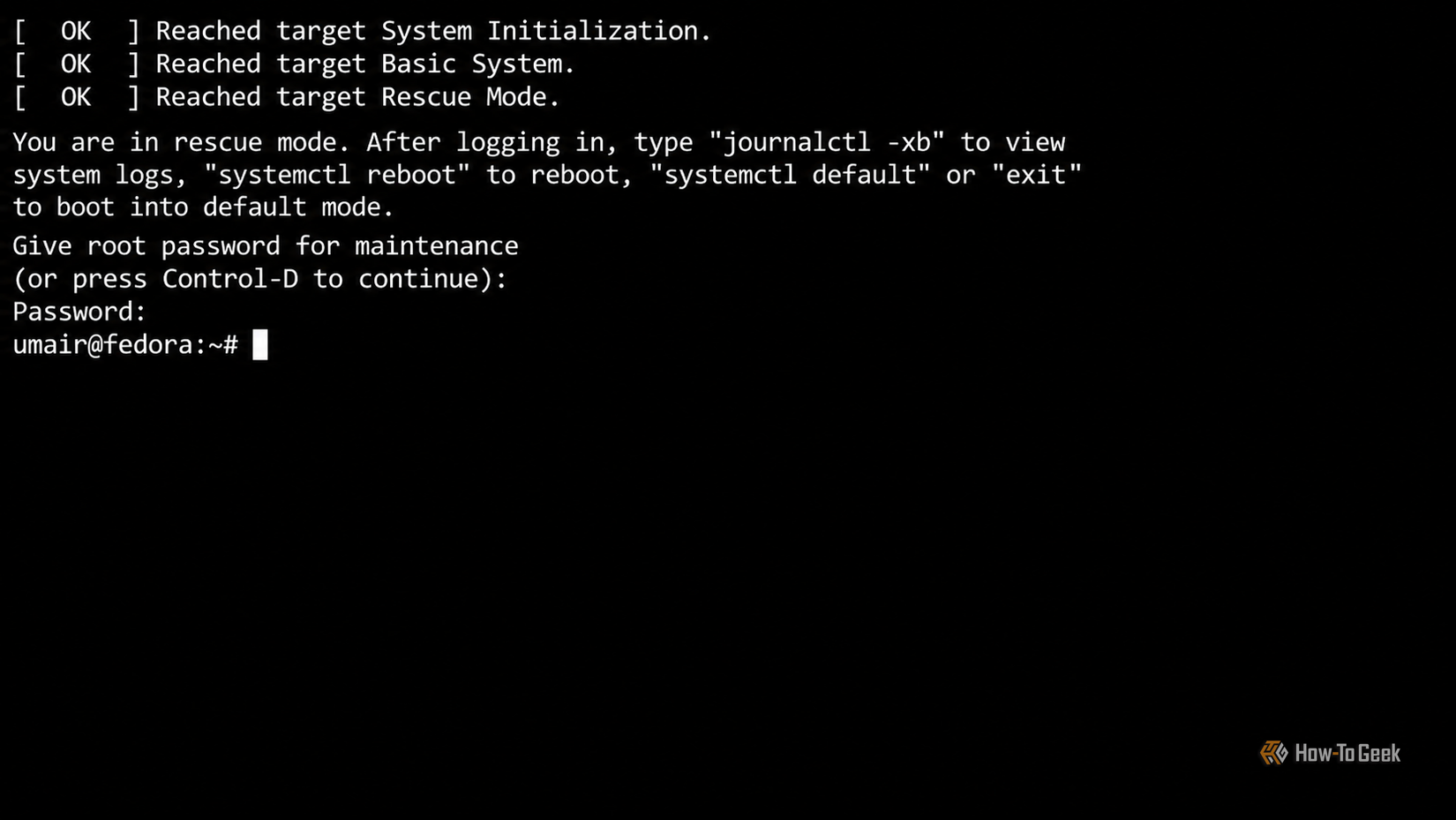
To access this mode, an administrator must edit the GRUB boot entry by pressing ‘e’ on the keyboard. By appending systemd.unit=rescue.target to the line beginning with linux, the system is instructed to change its destination. This mode often requires the root password, ensuring that the recovery environment remains secure even if physical access to the machine is achieved. Once inside, the journalctl -xb command becomes an invaluable tool, allowing the user to parse the system logs for the specific errors that prevented a successful boot.
Emergency Interventions for Critical Failures
There are scenarios where even rescue mode is unable to stabilize the system. If the failure occurs so early in the boot process that essential filesystems cannot be mounted—perhaps due to an error in the /etc/fstab file or a corrupted disk—the system will likely fail to reach the rescue target. In these dire circumstances, emergency mode serves as the ultimate fallback.
Invoked via the systemd.unit=emergency.target parameter, this mode provides the most minimal environment possible. It starts the fewest number of services and provides a root shell with almost no background infrastructure. This is often the only way to fix a mount-point error that would otherwise cause the system to hang indefinitely. Because the root filesystem is frequently mounted as read-only in this state to prevent further damage, administrators must often manually remount it with write permissions using the command mount -o remount,rw /. This allows for the correction of critical system files, after which the system can be rebooted into a normal state.
Bypassing Failing Services and the Initialization System
Sometimes, the culprit of a failed boot is not a core system component, but a single misbehaving service. A network configuration change or a faulty daemon can cause the boot process to wait for a timeout that never comes, effectively locking the user out of their system. Rather than entering a full recovery mode, systemd allows users to "mask" specific services during the boot process.
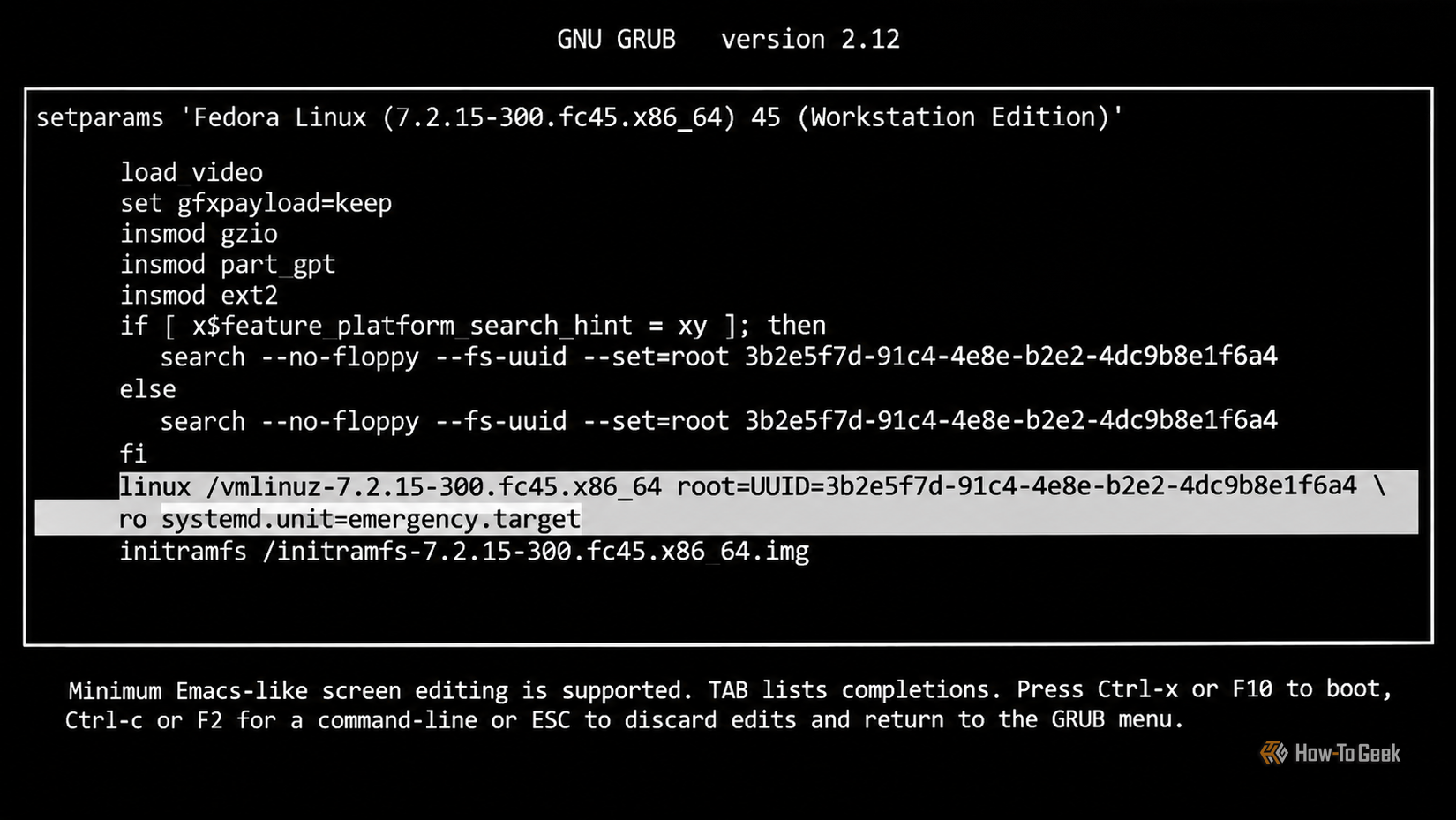
By adding a parameter like systemd.mask=NetworkManager.service to the GRUB command line, the user can tell the system to act as if that service does not exist for the duration of that boot. This is a highly effective way to isolate variables during troubleshooting. If the system boots successfully with a service masked, the administrator has identified the source of the problem and can then proceed to reconfigure or reinstall that specific component.
 Tech Tutorials & How-To Guides
From Satire to Slapstick: A Curated Selection of Netflix Comedies to Cure the Workday Blues
In the modern professional landscape, the transition from a high-stress office environment...
 Tech Tutorials & How-To Guides
Crafting Beyond the Screen: How Simple Woodworking Projects Bridge the Gap Between Tech and Tradition
For more than a decade, Joe Fedewa has been a prominent voice...
 Tech Tutorials & How-To Guides
DIY Innovation: Bridging the Connectivity Gap for Legacy Vehicles with Raspberry Pi
In the rapidly evolving landscape of automotive technology, the integration of smartphone...