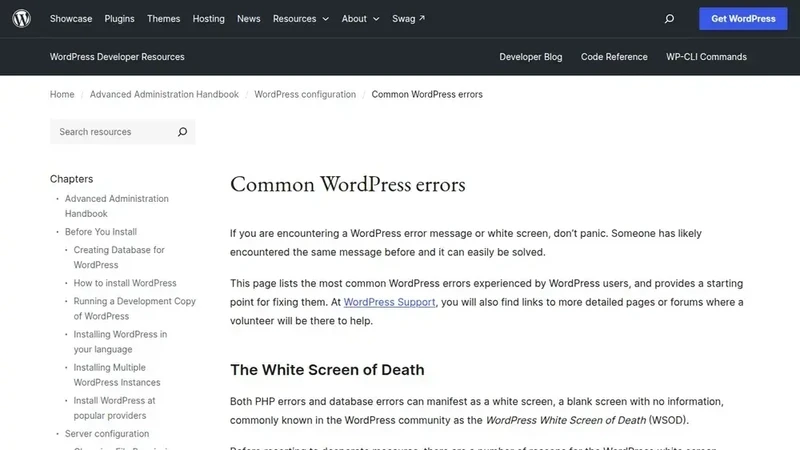
In the modern landscape of digital publishing, WordPress remains the dominant force, powering a vast majority of the world’s websites. For creators, the workflow is often seamless: write, edit, and upload. However, a specific technical hurdle continues to plague users ranging from novice bloggers to seasoned developers—the elusive and frustrating "HTTP error" during image uploads. This error, characterized by its lack of specific feedback, often appears at the most inconvenient times, stalling the publication of critical content. While the message itself offers no roadmap for a resolution, industry experts and technical documentation suggest that the cause is rarely a fundamental system failure, but rather a breakdown in one of five key areas: file specifications, server permissions, resource allocation, software conflicts, or client-side interference.
The core of the frustration lies in the ambiguity of the message. Unlike other software errors that provide a code or a specific description of what went wrong, the WordPress HTTP error is essentially a generic signal that the communication chain between the user’s browser and the web server has been broken. When a user attempts to upload a file, the browser transmits the data to the server, which then must process the image, create various thumbnail sizes, and move the file to a permanent directory. If any link in this chain fails—whether due to a timeout, a lack of memory, or a security block—WordPress often defaults to a simple "HTTP error" notification. This lack of detail means that troubleshooting must be approached systematically, starting with the most common and easily rectified issues before moving toward more complex server-side configurations.
One of the most frequent catalysts for this error is the file itself. As smartphone cameras and digital photography equipment have evolved, the default file sizes for high-quality images have increased dramatically. It is now common for a single uncompressed photograph to exceed 8 MB. However, many standard web hosting environments are configured with strict upload limits, often capped at 2 MB, 5 MB, or 10 MB to preserve server resources. When a user attempts to upload a file that exceeds these predefined boundaries, the server simply terminates the process. Beyond mere file size, the formatting of the filename plays a significant role in successful uploads. Servers can be sensitive to special characters; while a computer might allow a file to be named with spaces, apostrophes, or symbols like ampersands and brackets, web servers often struggle to parse these characters during the upload process. The industry standard recommendation is to utilize a naming convention consisting solely of lowercase letters, numbers, and hyphens to ensure maximum compatibility.
Furthermore, the physical dimensions of an image can be as problematic as its file size. A massive image requires significant server-side processing to generate the various "crops" or thumbnails that WordPress uses for different parts of a website’s layout. If an image is several thousand pixels wide, the server may run out of memory during the resizing phase, even if the initial upload was successful. This is why tools that compress and resize images before they ever reach the WordPress dashboard are considered essential for a stable workflow. Not only does this prevent the HTTP error, but it also contributes to faster page loading speeds, which is a critical factor for both user experience and search engine optimization.
When the file itself is not the culprit, the investigation must turn toward the server’s infrastructure, specifically the permissions assigned to the directory where images are stored. In the WordPress ecosystem, all media is typically housed within the wp-content/uploads folder. Every folder on a web server operates under a set of rules known as permissions, which dictate who can read, write, or execute files within that space. If these permissions are incorrectly configured—perhaps as a result of a recent site migration or a server update—WordPress may find itself unable to "write" the new image to the disk.
The technical standard for these permissions is specific: folders should generally be set to a numeric value of 755, which allows the owner to manage the content while permitting others to view it. Files within those folders should be set to 644. A common pitfall for users attempting to fix this issue is the temptation to set permissions to 777, a "wide-open" setting that allows anyone to read and write to the directory. While this may temporarily resolve the upload error, it creates a significant security vulnerability, essentially leaving a door open for malicious actors to inject code into the website. Maintaining the 755/644 balance is vital for both functionality and site integrity.

Another pillar of the upload process is the allocation of PHP memory. PHP is the scripting language that powers WordPress, and like any software, it requires a certain amount of "room" to perform tasks. When WordPress receives a new image, it initiates a series of memory-intensive actions, such as utilizing the GD Library or Imagick to create smaller versions of the photo. If the server’s PHP memory limit is set too low—often a default setting on budget hosting plans—the process will crash mid-way, resulting in the dreaded HTTP error.
Increasing this limit is a standard troubleshooting step that involves adding a specific line of code to the wp-config.php file, which acts as the central brain of a WordPress installation. By defining a higher memory limit, such as 256M, users can often provide the server with enough overhead to handle larger files. However, this is only effective if the hosting provider allows the user to override these settings. In cases where the host enforces a hard cap on resources, the user may need to coordinate directly with the provider’s support team to ensure the environment is properly optimized for media-heavy websites.
Beyond the server and the file, the WordPress ecosystem itself can sometimes be the source of the conflict. One of the platform’s greatest strengths—its massive library of third-party plugins and themes—is also a potential source of instability. Many plugins, particularly those designed for image optimization, security, or gallery management, "hook" into the upload process to perform their functions. If a plugin is poorly coded or becomes incompatible following a WordPress update, it can interrupt the upload flow.
The standard diagnostic procedure for this scenario involves a "process of elimination." By temporarily deactivating all plugins and attempting an upload, a user can determine if the core WordPress installation is functioning correctly. If the error disappears, the plugins are reactivated one by one until the failure recurs, identifying the specific culprit. A similar approach is taken with themes; if the problem persists even after plugins are disabled, switching to a default WordPress theme can help determine if the site’s primary design framework is interfering with the Media Library’s operations.
In some instances, the issue may not be with the server or the software at all, but rather with the user’s local environment. Modern web browsers use complex JavaScript to power the drag-and-drop uploader found in the WordPress dashboard. Occasionally, browser extensions, ad blockers, or even a corrupted cache can prevent these scripts from executing properly. WordPress includes a "browser uploader" as a fallback—a simpler, older method of uploading files that bypasses much of the modern interface’s complexity. If a file successfully uploads via the browser uploader but fails through the standard interface, it is a clear indication that the problem lies within the browser or a specific extension. Testing the process in an "incognito" window or a different browser entirely is a quick way to narrow down these client-side variables.
For those who find themselves still facing the HTTP error after exhausted all primary fixes, the WordPress "Site Health" tool provides a final layer of diagnostic data. This built-in utility can identify missing server modules, such as the aforementioned GD or Imagick libraries, which are essential for image processing. If these modules are absent, the server literally lacks the tools required to handle images correctly. At this stage, the most efficient path to resolution is often through professional hosting support. Providing a clear description of the error and the steps already taken allows support technicians to examine the server’s PHP error logs, which record the specific reason for every failed process.
Ultimately, while the WordPress HTTP error is a significant annoyance that can disrupt the creative process, it is rarely a sign of a catastrophic failure. It is a symptom of a specific, identifiable bottleneck in the complex interaction between a user’s computer, the WordPress core software, and the web server’s hardware. By systematically addressing file sizes, folder permissions, memory limits, and software conflicts, users can typically restore their Media Library to full functionality in a matter of minutes. The resolution of these errors not only facilitates the immediate upload of content but often leads to a more robust, secure, and faster-loading website in the long run.
 Software Development & Scripting for IT
New Tool and Audit Reveal Common Structural Failures in the Emerging llms.txt Standard
As artificial intelligence agents and large language models increasingly become the primary...
 Software Development & Scripting for IT
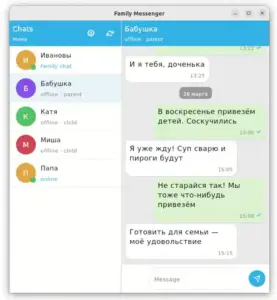
Architecting Complexity: How a Structured Multi-Prompt Strategy Enabled an AI Agent to Build a Multi-Platform Messenger
In the rapidly evolving landscape of artificial intelligence, the narrative has shifted...
 Software Development & Scripting for IT
Navigating the "Lakh and Crore" Divide: New AI Benchmark Exposes Significant Errors in Indian Real Estate Mathematics
The dream of homeownership in India is often a complex journey through...