
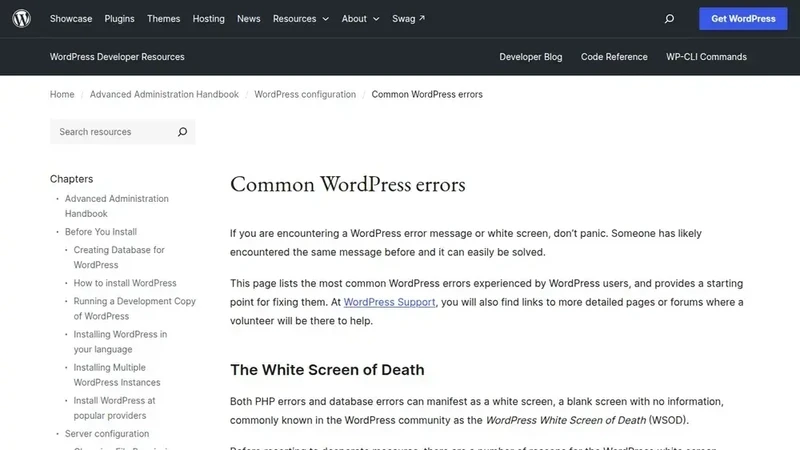
In the modern landscape of digital publishing, WordPress remains the dominant force, powering a vast majority of the world’s websites. For creators, the workflow is often seamless: write, edit, and upload. However, a specific technical hurdle continues to plague users ranging from novice bloggers to seasoned developers—the elusive and frustrating "HTTP error" during image uploads. This error, characterized by its lack of specific feedback, often appears at the most inconvenient times, stalling the publication of critical content. While the message itself offers no roadmap for a resolution, industry experts and technical documentation suggest that the cause is rarely a fundamental system failure, but rather a breakdown in one of five key areas: file specifications, server permissions, resource allocation, software conflicts, or client-side interference.
The core of the frustration lies in the ambiguity of the message. Unlike other software errors that provide a code or a specific description of what went wrong, the WordPress HTTP error is essentially a generic signal that the communication chain between the user’s browser and the web server has been broken. When a user attempts to upload a file, the browser transmits the data to the server, which then must process the image, create various thumbnail sizes, and move the file to a permanent directory. If any link in this chain fails—whether due to a timeout, a lack of memory, or a security block—WordPress often defaults to a simple "HTTP error" notification. This lack of detail means that troubleshooting must be approached systematically, starting with the most common and easily rectified issues before moving toward more complex server-side configurations.
One of the most frequent catalysts for this error is the file itself. As smartphone cameras and digital photography equipment have evolved, the default file sizes for high-quality images have increased dramatically. It is now common for a single uncompressed photograph to exceed 8 MB. However, many standard web hosting environments are configured with strict upload limits, often capped at 2 MB, 5 MB, or 10 MB to preserve server resources. When a user attempts to upload a file that exceeds these predefined boundaries, the server simply terminates the process. Beyond mere file size, the formatting of the filename plays a significant role in successful uploads. Servers can be sensitive to special characters; while a computer might allow a file to be named with spaces, apostrophes, or symbols like ampersands and brackets, web servers often struggle to parse these characters during the upload process. The industry standard recommendation is to utilize a naming convention consisting solely of lowercase letters, numbers, and hyphens to ensure maximum compatibility.
Furthermore, the physical dimensions of an image can be as problematic as its file size. A massive image requires significant server-side processing to generate the various "crops" or thumbnails that WordPress uses for different parts of a website’s layout. If an image is several thousand pixels wide, the server may run out of memory during the resizing phase, even if the initial upload was successful. This is why tools that compress and resize images before they ever reach the WordPress dashboard are considered essential for a stable workflow. Not only does this prevent the HTTP error, but it also contributes to faster page loading speeds, which is a critical factor for both user experience and search engine optimization.
When the file itself is not the culprit, the investigation must turn toward the server’s infrastructure, specifically the permissions assigned to the directory where images are stored. In the WordPress ecosystem, all media is typically housed within the wp-content/uploads folder. Every folder on a web server operates under a set of rules known as permissions, which dictate who can read, write, or execute files within that space. If these permissions are incorrectly configured—perhaps as a result of a recent site migration or a server update—WordPress may find itself unable to "write" the new image to the disk.
 Software Development & Scripting for IT
The Technical Divide: How Design Control and Risk Management Distinguish ISO 13485 from ISO 9001 in Medical Manufacturing
In the complex world of medical device procurement and engineering, the presentation...
 Software Development & Scripting for IT
Chain of Recall: A New Architectural Blueprint for Long-Running AI Agent Memory
As artificial intelligence shifts from simple chat interfaces to "super-agents" capable of...
 Software Development & Scripting for IT
Rails 8 Redefines Web Security with New Built-in Authentication Framework
The evolution of the Ruby on Rails framework has reached a significant...