The default GNOME desktop environment has long prioritized minimalism, streamlined interfaces, and stripped-back design paradigms. For millions of Linux users who rely on the Nautilus file manager—officially known as GNOME Files—this philosophy delivers a clean and uncluttered workspace for day-to-day file operations. However, this same dedication to minimalism has occasionally come at the cost of traditional computing layouts that many longtime operating system users take for granted. Chief among these missing legacy layouts is a dedicated, consolidated system drive overview capable of illustrating disk capacities, mounted partitions, and available storage at a glance.
A third-party add-on known as Nautilus My Computer, developed by open-source programmer Yann Masoch, aims to bridge this long-standing design gap. Designed as an integrated view for modern iterations of the GNOME file manager, the software provides a centralized landing screen specifically focused on drive management, volume metrics, and high-level directory navigation. Beyond merely reintroducing an overview of attached hardware, the project packages an array of interface tweaks and an oft-requested navigation paradigm: experimental Miller columns.
A Centralized Storage Hub for GNOME
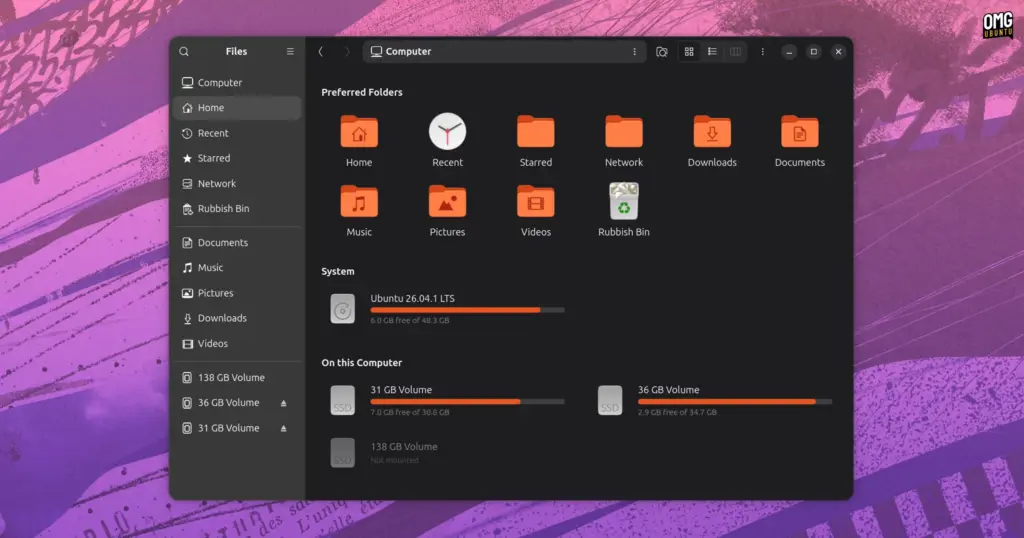
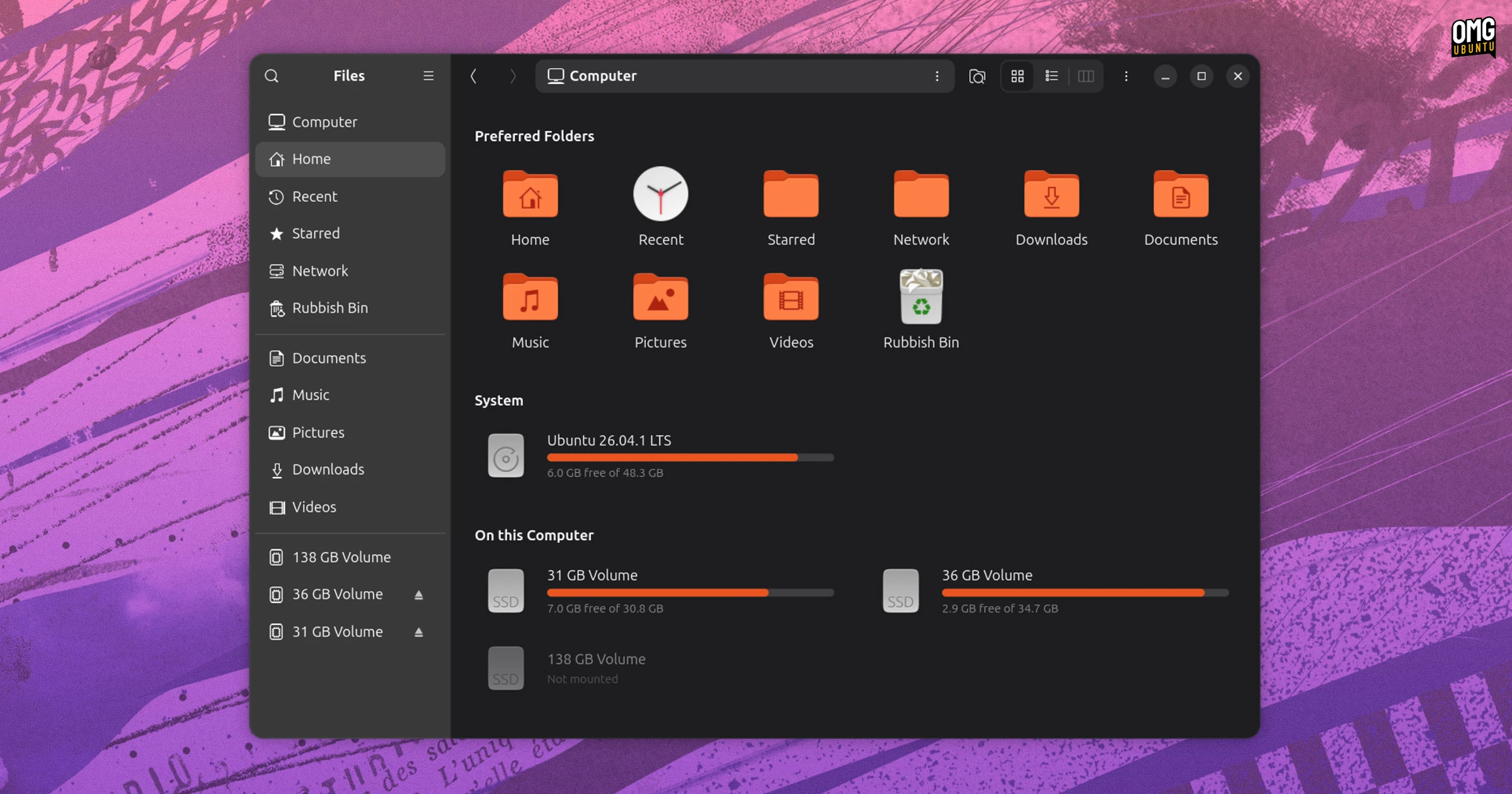
At its core, the Nautilus My Computer add-on introduces a dedicated graphical page directly inside the file manager window. Rather than requiring users to open separate analytical utilities or dig into partition tables, this unified page enumerates all recognized local disks, external hardware, removable media volumes, and active storage partitions.
Crucially, each volume entry on the overview screen is paired with an inline storage usage meter. These visual progress bars give users immediate feedback regarding which drives have ample headroom and which are approaching capacity, eliminating the need to inspect file properties individually across several different mount points.
Interaction within the newly added page mirrors traditional folder navigation. Users can double-click on any listed drive or partition to browse its underlying filesystem structure immediately. Right-clicking an entry displays a contextual menu populated with standard file system actions. Depending on the physical hardware and partition configuration, users can choose to open the location in a new tab, launch it within an entirely distinct window, safely unmount active partitions, or eject physical media such as flash memory sticks and external hard disks.
To further anchor the display as a daily starting point, a designated "Preferred Folders" module is pinned toward the top of the main screen. This area presents quick links to commonly referenced user directories. The layout is designed to be user-configurable, allowing individuals to pin their most frequently accessed project directories directly to the upper region while discarding shortcuts they consider superfluous to their everyday workflows.
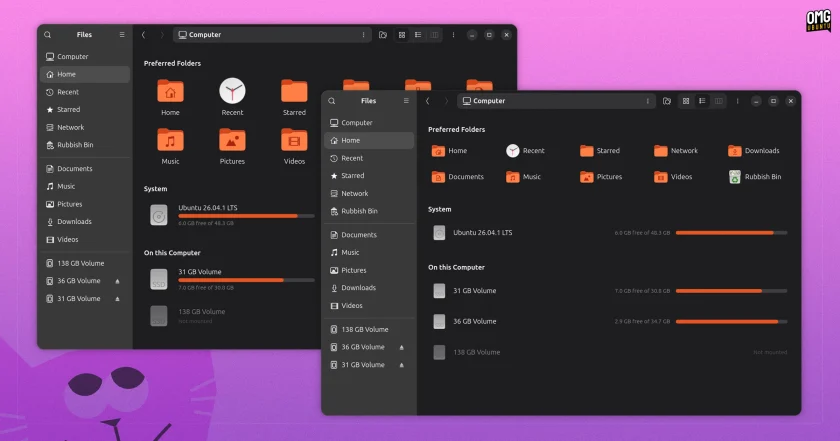
The overview itself offers visual flexibility to accommodate diverse display sizes and desktop scaling preferences. Users can toggle the display between an expansive large-icon presentation and a more information-dense compact view, catering both to users who prefer clean visual separation and those who require quick scanning across multiple active filesystems.
A Customisable Computer View
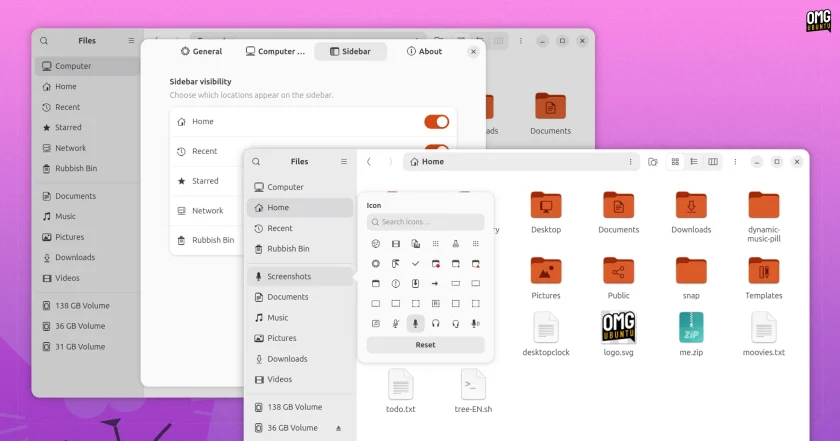
Customization forms a significant pillar of the project, extending well beyond basic icon adjustments. By right-clicking the primary "Computer" entry located in the top section of the sidebar, users can access an integrated configuration interface that governs the behavior and aesthetics of the add-on.
Within this settings window, users can dictate precisely how local filesystems are organized and displayed. The software allows users to include or exclude low-level system partitions, such as EFI system volumes, /boot partitions, and swap allocations, which modern desktop distributions generally hide from everyday desktop users to prevent accidental system breakage. The interface also provides options to group connected media logically, allowing drives to be systematically categorized by their hardware type or unified into a single continuous stream of accessible locations.
Visual styling options are similarly present. The usage indicators situated beneath individual drive labels typically inherit the active system accent color configured within the GNOME desktop. However, for users whose visual preferences diverge from the operating system defaults, the tool provides manual controls to customize the color coding of these storage capacity indicators. Furthermore, recognizing that different users prioritize different entry points, the settings suite includes a toggle that instructs Nautilus to launch directly into the My Computer drive overview upon startup, bypassing the standard default landing directory of the user’s personal Home folder.
Alongside the primary drive canvas, Nautilus My Computer exposes deeper configuration controls for the GNOME Files sidebar itself. Standard GNOME configurations offer limited control over the fixed sidebar shortcuts, often cementing links that not every user requires. With this add-on active, users can manually prune standard entries, such as the built-in "Recent" or "Starred" directories, if those features do not align with their daily habits. The extension also introduces mechanisms to customize the glyphs and icons assigned to user-defined bookmarks and system locations, facilitating distinct visual recognition for custom workspaces, external storage enclosures, or specialized partitions.
Miller Columns in Nautilus? Oh yes
While the restoration of a drive-centric overview serves as the project’s foundational objective, Nautilus My Computer includes an additional, highly sought-after component: an optional implementation of Miller column navigation.
Often celebrated for its prominent deployment in platforms like macOS Finder, Miller column navigation organizes hierarchical folder structures across adjacent vertical panels. Under this navigation model, clicking on a folder within one column instantly opens its internal contents in a newly spawned column directly to the right. As the user navigates deeper into nested file hierarchies, the parent directories remain permanently pinned and visible across the previous horizontal panes. This multi-column cascading layout gives users persistent spatial awareness regarding their precise position within deep folder trees, eliminating the disorientation that can occasionally accompany standard single-pane folder navigation.
The implementation packaged within the add-on is described as beta-grade, but it already supports foundational file management operations. Users are able to initiate drag-and-drop file operations horizontally between the active columns, enabling intuitive movement of assets across different branches of a file hierarchy without opening secondary windows or tabbed sessions.
The column interface also alters file selection mechanics. When an individual file is highlighted rather than an interior folder, the adjacent pane transforms into a dedicated preview column that reveals foundational file attributes and metrics. Furthermore, selecting multiple distinct items collapses the selection into a unified graphical stack reminiscent of macOS Finder mechanics, accompanied by a dynamic calculation that displays the aggregate disk footprint of the selected batch.
Install Nautilus My Computer on Ubuntu
Because the software represents an independent community effort rather than an upstream GNOME or Canonical product, running it necessitates incorporating third-party package sources. Deploying Nautilus My Computer on Ubuntu systems requires users to pull software packages originating outside the operating system’s default, officially maintained repositories.
The project’s author maintains an official personal package archive (PPA) on Launchpad to handle packaging and automated distribution. Pre-built software packages are actively provided for installations running the Ubuntu 26.04 LTS (Resolute) release cycle paired with GNOME 50 desktop packages. The developer has likewise indicated ongoing development work to extend functional compatibility to Ubuntu 26.10 (Stonking).
On supported systems, adding the developer’s Launchpad archive involves standard command-line repository management:
sudo add-apt-repository ppa:yannmasoch/nautilus-my-computerOnce the personal package archive has been successfully fetched and acknowledged by the local package cache, the extension can be deployed directly through the system package manager:
sudo apt install nautilus-my-computerBecause the software modifies the visual layouts and interface structure of the running desktop shell, the Nautilus process must be fully terminated and restarted following package installation in order to load the compiled binaries and seat the user interface alterations into their intended locations.
Worth Installing?
The arrival of Nautilus My Computer highlights enduring differences in workflow preferences between core GNOME interface designers and a sizable contingent of traditional desktop computing users.
GNOME’s file manager was not always devoid of a root-level storage overview. In earlier iterations of the Linux desktop, Nautilus featured a dedicated, system-level Computer view that displayed attached physical hardware and local volumes. However, upstream GNOME developers chose to excise that view entirely in 2012. The rationale cited at the time was functional redundancy; because mounted storage drives, removable flash media, and physical volumes were already represented as persistent targets inside the file manager’s sidebar, maintaining an identical set of storage links across the central window was deemed an inefficient duplication of interface real estate.
Following the removal of that dedicated screen, users desiring a broader spatial look at internal devices often turned to the file manager’s Other Locations panel. However, that interface was progressively altered over time, eventually being retooled during the GNOME 47 development cycle to function primarily as an entry point for network-attached storage infrastructure and remote server connections.
From a purely functional standpoint, the modern GNOME Files workflow offers various built-in mechanisms to access basic drive parameters without dedicated overview extensions. Mounted drives and system partitions populate the primary sidebar, the contextual Properties dialog provides detailed breakdowns of available space, and navigating to root filesystems can be accomplished rapidly by focusing the application’s path bar and issuing standard path commands. For users accustomed to that keyboard-assisted or sidebar-driven routine, the absence of an overarching hardware directory rarely impedes daily productivity.
Nevertheless, visual overviews remain a standard and comfortable fixture across operating systems like Microsoft Windows, and many users still find a dedicated, top-down visual summary of their hardware capacities significantly more straightforward than parsing sidebar listings or invoking separate dialog boxes. For this subset of users, Masoch’s project fulfills a persistent desktop interface request that has sat largely unaddressed within the mainline GNOME design roadmap for over a decade.
Even so, potential users must weigh operational convenience against long-term maintenance and desktop stability. Because Nautilus My Computer operates as an unsanctioned third-party patch rather than an official, upstream-approved GNOME extension running through a stable, guaranteed application programming interface, it interfaces intimately with Nautilus’s internal rendering mechanisms. Future upstream point releases, GNOME version increments, and foundational file manager overhauls have the potential to break the extension’s code or induce application instability. As a result, users opting to integrate the third-party view must remain mindful of the maintenance realities that inevitably accompany deeply integrated system modifications.
 Linux & Open Source Solutions
OpenShot Video Editor Arrives on the Canonical Snap Store, Bringing Version 4.0 to Ubuntu Users
In a major milestone for open-source desktop multimedia production, the popular Qt-based...
 Linux & Open Source Solutions
The Document Foundation Unveils New Visual Identity to Establish Distinct Institutional Profile Apart from LibreOffice
The Document Foundation, the charitable non-profit entity responsible for overseeing the development...
 Linux & Open Source Solutions
NordVPN Overhauls Linux Application with Version 6.0, Streamlining Command-Line Controls and Modernizing Core Networking Features
NordVPN is preparing a major overhaul of its dedicated Linux client, introducing...