
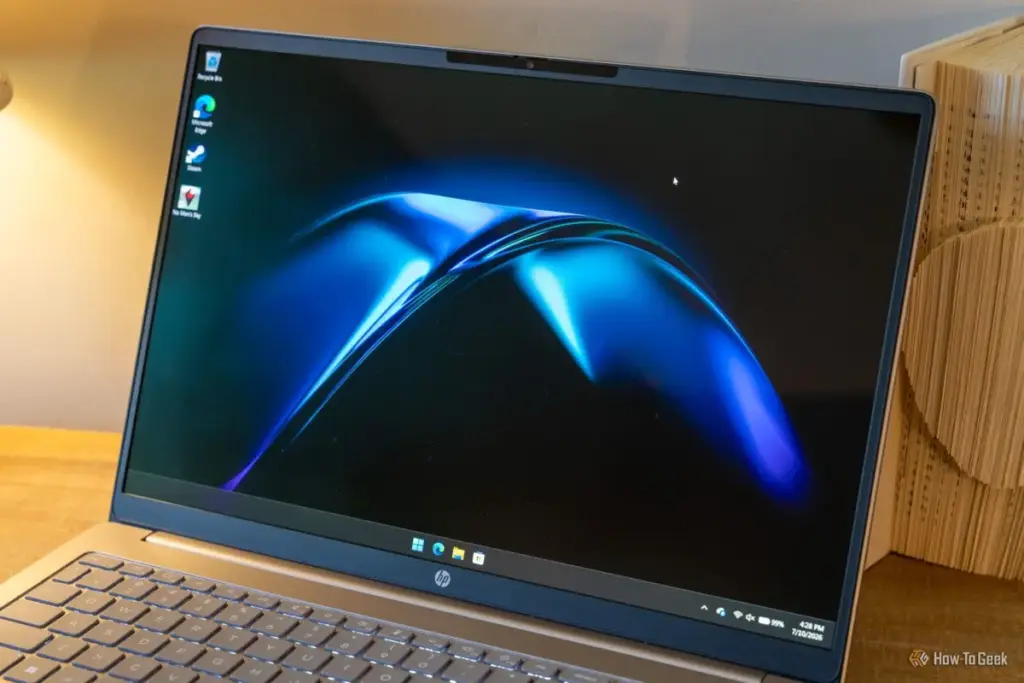
For many Windows users, the experience is unnervingly familiar: a desktop or laptop, ostensibly powered down into a restful sleep mode, suddenly springs to life in the middle of the night. The monitor glows, the internal fans spin up, and the room is bathed in the unexpected light of a login screen. While it is tempting to attribute these occurrences to software glitches, minor system instabilities, or even a "haunted" machine, the reality is far more clinical. Windows, by design, almost never wakes itself from a sleep state without a specific, documented trigger.
The phenomenon of the "spontaneous wake-up" is a common point of frustration, yet it is rarely an act of random chance. Somewhere within the intricate layers of the operating system, a scheduled task, a network signal, or a connected hardware peripheral has been granted explicit permission to interrupt the system’s low-power state. These permissions are often granted during the installation of third-party applications or exist as default settings within the Windows environment that remain unreviewed by the user. Fortunately, the Windows architecture is designed to be transparent about its power management; the system maintains a detailed log of every event that rouses it from sleep. By utilizing built-in diagnostic tools, users can move past guesswork and identify the precise culprit behind these midnight disturbances.
Scheduled Tasks and the Role of System Wake Timers
One of the most frequent reasons a Windows PC rouses itself overnight has nothing to do with physical interaction. Instead, the cause is often found within the system’s own internal calendar. Windows Update is perhaps the most notorious offender in this category. To ensure that systems remain secure and patched against emerging threats, Microsoft has designed the operating system to perform maintenance during designated windows—often in the early hours of the morning when the PC is least likely to be in active use. If a critical update is pending or if the system is scheduled for a routine health check, it will utilize a "wake timer" to bring itself out of sleep, perform the necessary tasks, and, ideally, return to a low-power state.
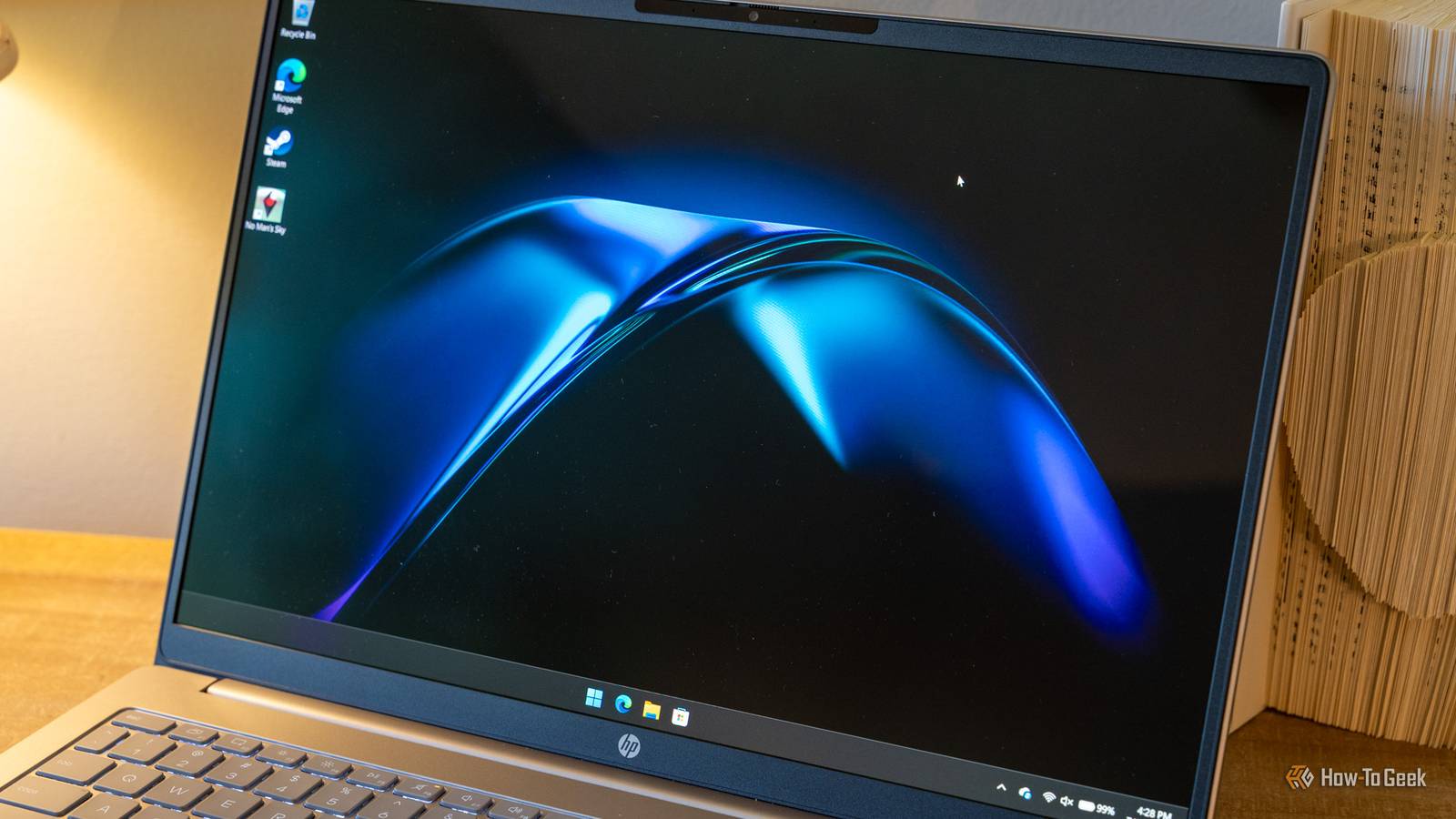
However, the scope of these wake timers extends far beyond official Microsoft services. The Windows Task Scheduler is a powerful engine that allows any piece of software—from backup utilities and antivirus suites to manufacturer-installed bloatware—to run specific routines at set intervals. Many of these programs are configured by default to "wake the computer to run this task." This setting is frequently toggled on during software installation without the user’s explicit awareness. For example, a cloud storage application might wake a machine at 3:00 AM to sync files, or a third-party disk optimizer might trigger a defragmentation routine that requires full system power.
To diagnose these events, the Windows Command Prompt offers a direct window into the system’s power history. By running the command powercfg /lastwake in an elevated terminal, the operating system reports the specific trigger of the most recent wake event. This output will often name the specific service or hardware component responsible. To look ahead rather than behind, users can employ the powercfg /waketimers command, which provides a comprehensive list of all timers currently armed and scheduled to wake the PC in the future. If a specific task is identified, users can navigate to the Task Scheduler, locate the entry, and uncheck the wake permission under the "Conditions" tab, effectively silencing the "ghost" for good.
 Tech Tutorials & How-To Guides
The Limits of DNS Privacy: Why Changing Your Resolver Is Not a Total Cloaking Device
In the modern era of digital surveillance and data harvesting, internet users...
 Tech Tutorials & How-To Guides
Beyond the Command Line: How btop is Redefining System Monitoring for the Modern Linux User
The terminal has long been the sanctuary of the Linux power user—a...
 Tech Tutorials & How-To Guides
The Hidden Cost of DLSS: Why NVIDIA’s Software Lead No Longer Justifies the GeForce Price Premium
For over a decade, NVIDIA has cultivated a nearly impenetrable software ecosystem...