
For many Windows users, the experience is unnervingly familiar: a desktop or laptop, ostensibly powered down into a restful sleep mode, suddenly springs to life in the middle of the night. The monitor glows, the internal fans spin up, and the room is bathed in the unexpected light of a login screen. While it is tempting to attribute these occurrences to software glitches, minor system instabilities, or even a "haunted" machine, the reality is far more clinical. Windows, by design, almost never wakes itself from a sleep state without a specific, documented trigger.
The phenomenon of the "spontaneous wake-up" is a common point of frustration, yet it is rarely an act of random chance. Somewhere within the intricate layers of the operating system, a scheduled task, a network signal, or a connected hardware peripheral has been granted explicit permission to interrupt the system’s low-power state. These permissions are often granted during the installation of third-party applications or exist as default settings within the Windows environment that remain unreviewed by the user. Fortunately, the Windows architecture is designed to be transparent about its power management; the system maintains a detailed log of every event that rouses it from sleep. By utilizing built-in diagnostic tools, users can move past guesswork and identify the precise culprit behind these midnight disturbances.
Scheduled Tasks and the Role of System Wake Timers
One of the most frequent reasons a Windows PC rouses itself overnight has nothing to do with physical interaction. Instead, the cause is often found within the system’s own internal calendar. Windows Update is perhaps the most notorious offender in this category. To ensure that systems remain secure and patched against emerging threats, Microsoft has designed the operating system to perform maintenance during designated windows—often in the early hours of the morning when the PC is least likely to be in active use. If a critical update is pending or if the system is scheduled for a routine health check, it will utilize a "wake timer" to bring itself out of sleep, perform the necessary tasks, and, ideally, return to a low-power state.
However, the scope of these wake timers extends far beyond official Microsoft services. The Windows Task Scheduler is a powerful engine that allows any piece of software—from backup utilities and antivirus suites to manufacturer-installed bloatware—to run specific routines at set intervals. Many of these programs are configured by default to "wake the computer to run this task." This setting is frequently toggled on during software installation without the user’s explicit awareness. For example, a cloud storage application might wake a machine at 3:00 AM to sync files, or a third-party disk optimizer might trigger a defragmentation routine that requires full system power.
To diagnose these events, the Windows Command Prompt offers a direct window into the system’s power history. By running the command powercfg /lastwake in an elevated terminal, the operating system reports the specific trigger of the most recent wake event. This output will often name the specific service or hardware component responsible. To look ahead rather than behind, users can employ the powercfg /waketimers command, which provides a comprehensive list of all timers currently armed and scheduled to wake the PC in the future. If a specific task is identified, users can navigate to the Task Scheduler, locate the entry, and uncheck the wake permission under the "Conditions" tab, effectively silencing the "ghost" for good.
Network Signals and the Mechanics of Wake-on-LAN
A second, and perhaps more technical, cause of unexpected system activity is network-triggered wake events. This is most commonly associated with a feature known as "Wake-on-LAN" (WoL) or the receipt of a "magic packet." Many modern network adapters, both wired and wireless, ship with this feature enabled by default. Originally designed for IT environments and home server enthusiasts, WoL allows a dormant computer to be ranted remotely by a signal sent from another device on the same network.
In a professional setting, this allows administrators to push updates or access files on a machine that has been put to sleep for the evening. In a modern home environment, however, the triggers can be much more accidental. A router might send a broadcast packet to verify which devices are still connected to the mesh network; a Network Attached Storage (NAS) device might attempt to ping the PC for a routine backup; or a smartphone app designed for remote desktop access might inadvertently send a wake signal during a background refresh. Because these signals are sent over the local network, the PC can be roused from across the house without a single physical touch.

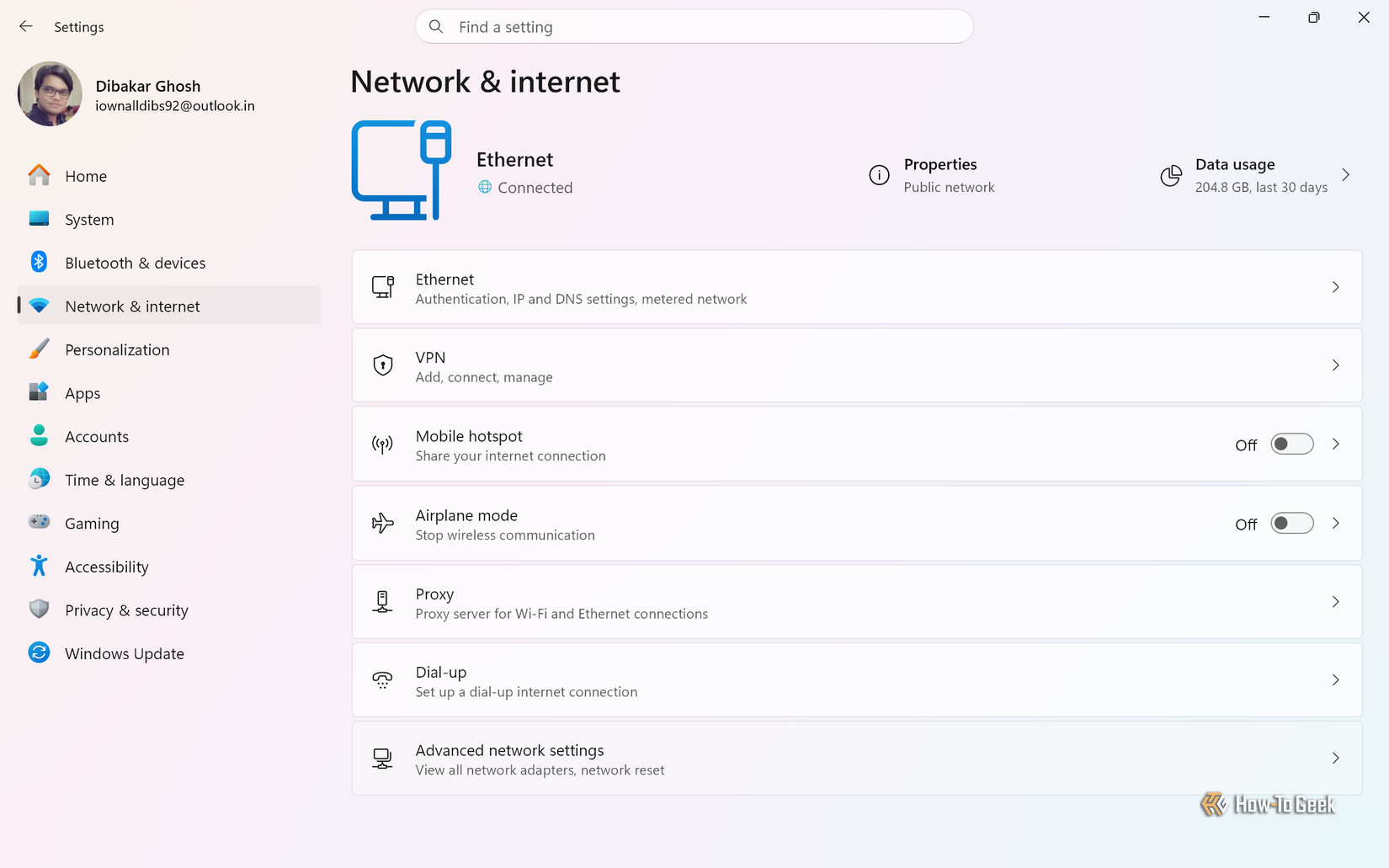
For the average user who does not require remote access capabilities, these network-triggered wakes are more of a nuisance than a feature. Investigating this requires a trip to the Windows Device Manager. By examining the properties of the active network adapter, users can find the "Power Management" tab, which houses the toggle for allowing the device to wake the computer. Additionally, the "Advanced" tab often contains a specific setting for "Wake on Magic Packet." Disabling these features ensures that the PC remains unresponsive to network chatter until the user manually intervenes. It is also worth noting that some modern routers are increasingly aggressive in their device discovery protocols, making this specific fix a common necessity for maintaining a stable sleep cycle on a home network.
USB Peripherals and the Sensitivity of Input Devices
The third common source of mystery wake-ups is significantly more mundane but equally persistent: the physical peripherals connected to the machine. USB and Bluetooth devices, such as mice, keyboards, and game controllers, are almost always given permission to wake the system by default. While this is convenient—allowing a user to wake their PC with a simple click or keypress—it introduces a high degree of sensitivity to the environment.
Wireless mice are particularly problematic in this regard. Modern optical sensors are incredibly precise, and even a minor vibration—such as a heavy truck driving past the house, a pet jumping on a desk, or the hum of a nearby appliance—can register as movement. This slight "jitter" is interpreted by Windows as intentional user input, prompting the system to exit sleep mode immediately. Similarly, certain USB hubs and docking stations can experience minor electrical fluctuations that the system misinterprets as a signal to wake up.
To manage these hardware triggers, Windows provides a centralized way to audit which devices have the "right" to wake the machine. By executing the command powercfg /devicequery wake_armed in an elevated Command Prompt, the system generates a definitive list of every peripheral currently permitted to interrupt sleep. This list often reveals surprising culprits, such as an external hard drive or a dedicated macro pad, that the user never intended to use as a wake trigger. By returning to the Device Manager and adjusting the Power Management settings for these specific items, users can prevent accidental vibrations or electrical noise from disturbing the system’s rest.
The Investigative Workflow for a Quiet PC
Understanding these three primary categories—scheduled tasks, network signals, and peripheral triggers—allows users to approach the problem of a waking PC with a structured diagnostic plan. Rather than relying on anecdotal fixes or third-party "optimization" software, the solution lies in utilizing the transparency of the Windows Power Configuration utility.
The most effective strategy begins with the powercfg /lastwake command immediately after an unexplained wake event occurs. This provides the most accurate "smoking gun" evidence. If the report points to a "Wake Timer," the user moves to the Task Scheduler. If it points to a "Network Adapter," the focus shifts to WoL settings. If it points to a "USB Root Hub" or a specific HID-compliant device, the hardware permissions are the likely culprit.
By systematically reviewing these three areas, the vast majority of "haunted" PC issues can be resolved. This not only preserves the longevity of the hardware by preventing unnecessary power cycles and heat buildup but also ensures that the user’s environment remains undisturbed. In an era where the home office and the bedroom are often the same space, the ability to ensure a computer stays asleep when told to do so is more than a technical convenience—it is a necessity for a quiet, functional digital life.
 Tech Tutorials & How-To Guides
Amazon Unveils Comprehensive 2026 Kindle Overhaul Featuring First Color Scribe and Thinner Designs
Amazon has officially announced a sweeping transformation of its entire Kindle ecosystem,...
 Tech Tutorials & How-To Guides
The Evolution of Mobile Audio: Why Your Smartphone is a Professional-Grade Microphone in Disguise
In the modern era of digital content creation, the barrier to entry...
 Tech Tutorials & How-To Guides
The Great Big-Box Battle: Evaluating the Power Tool Ecosystems of Ryobi, Craftsman, and Hyper Tough
For the modern homeowner or the burgeoning DIY enthusiast, the walk down...