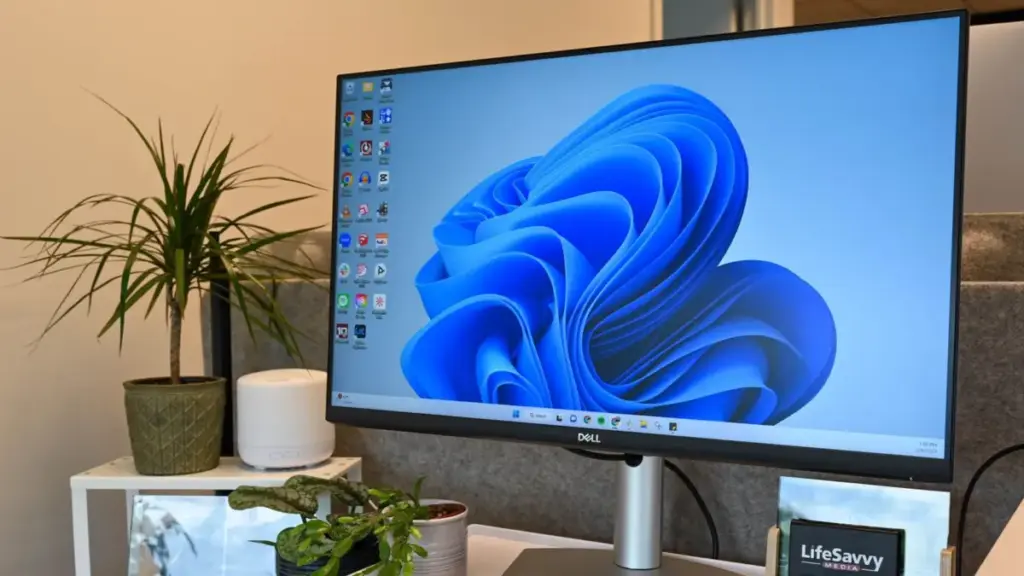
For nearly three decades, the "My Computer" icon served as the digital front door for millions of PC users around the world. First introduced during the formative years of the graphical user interface, the icon provided a centralized hub where users could manage their hard drives, access peripheral storage, and view network locations with a single double-click. However, as Microsoft pivoted toward a more streamlined, search-centric philosophy with the release of Windows 10 and subsequently Windows 11, this once-ubiquitous fixture was relegated to the background, renamed "This PC," and hidden from the default desktop view.
The disappearance of the "This PC" icon marked a significant shift in how Microsoft envisioned the user experience. The company’s design language began favoring the Taskbar and the "Quick Access" section within File Explorer, assuming that modern users would prefer to launch their file management tools through pinned shortcuts rather than a dedicated desktop icon. Yet, for a vast segment of the user base—ranging from IT professionals to long-time home users—the absence of this icon remains a point of friction. Restoring it is often one of the first tasks performed on a fresh Windows installation, representing a bridge between legacy workflow habits and modern operating system architecture.
The Transition from Windows 10 to Windows 11
As the computing landscape evolves, the urgency for users to adapt to newer systems has increased. Microsoft has officially set a deadline for the previous era of its software; mainstream and extended support for Windows 10 is scheduled to end on October 14, 2025. Beyond this date, the operating system will no longer receive critical security updates, leaving unpatched systems vulnerable to emerging threats. Consequently, Microsoft and security experts strongly recommend that users transition to Windows 11.
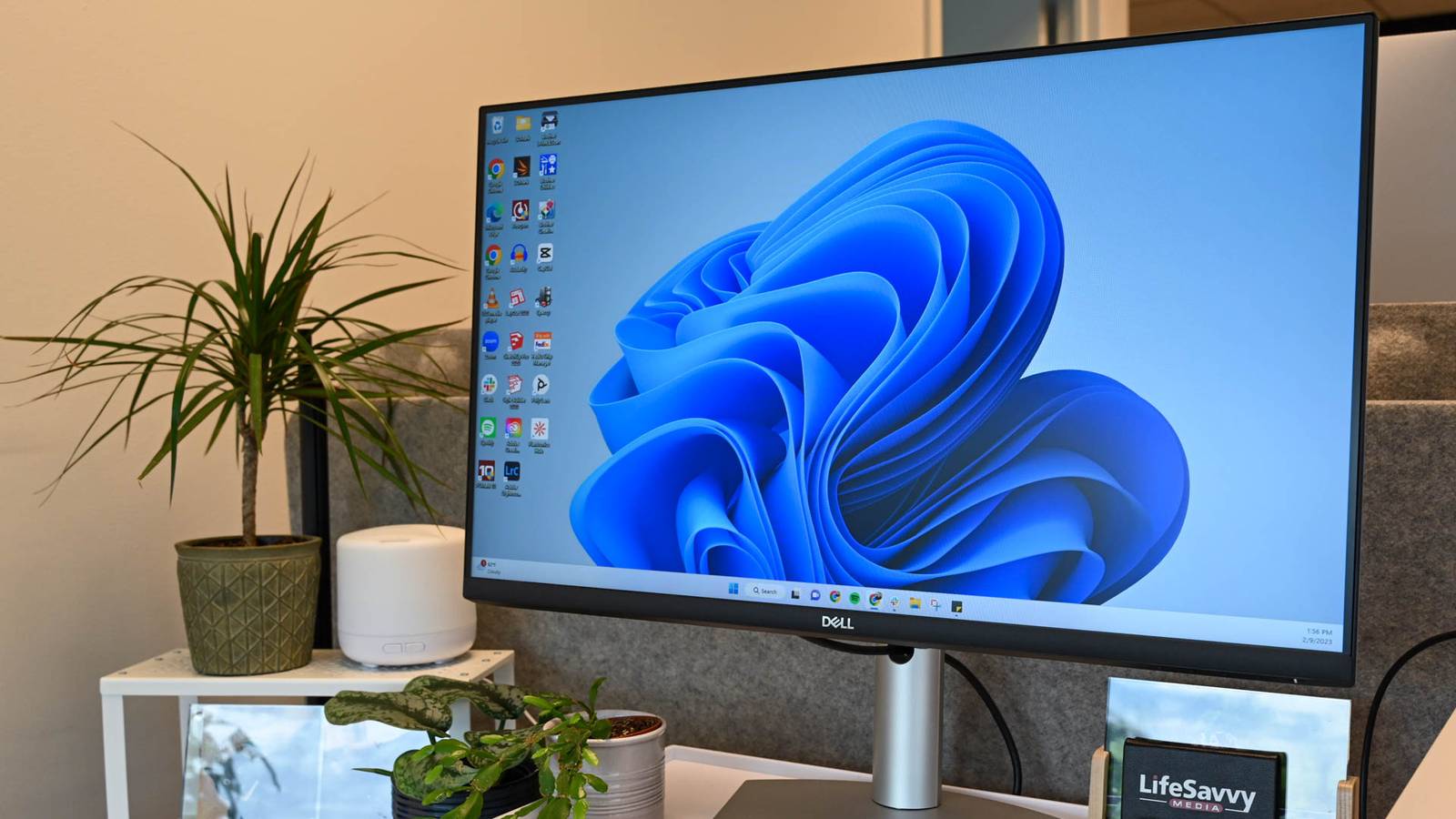
While the interface of Windows 11 introduces a centered Taskbar and a redesigned Start menu, the underlying mechanics for desktop customization remain remarkably consistent with its predecessor. Users currently operating on Windows 10 will find that the steps to restore the "This PC" icon are almost identical to the paths required in Windows 11, though the visual styling of the menus has been updated to reflect the "Fluent Design" aesthetic.
Restoring the This PC Icon in the Modern Windows Environment
In the current versions of Windows, the "This PC" icon is treated as a system-level desktop element rather than a standard file shortcut. Because of this, simply creating a shortcut to File Explorer does not provide the same functionality, such as the ability to right-click the icon to access "Manage" or "System Properties" directly. To bring back the authentic icon, users must delve into the system’s personalization settings.
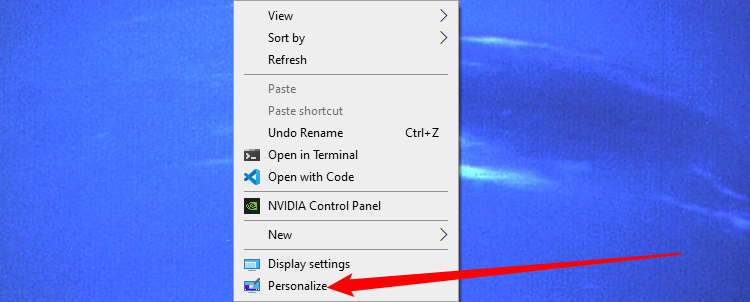
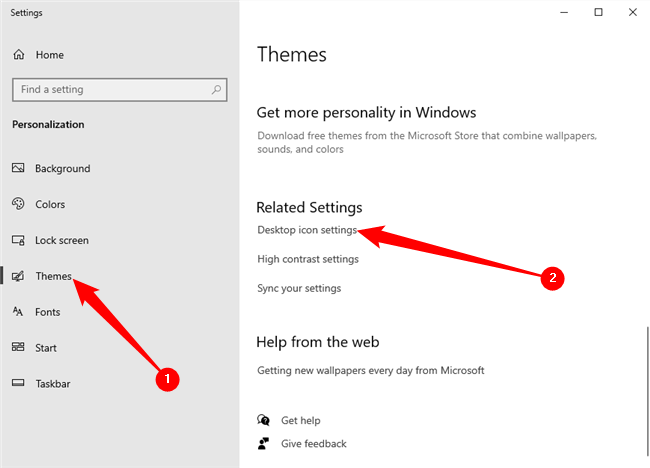
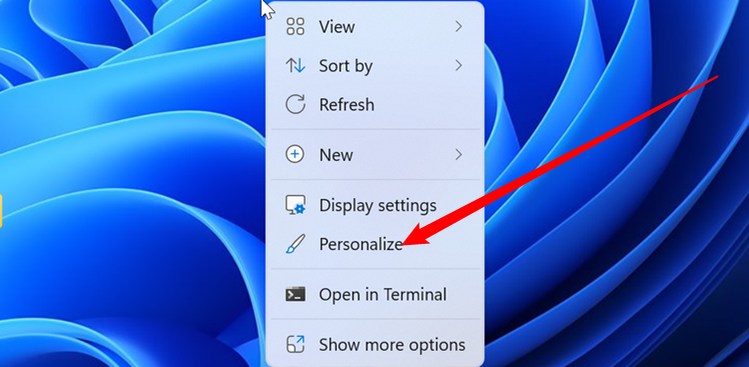
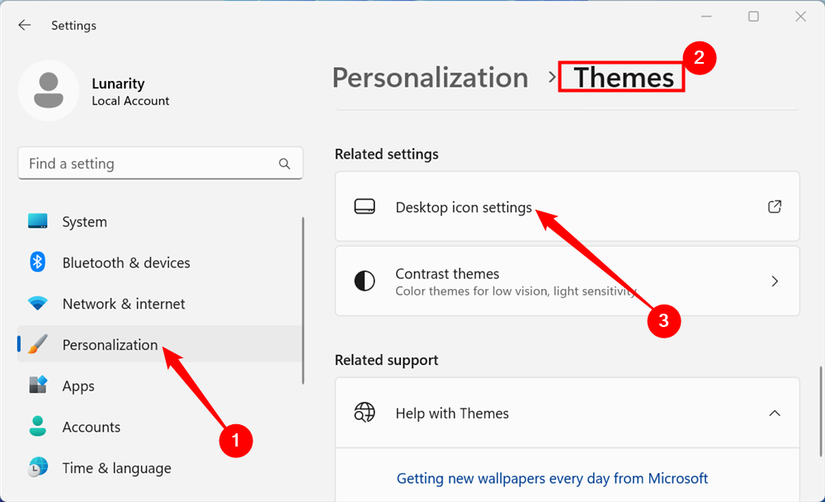
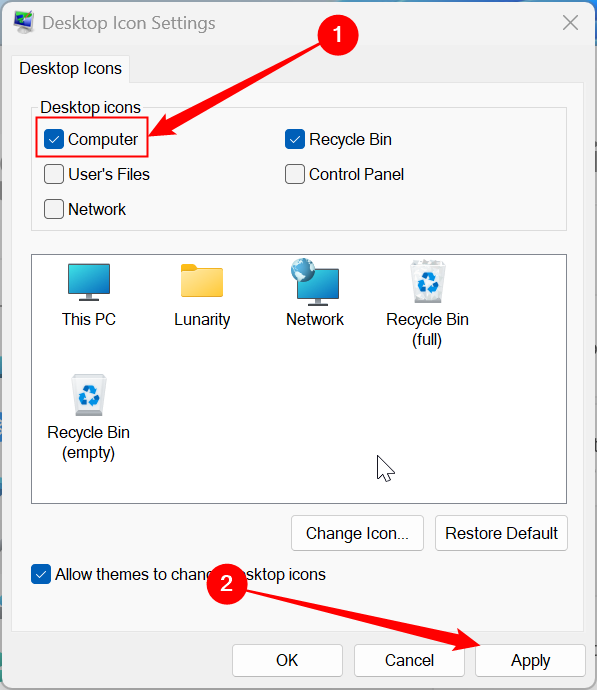
To initiate this process on a Windows 10 or Windows 11 machine, one begins by right-clicking on any empty space on the desktop and selecting "Personalize" from the context menu. This action opens the Settings app, directing the user to the heart of the OS’s visual configuration. From here, the user must navigate to the "Themes" section located in the sidebar. Once within the Themes menu, a link labeled "Desktop icon settings" can be found—usually located under the "Related Settings" header at the bottom of the page or in a side pane, depending on the window’s width.
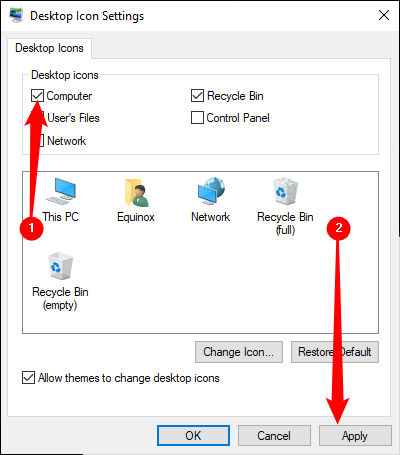
Clicking this link triggers the appearance of a small, legacy-style dialog box that has remained largely unchanged for several generations of Windows. Within this window, a series of checkboxes allows the user to toggle the visibility of various system icons. By ticking the box next to "Computer" and clicking "Apply," the "This PC" icon instantly reappears on the desktop, positioned in its traditional spot in the upper-left corner.
This menu is also the gateway for restoring other critical tools that Microsoft has tucked away. Users can choose to display the "User’s Files" folder, the "Network" hub, and the legacy "Control Panel." While Microsoft has been gradually migrating Control Panel features into the modern Settings app, the legacy interface remains essential for deep system tweaks and managing older hardware, making its desktop shortcut a valuable asset for power users.
Troubleshooting Missing Icons and System Anomalies
In some instances, a user may follow the correct settings path only to find that their desktop remains empty. This is often not a sign of a system failure, but rather a simple visibility toggle that has been inadvertently switched. By right-clicking the desktop, hovering over the "View" option, and ensuring that "Show Desktop Icons" is checked, users can resolve the most common cause of "disappearing" shortcuts. If this option is disabled, Windows hides the entire desktop layer, including system icons and personal files, to provide a clean, unobstructed view of the wallpaper.
However, more complex issues can arise, particularly in an era where cloud integration is baked into the operating system. Two common culprits—OneDrive synchronization and icon cache corruption—frequently cause confusion by making icons vanish or appear as generic white squares.
The Impact of OneDrive Folder Redirection
Microsoft’s cloud storage service, OneDrive, includes a feature known as "Known Folder Move," which automatically backs up a user’s Desktop, Documents, and Pictures folders to the cloud. While this provides a safety net for data recovery, it can occasionally lead to a scenario where icons appear to go missing because the physical path of the Desktop folder has been redirected.
If icons are absent but the files still exist within the user’s account, it is necessary to verify the folder’s location. By opening File Explorer, right-clicking the "Desktop" entry in the navigation pane, and selecting "Properties," users can inspect the "Location" tab. If the path points to a subfolder within the OneDrive directory, the system is treating the cloud as the primary storage point. Users who prefer a local-first configuration can select "Restore Default" to point the directory back to the standard local user profile path.
Addressing Icon Cache Corruption
Another common visual glitch involves desktop icons transforming into blank white squares. This phenomenon occurs when the Windows icon cache—a database the OS uses to quickly load images without extracting them from executable files every time—becomes corrupted. When this database fails, Windows "forgets" the visual identity of the shortcut, though the underlying link remains functional.
Clearing the icon cache is a technical but effective remedy. By using the "Run" command and navigating to the local app data directory for Windows Explorer, users can manually delete the hidden files that store these cached images. Upon restarting the computer, Windows is forced to rebuild the cache from scratch, typically restoring the proper imagery to the "This PC" icon and all other desktop shortcuts.
A Legacy of Access: From Windows 95 to Windows 8
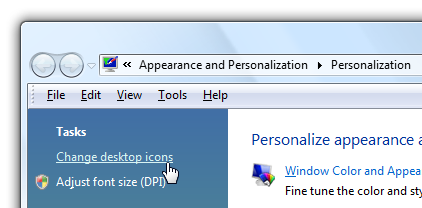
The desire to have "My Computer" on the desktop is rooted in decades of computing history. For those still utilizing older versions of the operating system, such as Windows 7, Windows 8, or the now-archaic Windows Vista, the process reflects an era when the Start menu was the primary engine of the OS.
In Windows 7 and Vista, the "My Computer" icon could be restored by simply opening the Start menu, right-clicking the "Computer" entry on the right-hand side, and selecting "Show on Desktop." This era of Windows design prioritized high-visibility shortcuts, making it significantly easier for users to customize their workspace without digging through multiple layers of the Settings application. Even in the tile-based interface of Windows 8, the "Desktop Icon Settings" menu remained the definitive way to manage these essential shortcuts, proving that despite radical changes to the Start screen, the fundamental need for a desktop "Computer" hub remained constant.
The Enduring Value of Desktop Customization
As operating systems become more automated and "smart," the ability to manually configure one’s workspace remains a vital feature for productivity. The "This PC" icon is more than just a shortcut; it is a symbol of user agency over the machine. It provides immediate access to the "Map Network Drive" utility, the "Disk Management" console, and the "Device Manager"—tools that are indispensable for maintaining a healthy system.
Furthermore, Windows continues to offer deep customization for those who wish to go beyond merely restoring the icon. Through the same "Desktop Icon Settings" menu, users can click "Change Icon" to replace the standard PC tower or monitor graphic with a custom image file. Whether for aesthetic reasons or to better distinguish between different workstations, this level of personalization ensures that the desktop remains a reflection of the user’s needs.
Ultimately, while Microsoft may continue to move toward a minimalist desktop by default, the tools to reclaim the classic Windows experience remain available. Understanding how to navigate these settings and troubleshoot the modern complexities of cloud integration ensures that users can maintain a familiar and efficient environment, regardless of which version of Windows they call home. As the October 2025 end-of-support date for Windows 10 approaches, mastering these small but significant customizations will be essential for users making the leap to the next generation of computing.
 Tech Tutorials & How-To Guides
Digital Ghosts: The Iconic Windows Applications That Defined an Era of Computing
The landscape of personal computing is one of constant, ruthless evolution. Over...
 Tech Tutorials & How-To Guides
The DIY Smart Home Revolution: How Enthusiasts Are Building Premium Hardware for a Fraction of the Retail Cost
The promise of the modern smart home has always been one of...
 Tech Tutorials & How-To Guides
DEWALT 20V MAX Brushless 3-Tool Combo Kit Hits Record Low $130 Price Point on Amazon
The financial burden of equipping a home workshop or preparing for a...