Clearing the icon cache is a technical but effective remedy. By using the "Run" command and navigating to the local app data directory for Windows Explorer, users can manually delete the hidden files that store these cached images. Upon restarting the computer, Windows is forced to rebuild the cache from scratch, typically restoring the proper imagery to the "This PC" icon and all other desktop shortcuts.
A Legacy of Access: From Windows 95 to Windows 8
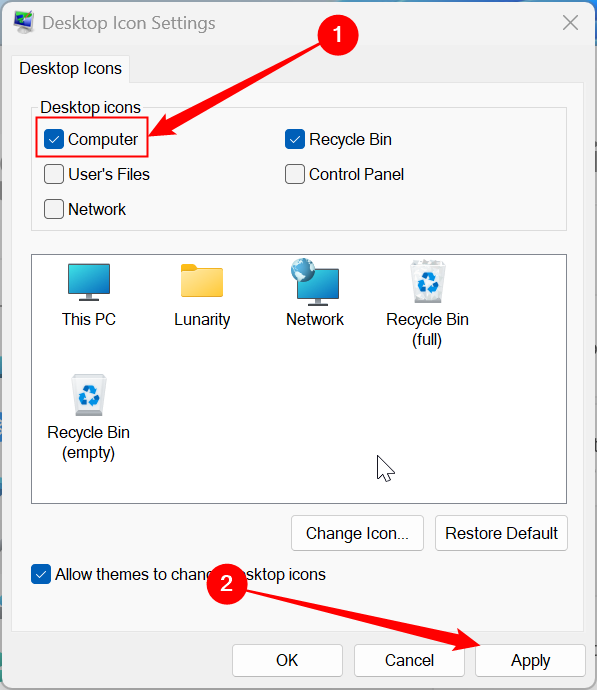
The desire to have "My Computer" on the desktop is rooted in decades of computing history. For those still utilizing older versions of the operating system, such as Windows 7, Windows 8, or the now-archaic Windows Vista, the process reflects an era when the Start menu was the primary engine of the OS.
In Windows 7 and Vista, the "My Computer" icon could be restored by simply opening the Start menu, right-clicking the "Computer" entry on the right-hand side, and selecting "Show on Desktop." This era of Windows design prioritized high-visibility shortcuts, making it significantly easier for users to customize their workspace without digging through multiple layers of the Settings application. Even in the tile-based interface of Windows 8, the "Desktop Icon Settings" menu remained the definitive way to manage these essential shortcuts, proving that despite radical changes to the Start screen, the fundamental need for a desktop "Computer" hub remained constant.
The Enduring Value of Desktop Customization
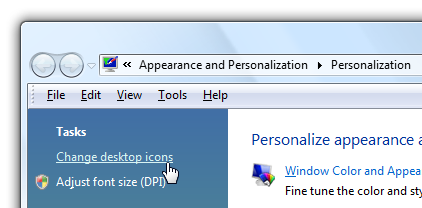
As operating systems become more automated and "smart," the ability to manually configure one’s workspace remains a vital feature for productivity. The "This PC" icon is more than just a shortcut; it is a symbol of user agency over the machine. It provides immediate access to the "Map Network Drive" utility, the "Disk Management" console, and the "Device Manager"—tools that are indispensable for maintaining a healthy system.
Furthermore, Windows continues to offer deep customization for those who wish to go beyond merely restoring the icon. Through the same "Desktop Icon Settings" menu, users can click "Change Icon" to replace the standard PC tower or monitor graphic with a custom image file. Whether for aesthetic reasons or to better distinguish between different workstations, this level of personalization ensures that the desktop remains a reflection of the user’s needs.
Ultimately, while Microsoft may continue to move toward a minimalist desktop by default, the tools to reclaim the classic Windows experience remain available. Understanding how to navigate these settings and troubleshoot the modern complexities of cloud integration ensures that users can maintain a familiar and efficient environment, regardless of which version of Windows they call home. As the October 2025 end-of-support date for Windows 10 approaches, mastering these small but significant customizations will be essential for users making the leap to the next generation of computing.
 Tech Tutorials & How-To Guides
Garmin’s vívoactive 5 Hits Record Low Price in Significant Amazon Discount Event
In a move that signals aggressive pricing within the wearable technology sector,...
 Tech Tutorials & How-To Guides
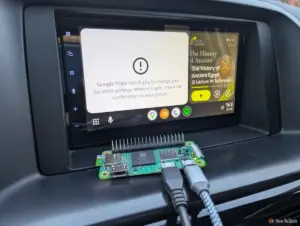
DIY Innovation: Bridging the Connectivity Gap for Legacy Vehicles with Raspberry Pi
In the rapidly evolving landscape of automotive technology, the integration of smartphone...
 Tech Tutorials & How-To Guides
From Pixels to Plastic: How Major Game Studios are Embracing the Official 3D Printing Movement
The relationship between video games and 3D printing has long been defined...