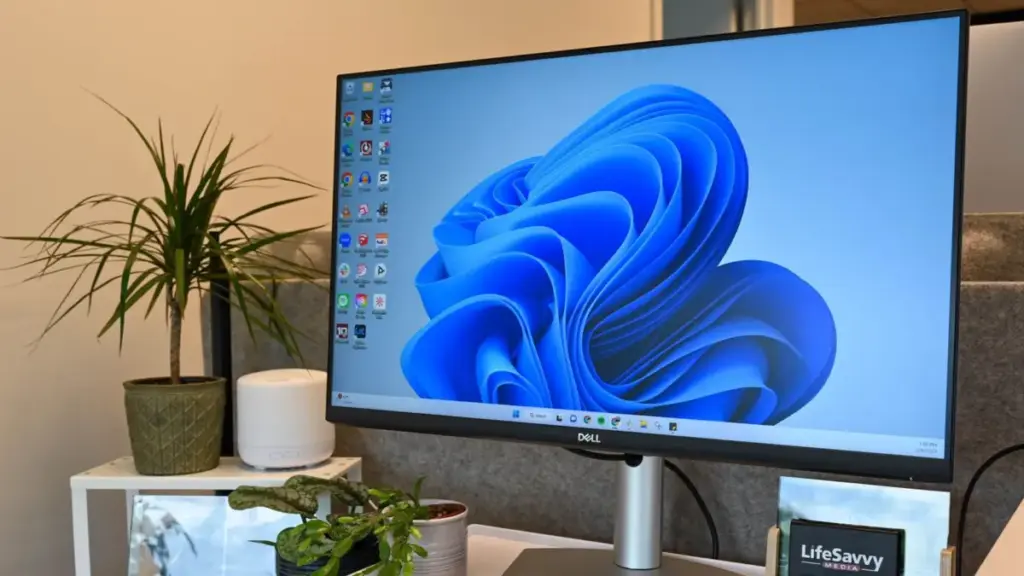
For nearly three decades, the "My Computer" icon served as the digital front door for millions of PC users around the world. First introduced during the formative years of the graphical user interface, the icon provided a centralized hub where users could manage their hard drives, access peripheral storage, and view network locations with a single double-click. However, as Microsoft pivoted toward a more streamlined, search-centric philosophy with the release of Windows 10 and subsequently Windows 11, this once-ubiquitous fixture was relegated to the background, renamed "This PC," and hidden from the default desktop view.
The disappearance of the "This PC" icon marked a significant shift in how Microsoft envisioned the user experience. The company’s design language began favoring the Taskbar and the "Quick Access" section within File Explorer, assuming that modern users would prefer to launch their file management tools through pinned shortcuts rather than a dedicated desktop icon. Yet, for a vast segment of the user base—ranging from IT professionals to long-time home users—the absence of this icon remains a point of friction. Restoring it is often one of the first tasks performed on a fresh Windows installation, representing a bridge between legacy workflow habits and modern operating system architecture.
The Transition from Windows 10 to Windows 11
As the computing landscape evolves, the urgency for users to adapt to newer systems has increased. Microsoft has officially set a deadline for the previous era of its software; mainstream and extended support for Windows 10 is scheduled to end on October 14, 2025. Beyond this date, the operating system will no longer receive critical security updates, leaving unpatched systems vulnerable to emerging threats. Consequently, Microsoft and security experts strongly recommend that users transition to Windows 11.
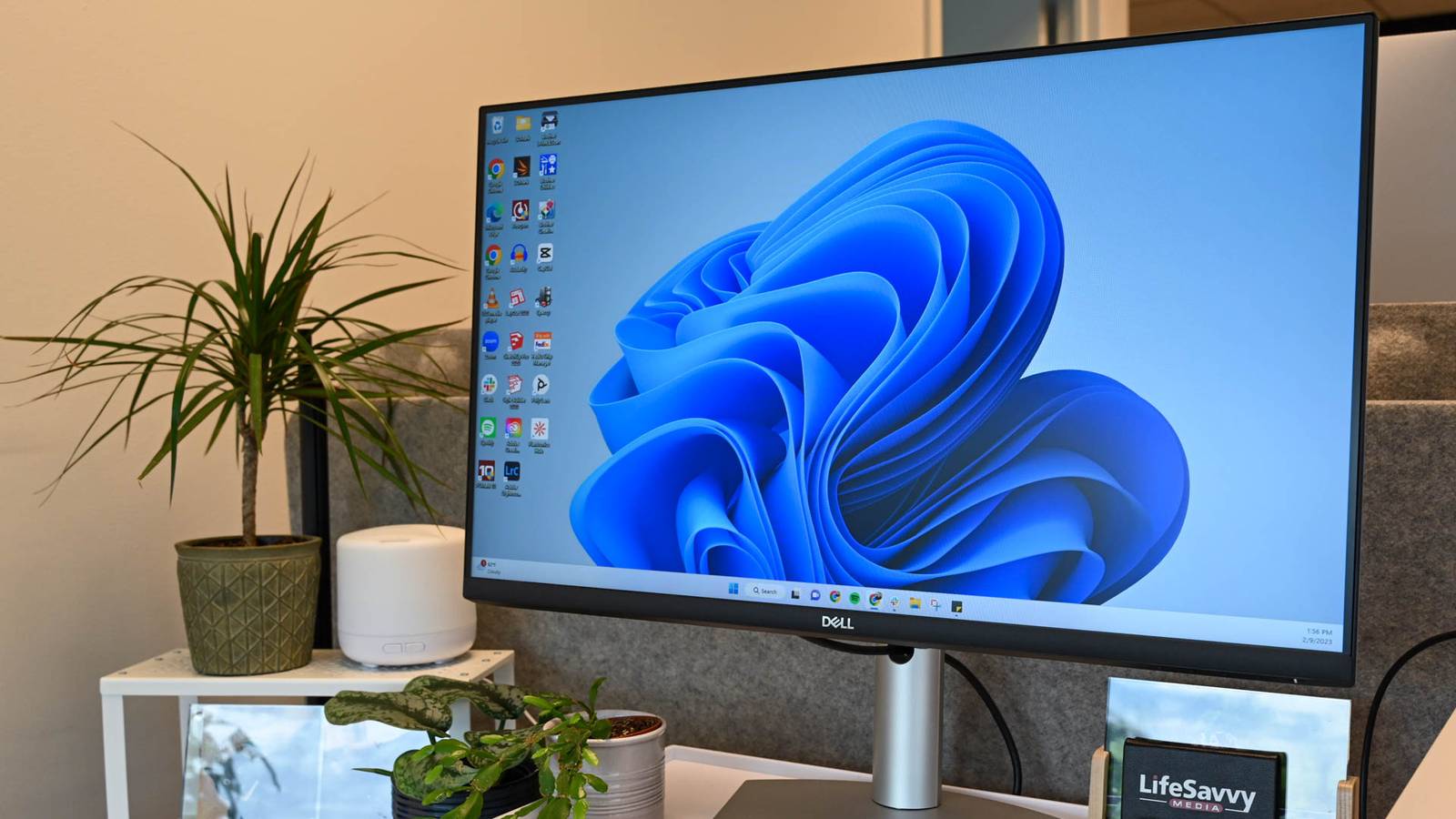
While the interface of Windows 11 introduces a centered Taskbar and a redesigned Start menu, the underlying mechanics for desktop customization remain remarkably consistent with its predecessor. Users currently operating on Windows 10 will find that the steps to restore the "This PC" icon are almost identical to the paths required in Windows 11, though the visual styling of the menus has been updated to reflect the "Fluent Design" aesthetic.
Restoring the This PC Icon in the Modern Windows Environment
In the current versions of Windows, the "This PC" icon is treated as a system-level desktop element rather than a standard file shortcut. Because of this, simply creating a shortcut to File Explorer does not provide the same functionality, such as the ability to right-click the icon to access "Manage" or "System Properties" directly. To bring back the authentic icon, users must delve into the system’s personalization settings.
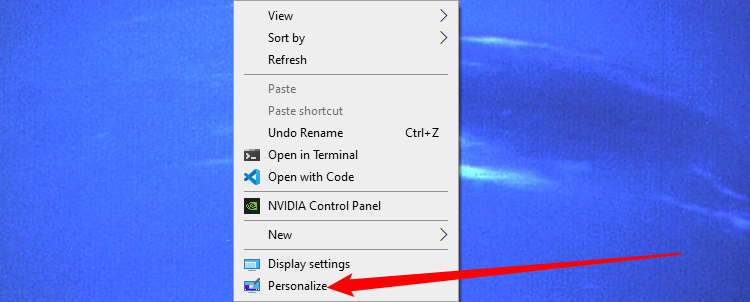
To initiate this process on a Windows 10 or Windows 11 machine, one begins by right-clicking on any empty space on the desktop and selecting "Personalize" from the context menu. This action opens the Settings app, directing the user to the heart of the OS’s visual configuration. From here, the user must navigate to the "Themes" section located in the sidebar. Once within the Themes menu, a link labeled "Desktop icon settings" can be found—usually located under the "Related Settings" header at the bottom of the page or in a side pane, depending on the window’s width.
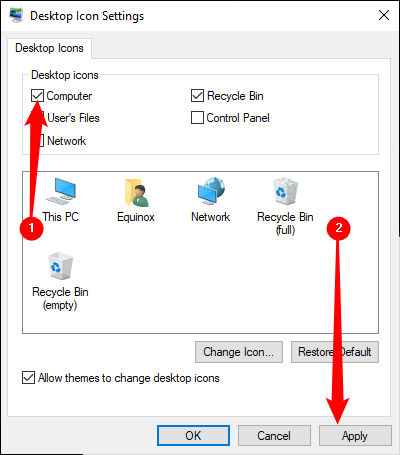
Clicking this link triggers the appearance of a small, legacy-style dialog box that has remained largely unchanged for several generations of Windows. Within this window, a series of checkboxes allows the user to toggle the visibility of various system icons. By ticking the box next to "Computer" and clicking "Apply," the "This PC" icon instantly reappears on the desktop, positioned in its traditional spot in the upper-left corner.
 Tech Tutorials & How-To Guides
The Untapped Power of the ESP32: Why Your Bluetooth Proxy Is Only Reaching a Fraction of Its Potential
In the rapidly evolving landscape of the modern smart home, the ESP32...
 Tech Tutorials & How-To Guides
The Evolution of Minimalism: Why Compact Keychain Multi-Tools are Reshaping Modern Everyday Carry
For over a decade, the philosophy of "Everyday Carry," or EDC, was...
 Tech Tutorials & How-To Guides
The Intelligent Workshop: How DIY Enthusiasts Are Using ESP32 Microcontrollers to Revolutionize Traditional Power Tools
For decades, the evolution of power tools followed a predictable trajectory: they...