
In the modern mobile landscape, the smartphone has transitioned from a simple communication device into a central hub for professional and personal management. For the vast majority of Android users, a significant portion of daily screen time is dedicated to a single activity: messaging. Whether coordinating with remote teams, responding to client inquiries, or managing personal social circles, the influx of digital correspondence is relentless. As the volume of communication increases, the demand for efficiency has never been higher, leading many to seek out tools that can streamline these interactions.
At the heart of this ecosystem is Google Messages, an application that has undergone a radical transformation over the last several years. Once a utilitarian SMS client, it has evolved into a sophisticated platform powered by Rich Communication Services (RCS) and integrated with Google’s broader suite of productivity tools. However, many users only interact with the application’s surface-level features, unaware of the deeper, "step-saving" functionalities designed to reduce friction and reclaim time. By mastering these overlooked settings and gestures, users can transform their messaging experience from a source of clutter into a well-oiled engine of efficiency.
Enhancing Efficiency Through Smarter Shortcuts
The primary hurdle to messaging efficiency is the sheer number of physical interactions required to manage a busy inbox. Google has addressed this by embedding a series of customizable gestures and shortcuts within the Messages framework. These tools are designed to mirror the organizational workflows found in professional email clients, allowing for rapid triage of incoming information.

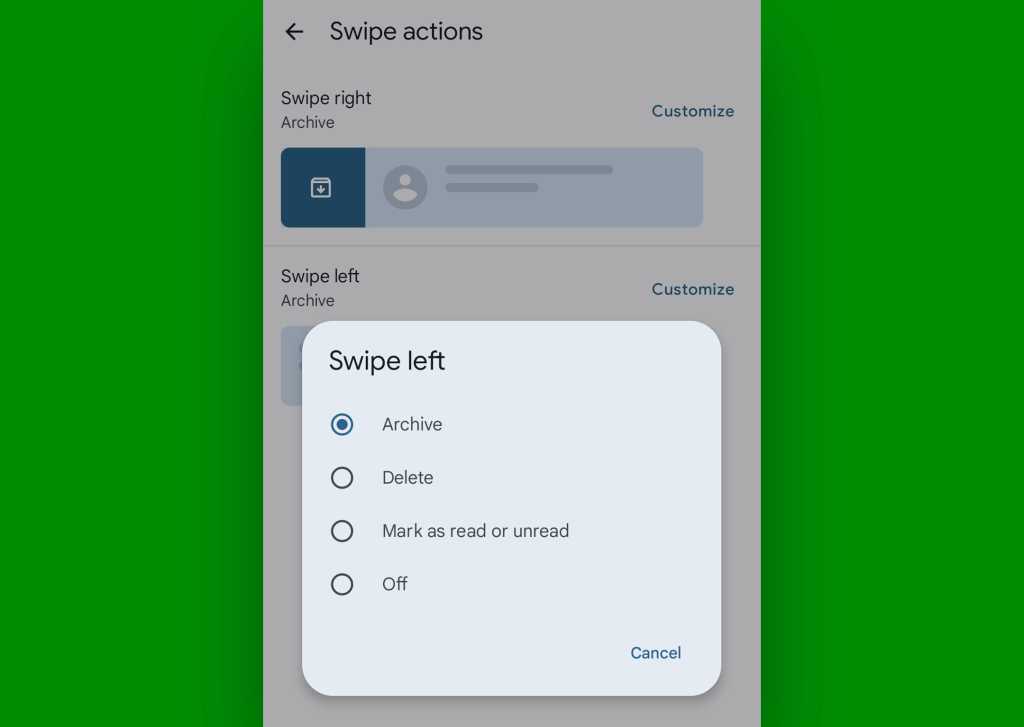
One of the most impactful features is the implementation of "Swipe actions." Accessible through the application’s settings menu, this feature allows users to define specific outcomes for swiping left or right on any conversation in the main list. By default, these actions are often underutilized, but they can be configured to instantly archive a thread, delete a message, or toggle a conversation between read and unread status. For a professional managing dozens of threads, the ability to archive a completed task with a single flick of the finger—rather than opening the message and searching for a menu option—represents a significant cumulative time saving over a standard work week.
Furthermore, the application supports a double-tap gesture within individual threads to issue a quick "thumbs-up" reaction. This serves as a vital communication shorthand, allowing users to acknowledge receipt or agreement without the need to type a formal response or navigate a long-press menu. These small, tactile optimizations are part of a broader design philosophy aimed at reducing the cognitive load associated with mobile communication.
Streamlining Access and Prioritizing High-Value Conversations
Beyond internal gestures, the Android ecosystem allows for deeper integration between the messaging app and the device’s home screen. For users who communicate frequently with a core group of stakeholders, the traditional process of opening the Messages app and scrolling through a chronological list is inherently inefficient.
To bypass this, Google Messages supports the creation of direct home screen shortcuts for individual conversations. By navigating to a specific thread and utilizing the "Add to home screen" option found in the three-dot menu, users can place a dedicated icon for that contact directly on their primary interface. This effectively turns a multi-step process into a single-tap action. For those who prefer a more visual approach, the Google Contacts app provides widgets that offer similar functionality, allowing for a customized dashboard of essential connections.
Organization within the app is equally critical. To prevent important professional directives from being buried under a mountain of casual notifications, Google Messages allows users to "pin" up to 20 conversations to the top of the inbox. By long-pressing a thread and selecting the pushpin icon, that conversation remains anchored at the top regardless of when the last message was received. This ensures that high-priority projects or family members remain immediately accessible, providing a layer of manual hierarchy to an otherwise automated list.
The Intersection of Messaging and Time Management
One of the most powerful aspects of the modern Google Messages experience is its ability to interact with the Android calendar system. In a professional context, messaging is frequently used to propose meetings or deadlines. The application utilizes on-device intelligence to recognize dates and times within a text string, automatically underlining them to create a functional link.
Tapping these underlined snippets allows the user to immediately view their schedule for that specific time without leaving the messaging interface. If the proposed time is acceptable, a "Create event" command typically appears alongside the message suggestions. This feature pre-populates a new calendar entry with the date and time discussed in the text, drastically reducing the manual data entry usually required to bridge the gap between a conversation and a scheduled commitment.
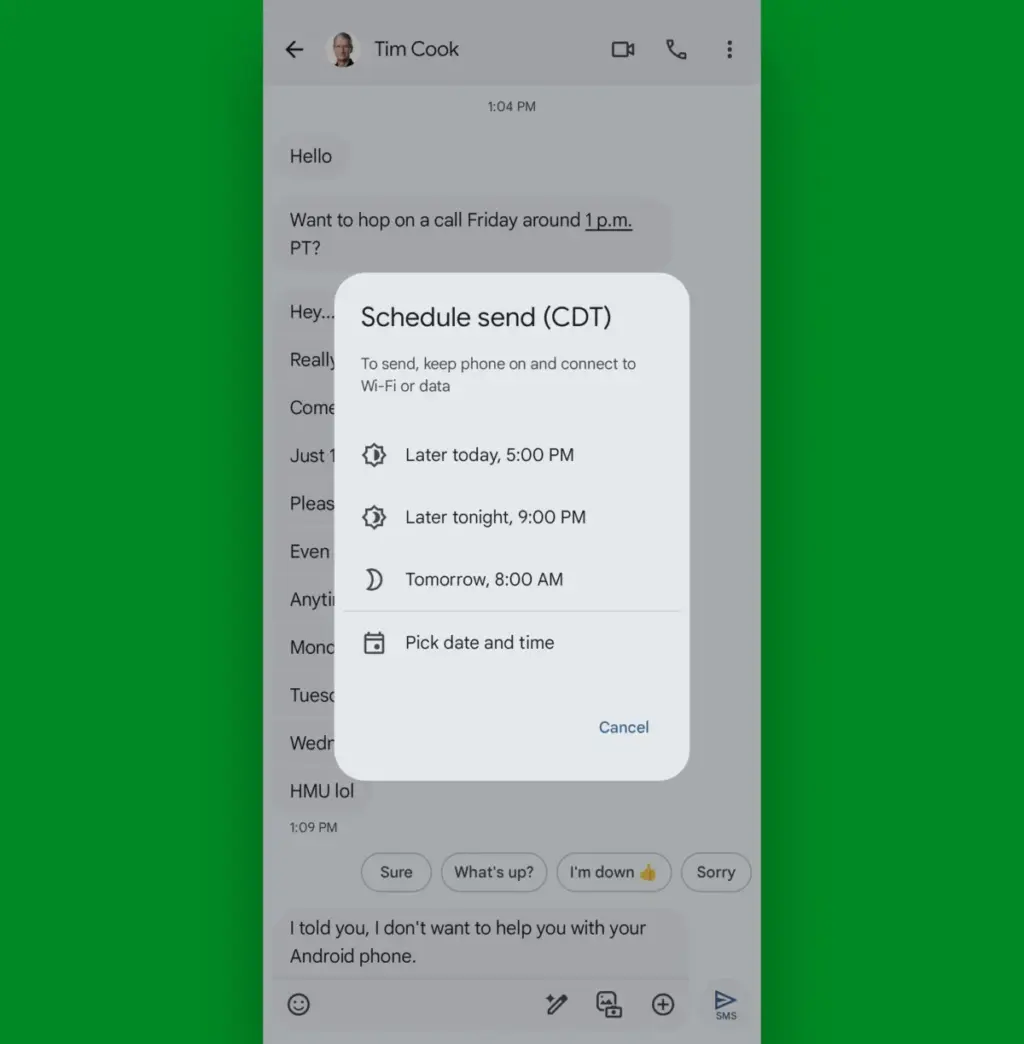
Complementing this is the "Scheduled Send" feature, a tool that has become indispensable for maintaining professional boundaries and managing time zones. By long-pressing the send icon after composing a message, users can choose a specific future date and time for the message to be delivered. This allows a user to draft responses during their own peak productivity hours—perhaps late at night or early in the morning—while ensuring the recipient receives the message during appropriate business hours. It is a sophisticated way to manage communication flow without requiring the sender to be active at the moment of delivery.

Advanced Data Retrieval and Inbox Hygiene
As a messaging thread grows over months or years, it becomes a repository of vital information, including documents, addresses, and media. Finding a specific piece of information in a long-running thread can be a daunting task. To solve this, Google Messages offers a robust search and "starring" system.
By long-pressing an individual message and selecting the star icon, users can bookmark specific pieces of information for later retrieval. These starred messages are then accessible through a dedicated category in the search menu, creating a curated list of essential data points. Even without manual starring, the application’s search functionality is highly categorized. Users can search for specific contacts or filter results by media type, such as images, videos, places, or links. This granular approach to search turns the messaging history into a searchable database rather than a static archive.
To manage the visual clutter of a busy inbox, the "Mark all as read" feature provides a necessary "reset button." Found within the profile menu, this option clears all unread notifications in a single action. This is particularly useful for users who may have fallen behind on non-essential group chats or automated alerts and wish to clear the "bold" emphasis from their inbox to refocus on new, incoming tasks.
Security, Multimedia, and Cross-Platform Compatibility
In an era of multi-factor authentication, many users find their inboxes cluttered with one-time passwords (OTPs) from banks, social media, and internal company tools. These messages are vital for a few seconds but become useless immediately after. Google Messages includes a specialized "cleanup" feature that identifies these codes and automatically deletes them 24 hours after they are received. This background task ensures that the inbox remains focused on human conversation rather than technical debris.

The application also addresses the rising popularity of voice messaging. While voice notes can be more expressive, they are often inconvenient to listen to in professional or public settings. The "Voice message transcription" feature provides a real-time text version of the audio, allowing users to read the contents of a voice note discreetly. This ensures that the flow of information is not interrupted by the user’s environment.
Finally, Google has made significant strides in addressing the historical friction between Android and iOS users. For years, when an iPhone user "reacted" to a message from an Android user, it would result in a redundant and annoying text string (e.g., "Liked ‘See you at 5’"). Google Messages now includes an option to intercept these incoming strings and convert them back into standard emoji reactions. This small technical adjustment significantly improves the readability of cross-platform group chats and removes a long-standing point of irritation for mobile users.
Through these combined features, Google Messages has positioned itself as more than a mere utility. It is a comprehensive suite designed for the high-demand user, providing the tools necessary to navigate the complexities of modern digital communication with speed, clarity, and precision. For those willing to explore beyond the default settings, these "step-savers" offer a clear path to a more organized and productive mobile life.
 Small Business IT & Cloud Computing
Seagate and Toshiba Locked in Bidding War for TDK Magnetic Head Business as AI Demand Surges
The global hard disk drive industry, once a crowded field of dozens...
 Small Business IT & Cloud Computing
Tech Manufacturing Faces Triple Threat of Surging Component Costs, Logistics Strain, and Global Sovereignty Shifts
The consumer electronics landscape is currently navigating a period of unprecedented volatility,...
 Small Business IT & Cloud Computing
Google Positions Gemini as the Central Hub for Enterprise AI Orchestration with New Autonomous Agent Capabilities
At its high-profile Gemini at Work 2026 event this week, Google Cloud...